> ## Documentation Index
> Fetch the complete documentation index at: https://docs.memorybox.ai/llms.txt
> Use this file to discover all available pages before exploring further.
# Overview
> Navigate your global application workspace options, track token usage, and manage core system preferences.
## Your Workspace Hub
The Desktop App serves as the primary control center for managing your local Knowledge Base. While deep backend engine parameters are managed within the primary settings panel, the profile tray in the bottom-left corner provides instant access to account identity, interface styling, usage metrics, and support resources.
***
## 👤 Fast-Access Preferences Tray
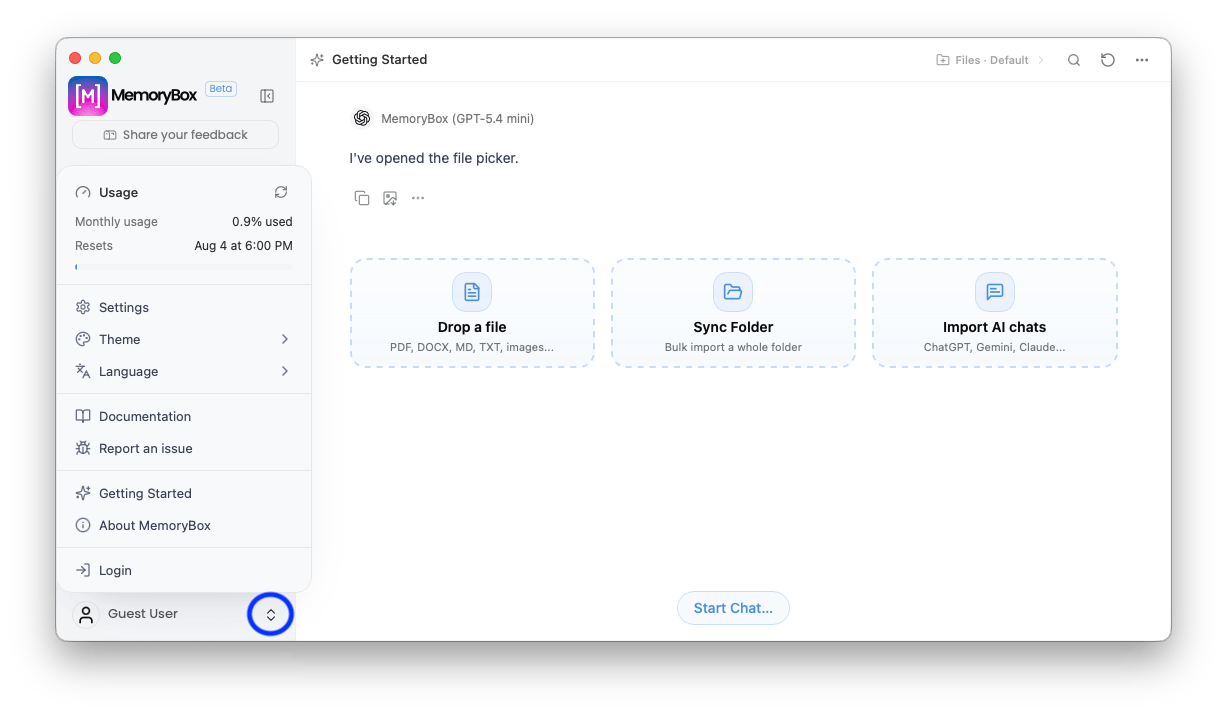
Clicking the expand/collapse carets on your user profile badge in the bottom-left corner unfolds a comprehensive system navigation and account maintenance panel.
 ### Preference Panel Elements
| Element | Description |
| :------------------ | :----------------------------------------------------------------------------------------------------------------------------------------------------------------------------------------------------- |
| **Usage Telemetry** | A dedicated resource monitor displaying active percentage metrics for monthly compute/token resource consumption, alongside the exact reset date and timestamp for the next automated counter refresh. |
| **Settings** | Launches the main three-tab dashboard configuration window to manage local data engines, storage locations, and platform models. |
| **Theme** | Provides single-click adjustments to seamlessly shift your desktop layout appearance between **Light**, **Dark**, or **System** styling rules. |
| **Language** | Manually overrides interface text string localization, supporting English, 简体中文 (Simplified Chinese), and System Default. |
| **Documentation** | Links out directly to your localized user manuals and developer documentation guide tracks. |
| **Report an issue** | Opens a standard tracking interface to submit application bugs, console error stacks, or performance logs. |
| **Login / Logout** | Manages your account identity credentials, secure licensing keys, and cloud synchronization profiles. |
***
## 🚀 Native Context Onboarding
Selecting the **Getting Started** link from the preferences drawer opens a native platform configuration workspace. This serves as an alternative to the initial conversational thread wizard, providing three explicit, clickable cards to load data into your local environment:
### Preference Panel Elements
| Element | Description |
| :------------------ | :----------------------------------------------------------------------------------------------------------------------------------------------------------------------------------------------------- |
| **Usage Telemetry** | A dedicated resource monitor displaying active percentage metrics for monthly compute/token resource consumption, alongside the exact reset date and timestamp for the next automated counter refresh. |
| **Settings** | Launches the main three-tab dashboard configuration window to manage local data engines, storage locations, and platform models. |
| **Theme** | Provides single-click adjustments to seamlessly shift your desktop layout appearance between **Light**, **Dark**, or **System** styling rules. |
| **Language** | Manually overrides interface text string localization, supporting English, 简体中文 (Simplified Chinese), and System Default. |
| **Documentation** | Links out directly to your localized user manuals and developer documentation guide tracks. |
| **Report an issue** | Opens a standard tracking interface to submit application bugs, console error stacks, or performance logs. |
| **Login / Logout** | Manages your account identity credentials, secure licensing keys, and cloud synchronization profiles. |
***
## 🚀 Native Context Onboarding
Selecting the **Getting Started** link from the preferences drawer opens a native platform configuration workspace. This serves as an alternative to the initial conversational thread wizard, providing three explicit, clickable cards to load data into your local environment:
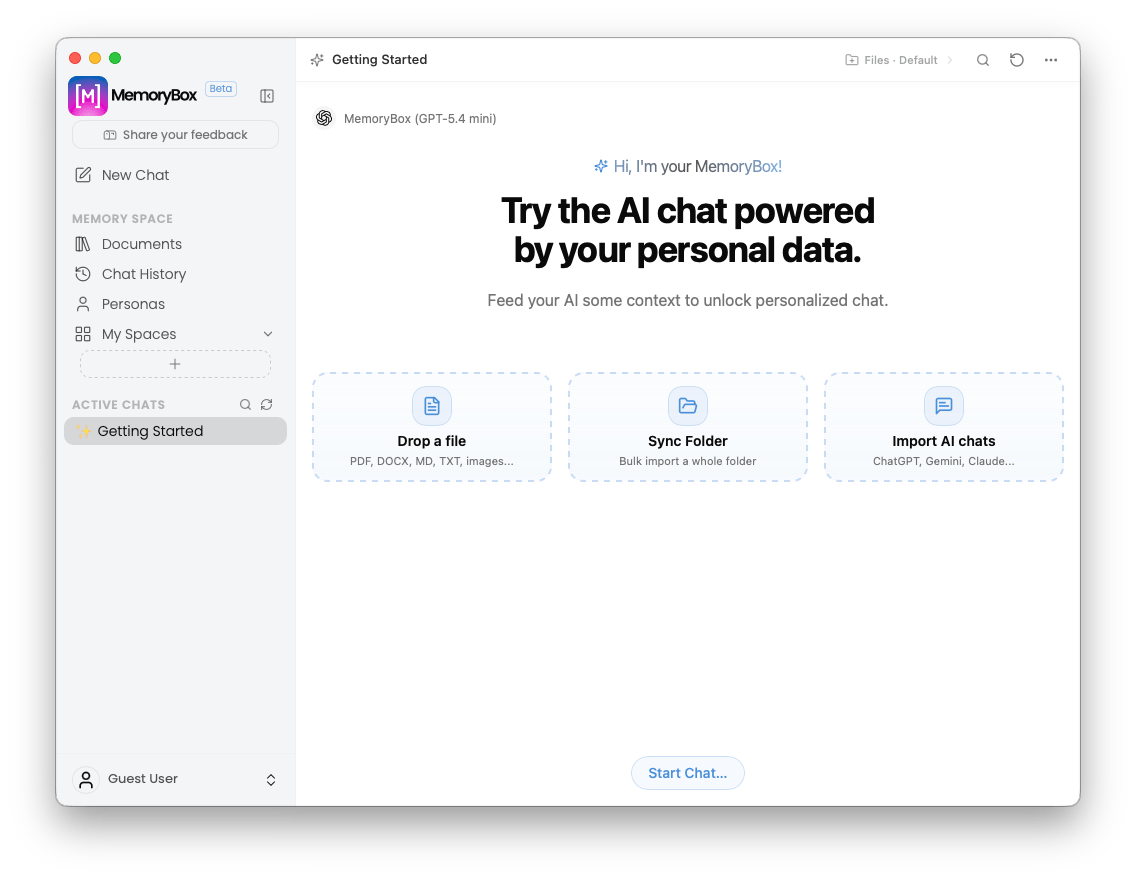 1. **Drop a file:** A localized zone supporting direct drag-and-drop actions for files including PDF, DOCX, MD, TXT, and images.
2. **Sync Folder:** A file-system explorer portal to select an entire directory folder for automated bulk ingestion.
3. **Import AI chats:** A specialized historical utility designed to map data archives downloaded from web-based providers (like ChatGPT, Gemini, or Claude).
***
## ⚙️ App Settings Architecture
Clicking the **Settings** selection within the panel exposes a centralized configuration suite. This layout separates parameters into three discrete, easy-to-use tabs:
Manage your profile identity, launch states, application behaviors, and custom global keyboard shortcut rules.
Configure your local memory store file directories, indexing properties, and storage destinations.
Manage your available model endpoints, API credentials, and specialized AI expert matrices.
***
## ℹ️ Version Integrity
Selecting **About MemoryBox** from the profile menu launches an explicit identity card displaying current desktop platform builds.
1. **Drop a file:** A localized zone supporting direct drag-and-drop actions for files including PDF, DOCX, MD, TXT, and images.
2. **Sync Folder:** A file-system explorer portal to select an entire directory folder for automated bulk ingestion.
3. **Import AI chats:** A specialized historical utility designed to map data archives downloaded from web-based providers (like ChatGPT, Gemini, or Claude).
***
## ⚙️ App Settings Architecture
Clicking the **Settings** selection within the panel exposes a centralized configuration suite. This layout separates parameters into three discrete, easy-to-use tabs:
Manage your profile identity, launch states, application behaviors, and custom global keyboard shortcut rules.
Configure your local memory store file directories, indexing properties, and storage destinations.
Manage your available model endpoints, API credentials, and specialized AI expert matrices.
***
## ℹ️ Version Integrity
Selecting **About MemoryBox** from the profile menu launches an explicit identity card displaying current desktop platform builds.
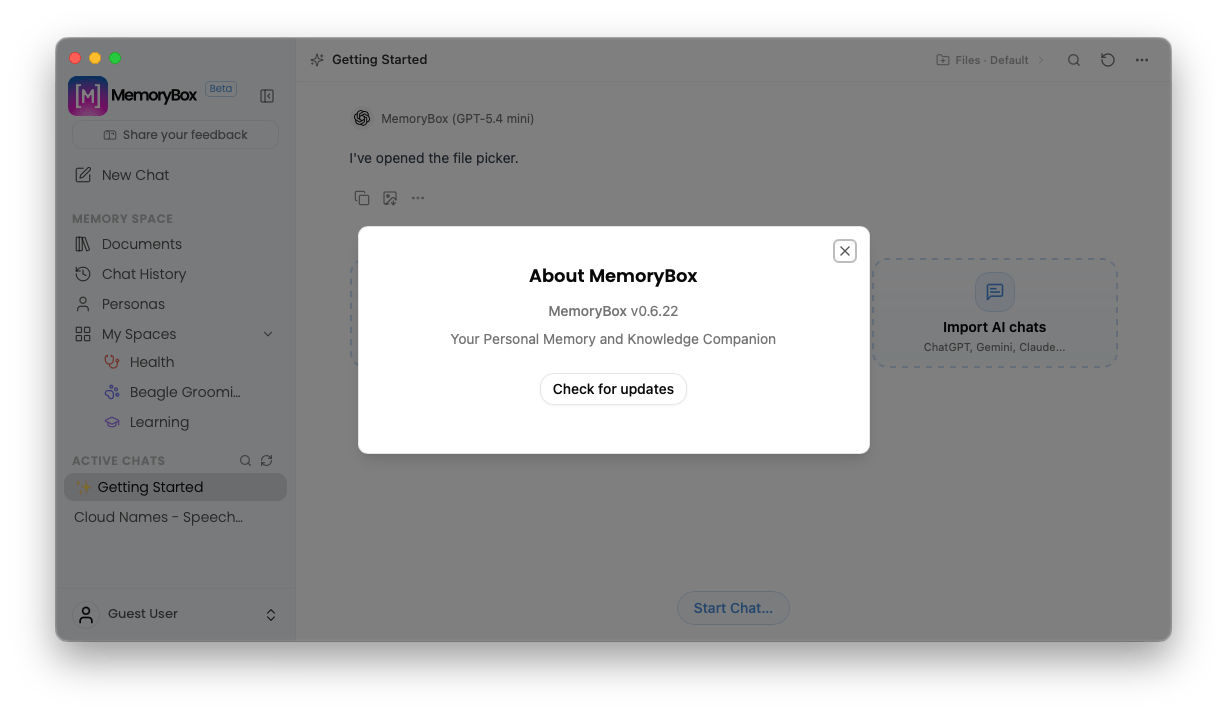 This card provides clear traceability by displaying the precise app core version (e.g., `v0.6.22`). It features a **Check for updates** tool that allows you to manually ping distribution networks to verify that your system is running the latest stable build.
***
**The Global Shortcut:** One of the most powerful features found within your General settings is the ability to record a custom global shortcut (defaulting to `Control + Alt + Shift + M`). This configuration binds a system-wide hotkey sequence, ensuring MemoryBox is always one keystroke away regardless of what application you are currently running.
This card provides clear traceability by displaying the precise app core version (e.g., `v0.6.22`). It features a **Check for updates** tool that allows you to manually ping distribution networks to verify that your system is running the latest stable build.
***
**The Global Shortcut:** One of the most powerful features found within your General settings is the ability to record a custom global shortcut (defaulting to `Control + Alt + Shift + M`). This configuration binds a system-wide hotkey sequence, ensuring MemoryBox is always one keystroke away regardless of what application you are currently running.