> ## Documentation Index
> Fetch the complete documentation index at: https://docs.memorybox.ai/llms.txt
> Use this file to discover all available pages before exploring further.
# Apps Workspace
> Generate, import, configure, and manage sandboxed MemoryBox applications and AI tools.
## Overview
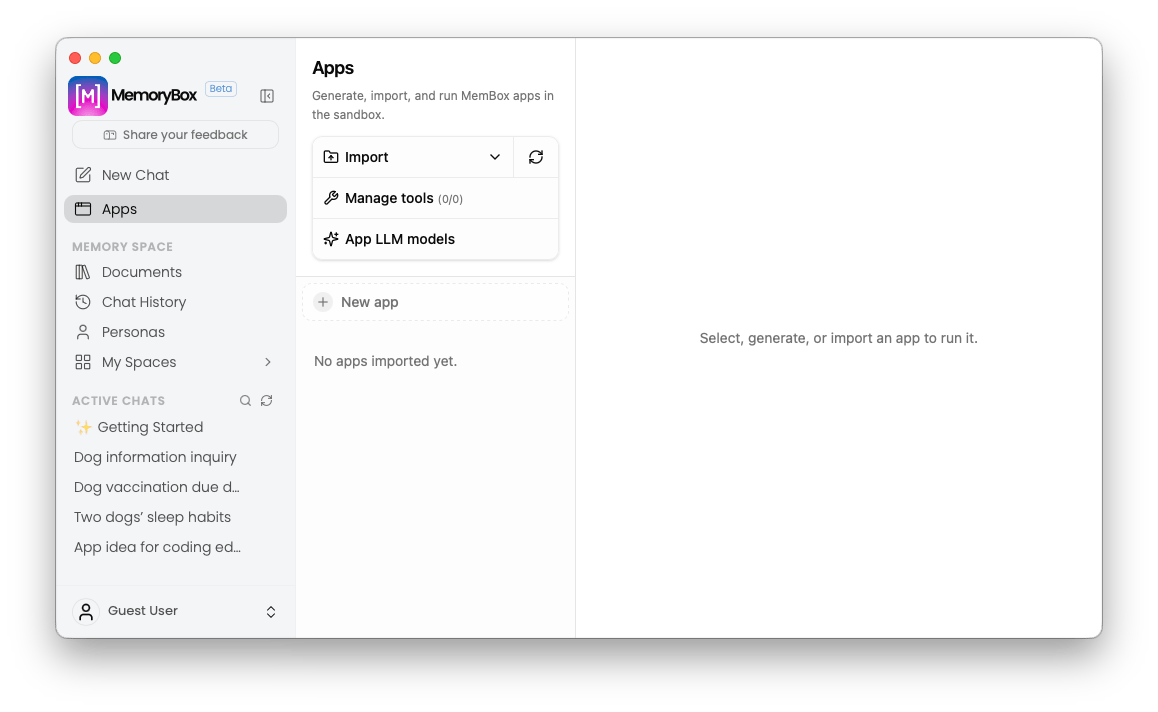
The **Apps** workspace allows you to generate, import, and run sandboxed MemoryBox applications. Beyond standalone interfaces, Apps give your AI chat models powerful backend capabilities—such as executing JavaScript tools or reading and writing key-value (KV) storage—directly within your chat interactions.
 ***
## 🛠️ Global App Utilities & Management
Located at the top of the left navigation pane, these controls allow you to import external applications, configure chat tool permissions, and map LLM model tiers.
### 1. Import App Options
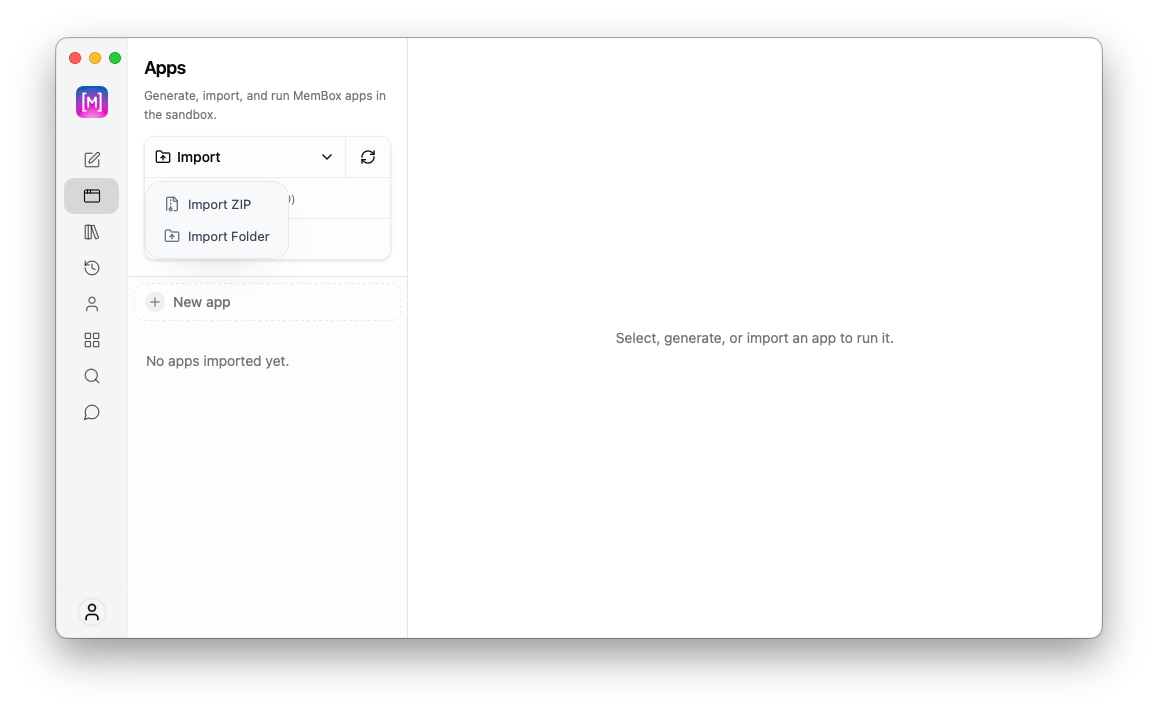
Clicking the **Import** dropdown menu provides two pathways to load pre-built MemoryBox applications into your local environment, plus a refresh control:
* **Import ZIP:** Loads a packed application archive directly into the sandbox.
* **Import Folder:** Imports an uncompressed local directory containing app manifests and source code.
* **Refresh (Icon):** Scans and updates your imported app list.
***
## 🛠️ Global App Utilities & Management
Located at the top of the left navigation pane, these controls allow you to import external applications, configure chat tool permissions, and map LLM model tiers.
### 1. Import App Options
Clicking the **Import** dropdown menu provides two pathways to load pre-built MemoryBox applications into your local environment, plus a refresh control:
* **Import ZIP:** Loads a packed application archive directly into the sandbox.
* **Import Folder:** Imports an uncompressed local directory containing app manifests and source code.
* **Refresh (Icon):** Scans and updates your imported app list.
 ### 2. Tool Management Modal
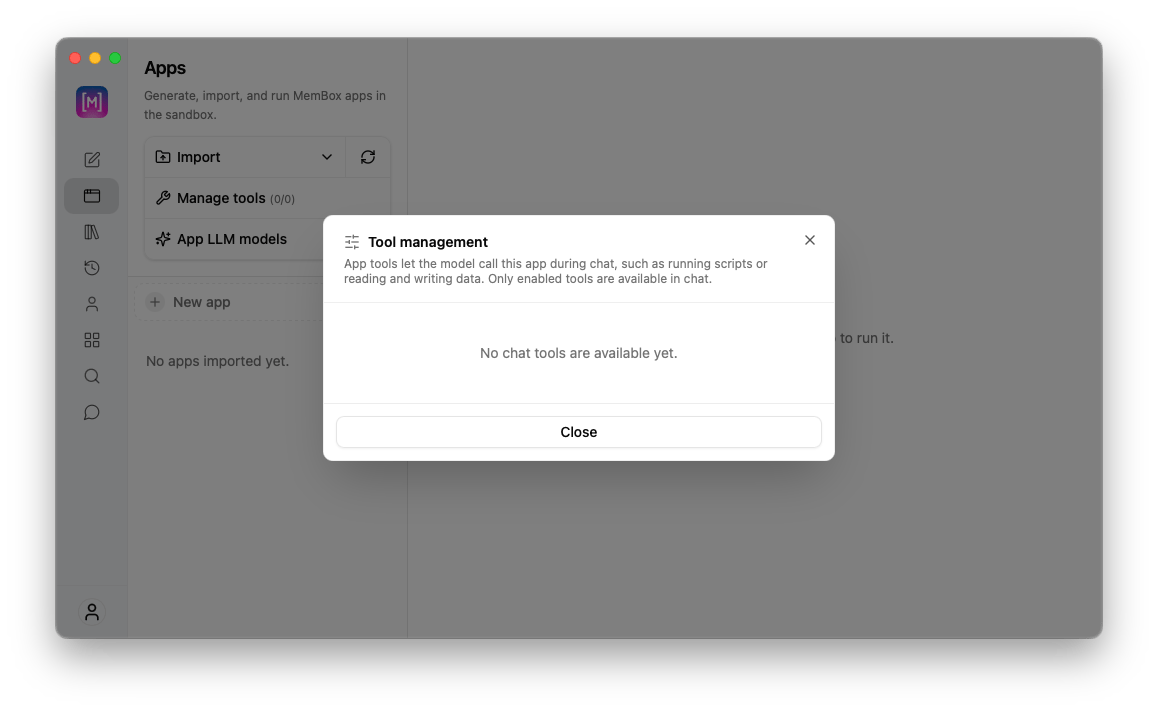
Clicking **Manage tools** opens a centralized modal governing which app tools are active across your workspace:
* **Chat Tools:** App tools enable the model to call an app during active chat sessions (e.g., executing scripts or reading/writing persistent data).
* **Control:** Only explicitly enabled tools are exposed to models during chat.
### 2. Tool Management Modal
Clicking **Manage tools** opens a centralized modal governing which app tools are active across your workspace:
* **Chat Tools:** App tools enable the model to call an app during active chat sessions (e.g., executing scripts or reading/writing persistent data).
* **Control:** Only explicitly enabled tools are exposed to models during chat.
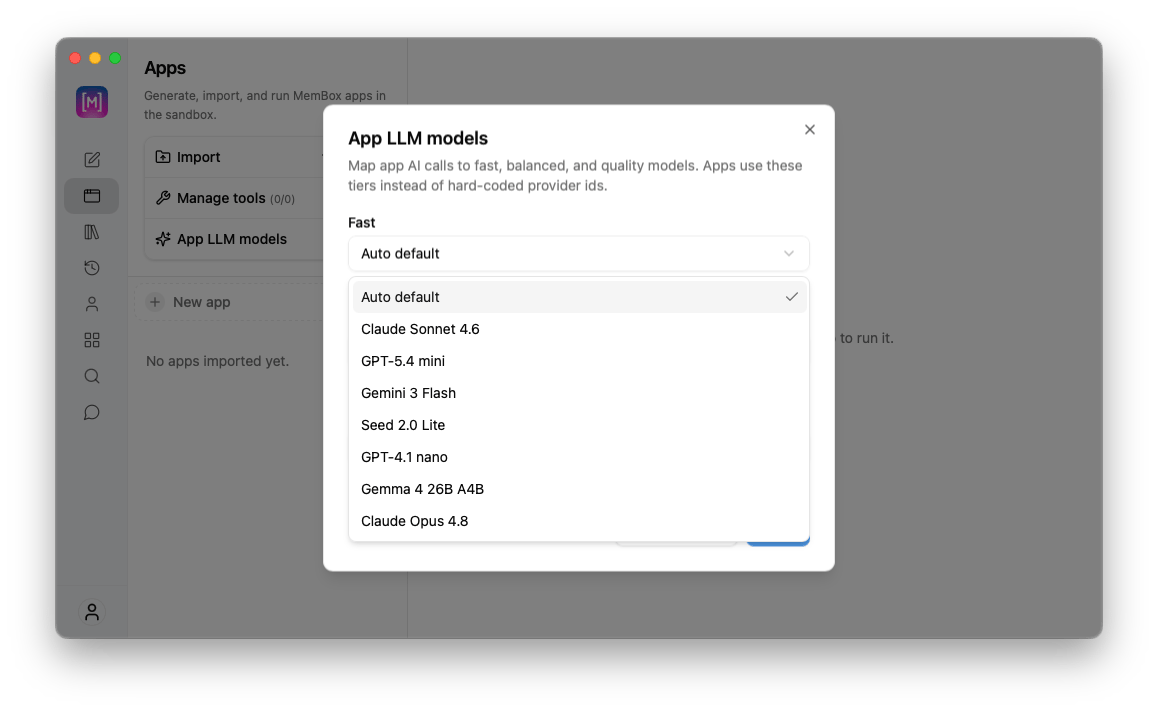
 ### 3. App LLM Models Mapping
Clicking **App LLM models** opens a mapping modal that routes generic tier requests from Apps to specific LLM models. Instead of hard-coding provider IDs into app code, Apps call abstract performance tiers:
* **Fast:** Used for short classifications, lightweight text extraction, and quick drafts.
* **Balanced:** The default model mapping for everyday AI app workflows.
* **Quality:** Assigned to complex tasks requiring longer reasoning, detailed summaries, or JSON extraction.
You can customize the model dropdown assignments for each tier (selecting options like `Claude Sonnet 4.6`, `GPT-5.4 mini`, `Gemini 3 Flash`, etc.) or click **Reset to Auto** to restore platform defaults.
### 3. App LLM Models Mapping
Clicking **App LLM models** opens a mapping modal that routes generic tier requests from Apps to specific LLM models. Instead of hard-coding provider IDs into app code, Apps call abstract performance tiers:
* **Fast:** Used for short classifications, lightweight text extraction, and quick drafts.
* **Balanced:** The default model mapping for everyday AI app workflows.
* **Quality:** Assigned to complex tasks requiring longer reasoning, detailed summaries, or JSON extraction.
You can customize the model dropdown assignments for each tier (selecting options like `Claude Sonnet 4.6`, `GPT-5.4 mini`, `Gemini 3 Flash`, etc.) or click **Reset to Auto** to restore platform defaults.
 ***
## ⚡ App Workspace & App Builder
Clicking **+ New app** opens the side drawer **App workspace**, where you can describe and generate custom applications using natural language.
***
## ⚡ App Workspace & App Builder
Clicking **+ New app** opens the side drawer **App workspace**, where you can describe and generate custom applications using natural language.
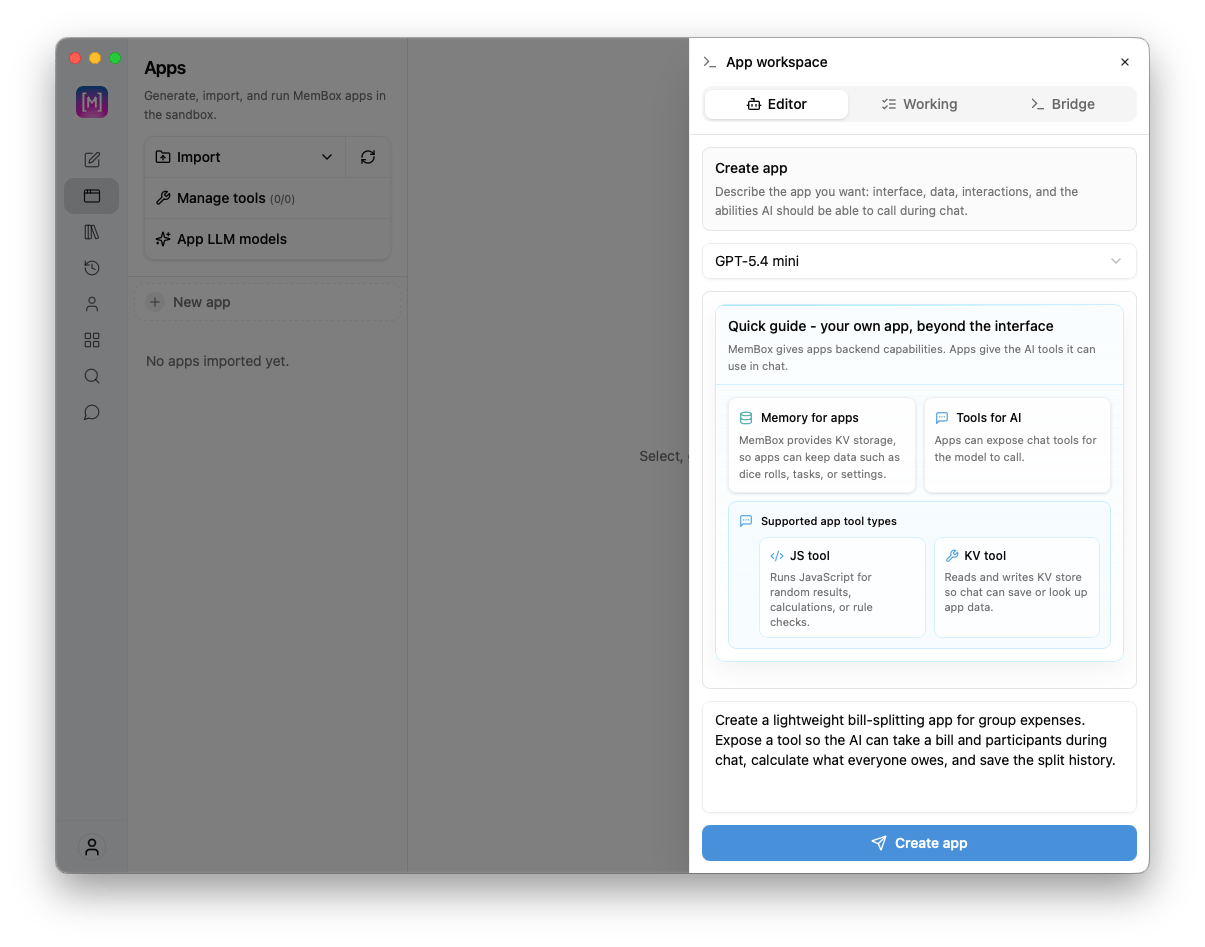 ### Workspace Navigation Tabs
The App workspace contains three operational tabs at the top of the panel:
1. **Editor Tab:**
* **Prompt Input:** Describe the application interface, data needs, and capabilities you want the AI to call during chat (e.g., *"Create a lightweight bill-splitting app for group expenses..."*).
* **Model Selection:** Choose the generation model powering the App Builder (e.g., `GPT-5.4 mini`).
* **Quick Guide Overview:** Displays supported capabilities including **Memory for apps** (KV storage to retain data like dice rolls or task lists) and **Supported tool types** (**JS tool** for calculations/rule checks and **KV tool** for saving or looking up app state).
* **Create app Button:** Triggers app generation based on your prompt.
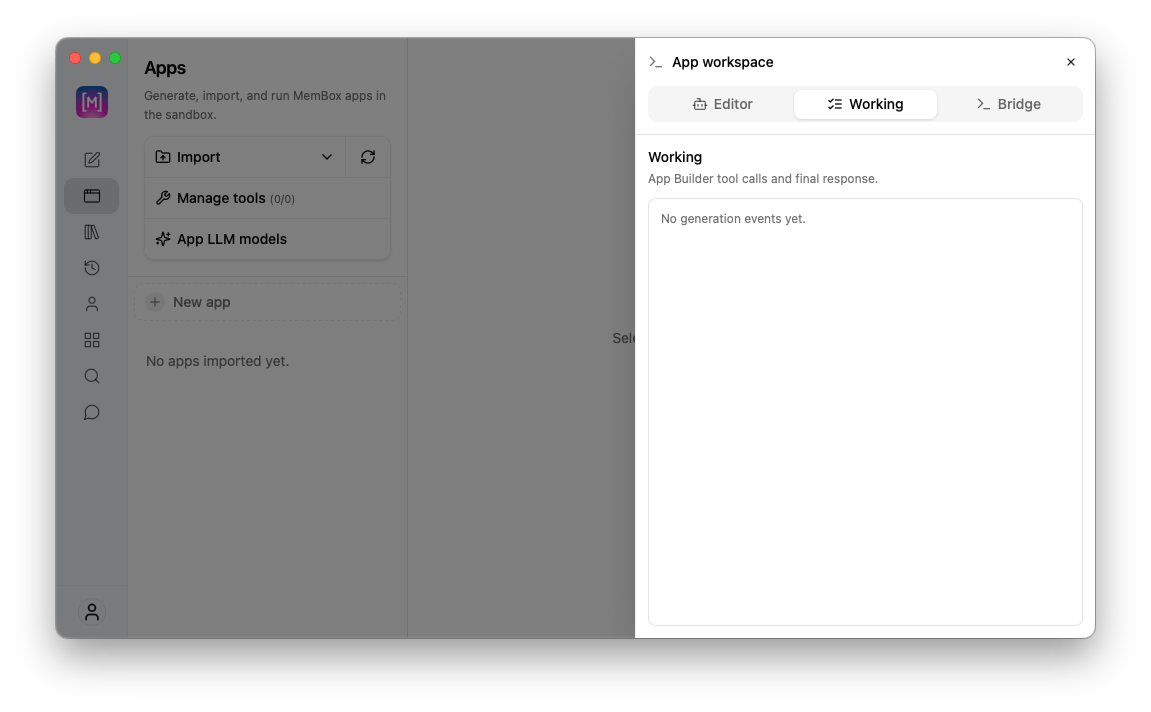
2. **Working Tab:**
* Displays the real-time event log for App Builder tool calls, intermediate output streams, and final generation responses.
### Workspace Navigation Tabs
The App workspace contains three operational tabs at the top of the panel:
1. **Editor Tab:**
* **Prompt Input:** Describe the application interface, data needs, and capabilities you want the AI to call during chat (e.g., *"Create a lightweight bill-splitting app for group expenses..."*).
* **Model Selection:** Choose the generation model powering the App Builder (e.g., `GPT-5.4 mini`).
* **Quick Guide Overview:** Displays supported capabilities including **Memory for apps** (KV storage to retain data like dice rolls or task lists) and **Supported tool types** (**JS tool** for calculations/rule checks and **KV tool** for saving or looking up app state).
* **Create app Button:** Triggers app generation based on your prompt.
2. **Working Tab:**
* Displays the real-time event log for App Builder tool calls, intermediate output streams, and final generation responses.
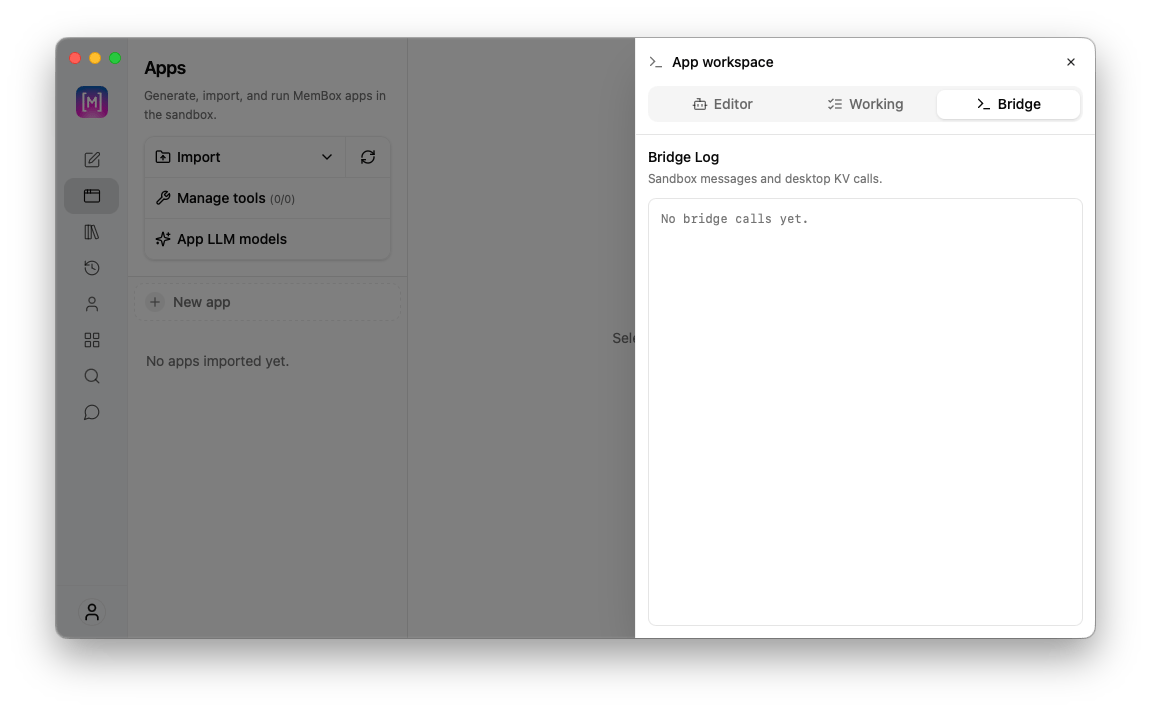
 3. **Bridge Tab:**
* Displays low-level sandbox execution logs, tracking active desktop key-value (KV) calls and message exchanges between the app and the host desktop client.
3. **Bridge Tab:**
* Displays low-level sandbox execution logs, tracking active desktop key-value (KV) calls and message exchanges between the app and the host desktop client.