> ## Documentation Index
> Fetch the complete documentation index at: https://docs.memorybox.ai/llms.txt
> Use this file to discover all available pages before exploring further.
# Chat History
> Audit, filter, and continue past conversational sessions across your integrated AI platforms.
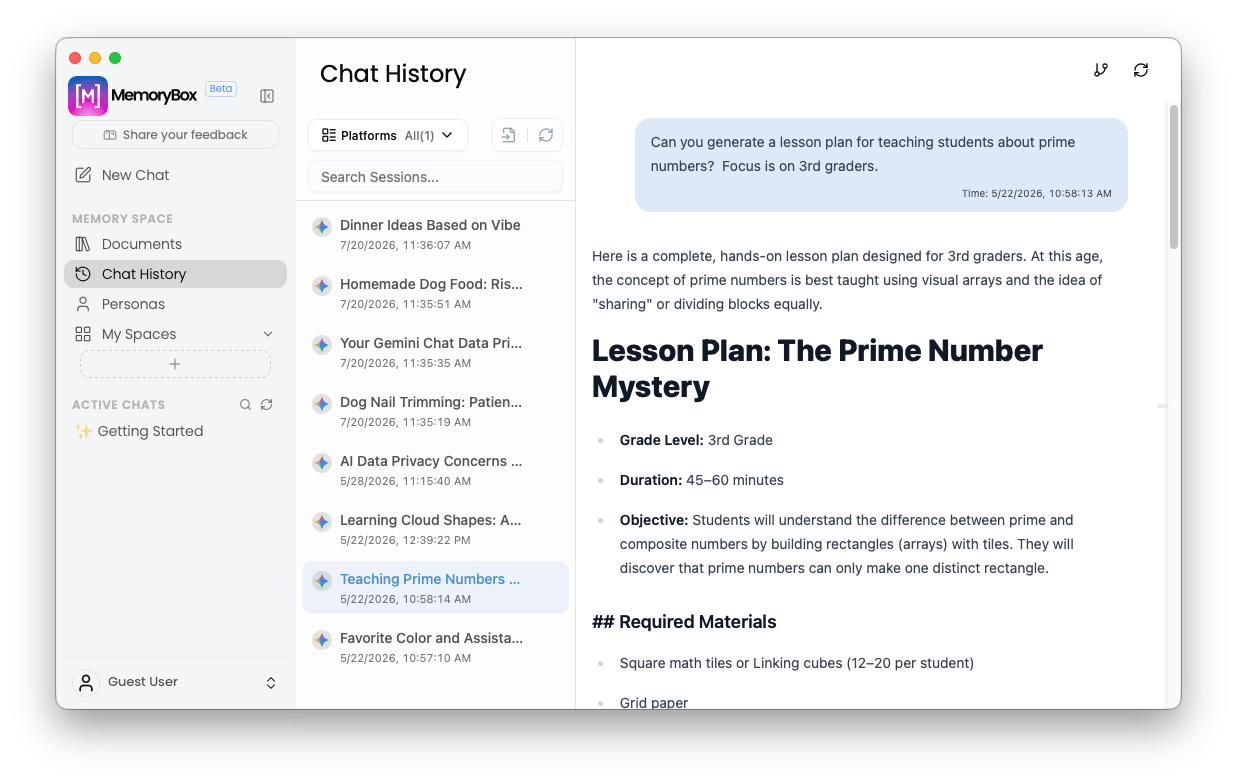
The **Chat History** dashboard serves as your central repository for auditing, searching, and continuing past conversational sessions across your integrated AI platforms. Instead of jumping between disconnected web interfaces, this module centralizes your conversational ledger directly inside your local **Memory Space** layer.
 ***
## 🖥️ Dashboard Architecture & Workflows
The interface uses a multi-column management console to track your historical interactions without cloud dependency:
### 1. Searching and Filtering
* **Cross-Platform Filtering:** Use the **Platforms** dropdown toolbar selector to filter your historical ledger by specific AI engines or view your unified timeline all at once.
* **Instant Session Search:** Type keywords into the **Search Sessions...** input field to instantly parse historical conversation titles and find past topics.
### 2. Managing Your Timeline
* **Chronological Tracking:** Past threads (such as *Learning Cloud Shapes* or *Teaching Prime Numbers*) are displayed in a scrollable left-hand sub-pane complete with their exact generation dates and timestamps.
* **Continuous Resyncing:** Use the inline layout sync and refresh icons in the top right to instantly update your session ledger and pull down recent conversational data.
***
## ⚙️ Thread-Level Options & Target Actions
Hovering over any historical entry item within your scrollable timeline ledger surfaces an explicit **Three-Dots Context Button (`...`)**. Clicking this button opens a localized context menu providing row-level utility configurations:
***
## 🖥️ Dashboard Architecture & Workflows
The interface uses a multi-column management console to track your historical interactions without cloud dependency:
### 1. Searching and Filtering
* **Cross-Platform Filtering:** Use the **Platforms** dropdown toolbar selector to filter your historical ledger by specific AI engines or view your unified timeline all at once.
* **Instant Session Search:** Type keywords into the **Search Sessions...** input field to instantly parse historical conversation titles and find past topics.
### 2. Managing Your Timeline
* **Chronological Tracking:** Past threads (such as *Learning Cloud Shapes* or *Teaching Prime Numbers*) are displayed in a scrollable left-hand sub-pane complete with their exact generation dates and timestamps.
* **Continuous Resyncing:** Use the inline layout sync and refresh icons in the top right to instantly update your session ledger and pull down recent conversational data.
***
## ⚙️ Thread-Level Options & Target Actions
Hovering over any historical entry item within your scrollable timeline ledger surfaces an explicit **Three-Dots Context Button (`...`)**. Clicking this button opens a localized context menu providing row-level utility configurations:
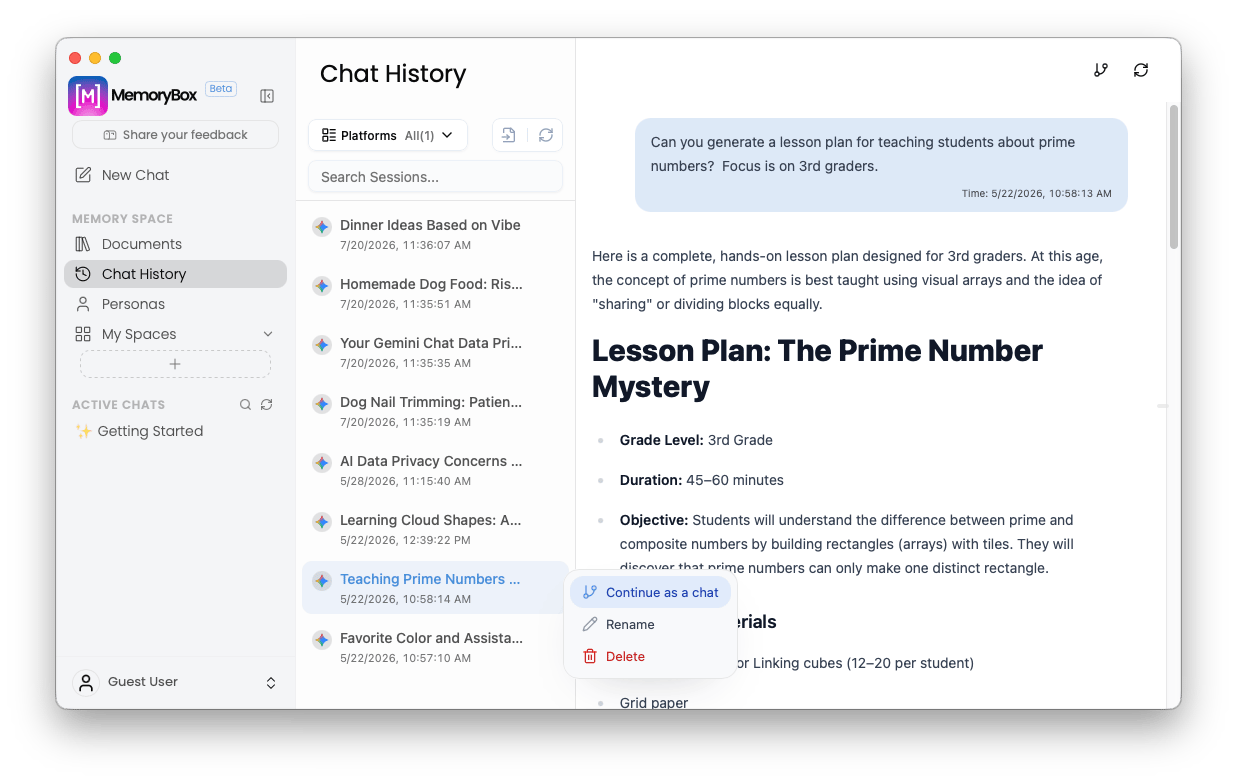 * **Continue as a chat:** Re-activates the historical stream, loading its saved context directly into the main workspace composer so you can seamlessly resume the live multi-turn dialogue loop.
* **Rename:** Highlights the title string metadata locally, allowing you to quickly rename the conversation thread reference without altering any historical log indices.
* **Delete:** Triggers an isolated deletion pipeline to drop the session tracking footprint completely from your local environment.
### Safety Confirmation Dialog
To prevent unintended historical data removal, clicking **Delete** opens a structural workspace confirmation overlay modal:
* **Continue as a chat:** Re-activates the historical stream, loading its saved context directly into the main workspace composer so you can seamlessly resume the live multi-turn dialogue loop.
* **Rename:** Highlights the title string metadata locally, allowing you to quickly rename the conversation thread reference without altering any historical log indices.
* **Delete:** Triggers an isolated deletion pipeline to drop the session tracking footprint completely from your local environment.
### Safety Confirmation Dialog
To prevent unintended historical data removal, clicking **Delete** opens a structural workspace confirmation overlay modal:
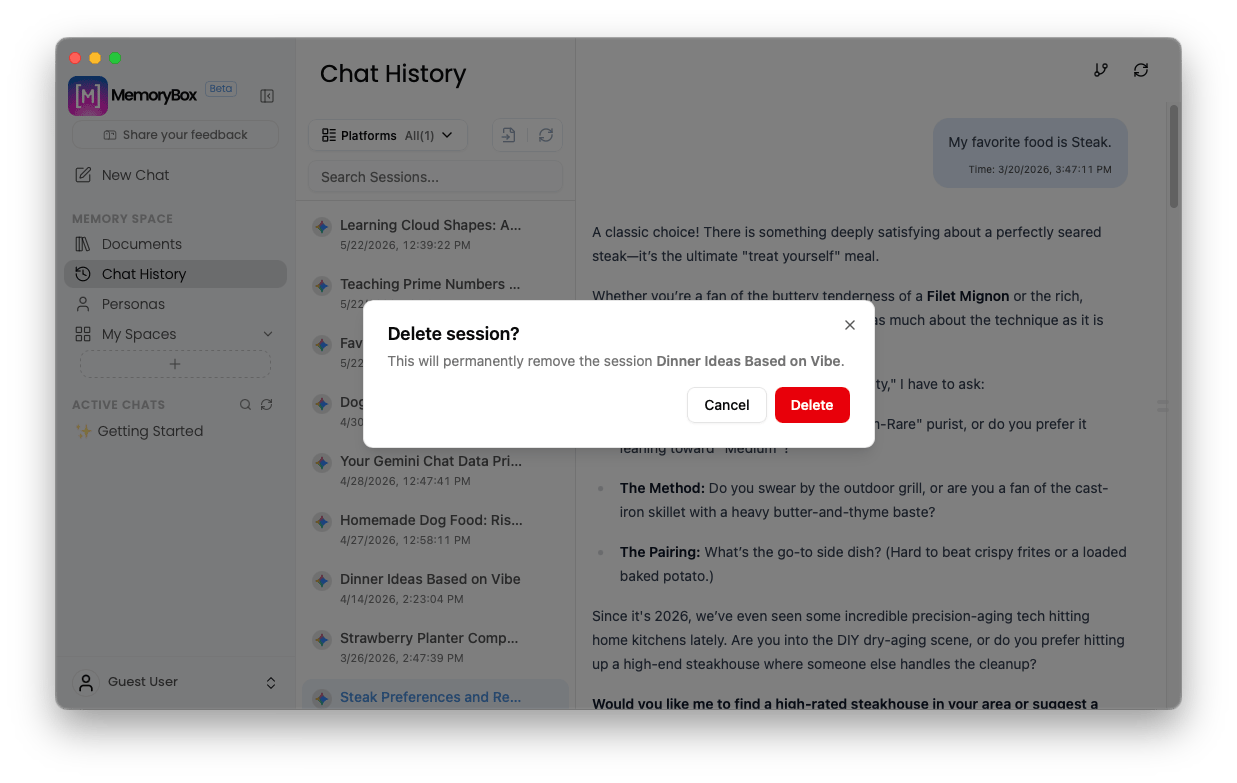 **Irreversible Context Purge:** Confirming a session deletion permanently wipes the targeted history logs and removes its associated context timeline map from your active MemoryBox installation file database. This action cannot be undone.
***
## 📥 Ingesting External Chats: The Import Data Console
If you want to bring historical conversations from other AI platforms into your local machine, click the import data button next to the platform filters. This opens a modal containing three targeted synchronization tracks:
**Irreversible Context Purge:** Confirming a session deletion permanently wipes the targeted history logs and removes its associated context timeline map from your active MemoryBox installation file database. This action cannot be undone.
***
## 📥 Ingesting External Chats: The Import Data Console
If you want to bring historical conversations from other AI platforms into your local machine, click the import data button next to the platform filters. This opens a modal containing three targeted synchronization tracks:
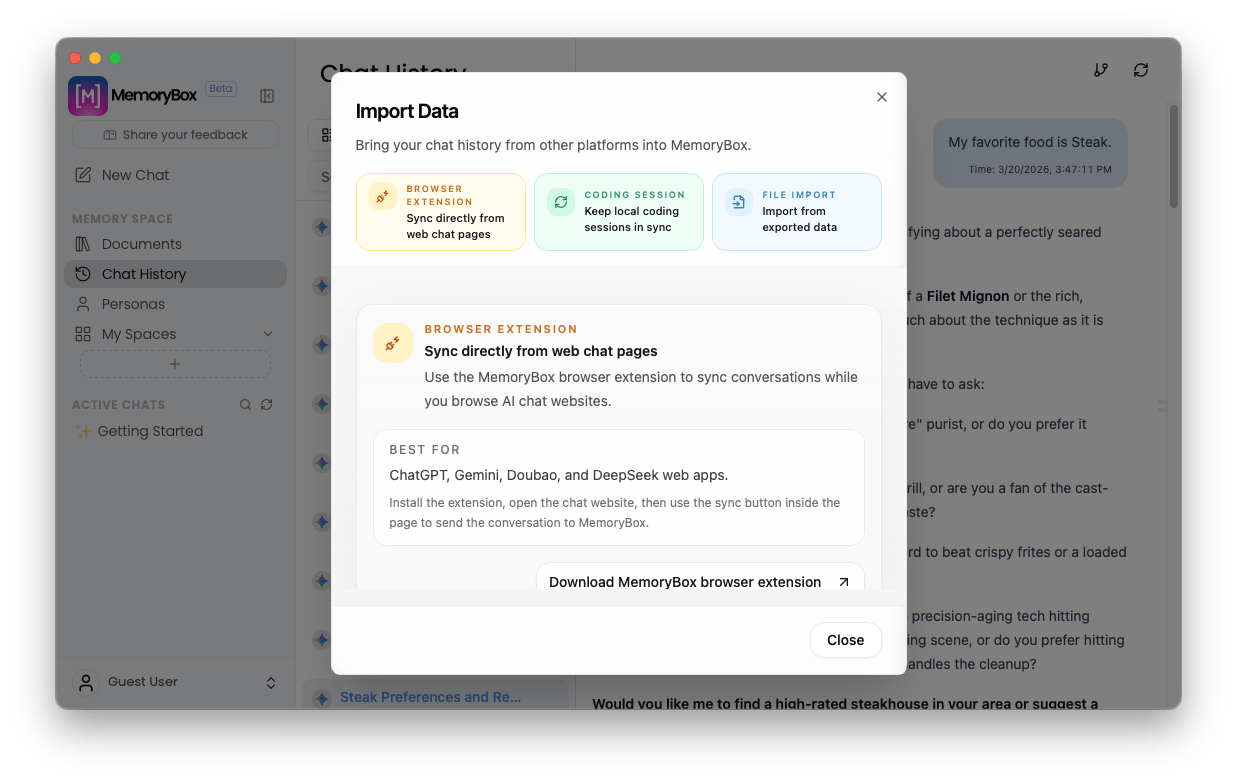 ### Track 1: Browser Extension (Automated Web Sync)
Designed for automated syncing while you browse web-based AI tools.
* **Supported Platforms:** Optimized for ChatGPT, Gemini, Doubao, and DeepSeek web apps.
* **Workflow:** Install the extension, open your preferred AI web application, and click the inline sync button inside the web page to relay conversations directly down to your local desktop vault.
### Track 2: Coding Session Sync
A specialized real-time background monitor tailored for developer workspaces.
* **Supported Engines:** Features toggle selectors for **Claude Code auto-sync** and **Codex auto-sync**.
* **Workflow:** Flipping the **Auto-sync** toggle instructs MemoryBox to automatically watch your active developer coding environments, updating the sessions list continuously over time. You can check the **Full sync** checkbox to capture historical code logs.
### Track 3: File Import (Manual Archive Package Parsing)
A manual backup pipeline designed to ingest static historical archive exports.
* **Supported Formats:** Accepts platform-specific export packages (such as official ChatGPT export `.zip` or `.json` archives).
* **Workflow:** Choose your target platform from the dropdown menu, locate your data export archive from your local filesystem, and click **Import** to parse the content.
***
## 🌐 The Extension Sync Process
When running a web sync via the browser extension companion, the system initializes an interactive synchronization module enabling granular queue tracking alongside background execution options:
### 1. The Active Sync Manifest
The extension modal provides real-time validation states of your selected threads before and during the migration pipeline:
### Track 1: Browser Extension (Automated Web Sync)
Designed for automated syncing while you browse web-based AI tools.
* **Supported Platforms:** Optimized for ChatGPT, Gemini, Doubao, and DeepSeek web apps.
* **Workflow:** Install the extension, open your preferred AI web application, and click the inline sync button inside the web page to relay conversations directly down to your local desktop vault.
### Track 2: Coding Session Sync
A specialized real-time background monitor tailored for developer workspaces.
* **Supported Engines:** Features toggle selectors for **Claude Code auto-sync** and **Codex auto-sync**.
* **Workflow:** Flipping the **Auto-sync** toggle instructs MemoryBox to automatically watch your active developer coding environments, updating the sessions list continuously over time. You can check the **Full sync** checkbox to capture historical code logs.
### Track 3: File Import (Manual Archive Package Parsing)
A manual backup pipeline designed to ingest static historical archive exports.
* **Supported Formats:** Accepts platform-specific export packages (such as official ChatGPT export `.zip` or `.json` archives).
* **Workflow:** Choose your target platform from the dropdown menu, locate your data export archive from your local filesystem, and click **Import** to parse the content.
***
## 🌐 The Extension Sync Process
When running a web sync via the browser extension companion, the system initializes an interactive synchronization module enabling granular queue tracking alongside background execution options:
### 1. The Active Sync Manifest
The extension modal provides real-time validation states of your selected threads before and during the migration pipeline:
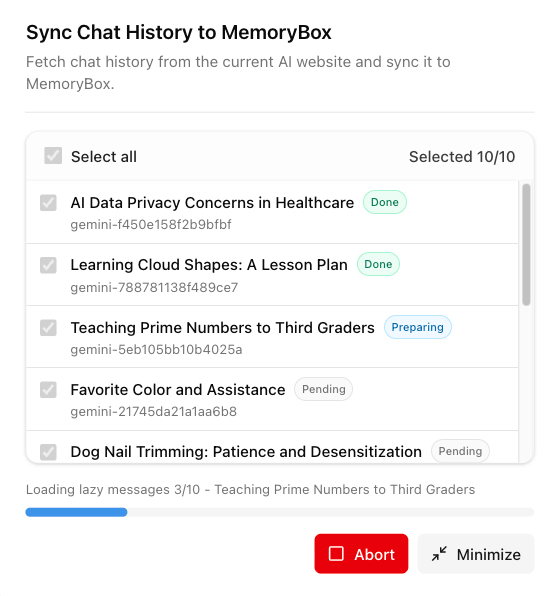 * **Select all:** A bulk master checkbox displaying an active selection counter (e.g., `Selected 10/10`).
* **Thread Identifiers:** Thread titles mapped to explicit internal local reference hashes (e.g., `gemini-f450e158...`).
* **Live Status Chips:** Visual trackers displaying processing phases, switching from **Pending** to **Preparing**, and turning green once fully marked as **Done**.
* **Action Controls:** Hit the red **Abort** button to cancel the queue immediately, or select the **Minimize** command button to clear the primary window viewport.
### 2. Minimized Background Execution Layout
Clicking **Minimize** cleanly reduces the data transmission display down into a non-intrusive floating control token component. This lets you monitor synchronization states out of your way while continuing your web work:
* **Select all:** A bulk master checkbox displaying an active selection counter (e.g., `Selected 10/10`).
* **Thread Identifiers:** Thread titles mapped to explicit internal local reference hashes (e.g., `gemini-f450e158...`).
* **Live Status Chips:** Visual trackers displaying processing phases, switching from **Pending** to **Preparing**, and turning green once fully marked as **Done**.
* **Action Controls:** Hit the red **Abort** button to cancel the queue immediately, or select the **Minimize** command button to clear the primary window viewport.
### 2. Minimized Background Execution Layout
Clicking **Minimize** cleanly reduces the data transmission display down into a non-intrusive floating control token component. This lets you monitor synchronization states out of your way while continuing your web work:
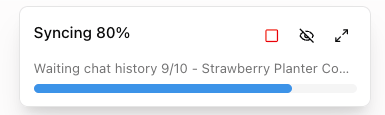 * **Real-time Percentage:** Displays a persistent digital tracking state (e.g., `Syncing 80%`) alongside an active progress tracking timeline rule.
* **Status Readout:** Text strings cycle dynamically to show the active file target currently loading (e.g., `Waiting chat history 9/10 - Strawberry Planter Co...`).
* **Mini Action Orb Tray:** Localized window controllers allow you to quickly **Abort** the transfer, completely **Hide** the tracker visually, or click the expansion arrow command tool to instantly restore the full manifest interface dashboard panel.
***
Now that your historical logs are integrated, proceed to declare execution roles and configure your behavioral AI Expert Personas.
* **Real-time Percentage:** Displays a persistent digital tracking state (e.g., `Syncing 80%`) alongside an active progress tracking timeline rule.
* **Status Readout:** Text strings cycle dynamically to show the active file target currently loading (e.g., `Waiting chat history 9/10 - Strawberry Planter Co...`).
* **Mini Action Orb Tray:** Localized window controllers allow you to quickly **Abort** the transfer, completely **Hide** the tracker visually, or click the expansion arrow command tool to instantly restore the full manifest interface dashboard panel.
***
Now that your historical logs are integrated, proceed to declare execution roles and configure your behavioral AI Expert Personas.