> ## Documentation Index
> Fetch the complete documentation index at: https://docs.memorybox.ai/llms.txt
> Use this file to discover all available pages before exploring further.
# My Spaces
> Isolate, monitor, and partition your localized chat logs and foundational files into dedicated project environments.
## 🛡️ The Sandbox Boundary Layer
A **Memory Space** is a secure context container that prevents cross-contamination of ideas across your different personal and professional roles. Rather than querying your entire historical database, assigning a conversation or file to a specific space forces the underlying intelligence to prioritize and reason strictly over the information approved for that project boundary.
The main dashboard within any active space is broken into three centralized monitoring tabs: **Overview**, **Episodes**, and **Documents**.
***
## 🏗️ Initializing and Provisioning Memory Spaces
MemoryBox establishes a dual-track initialization structure depending on whether you are running a clean fallback canvas or building out an expansion matrix:
### 1. The Built-in Universal Space (Default Canvas)
Upon initial boot, the system automatically spins up a core master environment called the **Universal** space.
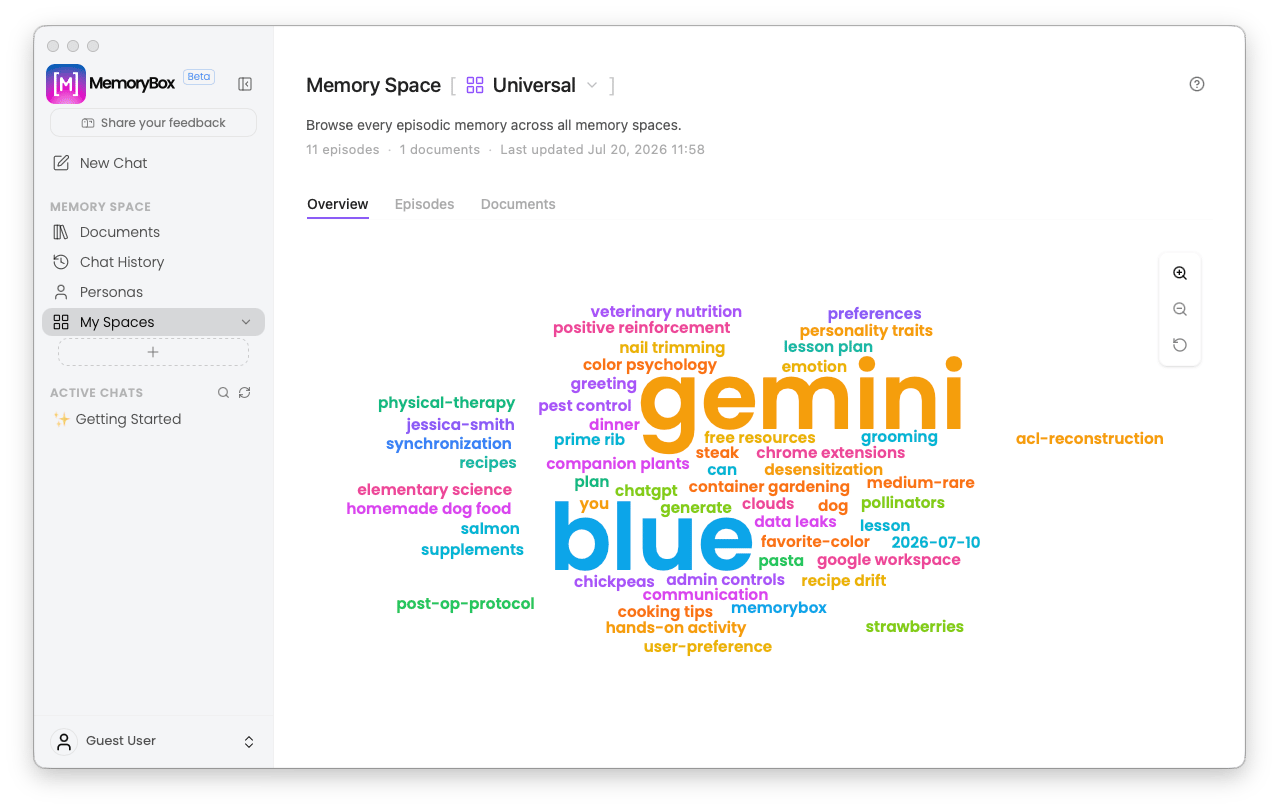 * **Out-of-the-Box Home Base:** The Universal space serves as your unified catch-all repository layer before you establish isolated segments.
* **Onboarding Quick-Link:** Notice the question mark help icon `(?)` in the top right header. Clicking this button at any time serves as a non-intrusive escape hatch to re-launch the full visual onboarding walkthrough layout.
### 2. First-Time Guided Launch (The Setup Wizard)
When you decide to break out of the fallback container and select the **`+` (Plus Sign)** option inside the *My Spaces* sidebar folder, the application triggers a multi-stage modal journey:
* **Out-of-the-Box Home Base:** The Universal space serves as your unified catch-all repository layer before you establish isolated segments.
* **Onboarding Quick-Link:** Notice the question mark help icon `(?)` in the top right header. Clicking this button at any time serves as a non-intrusive escape hatch to re-launch the full visual onboarding walkthrough layout.
### 2. First-Time Guided Launch (The Setup Wizard)
When you decide to break out of the fallback container and select the **`+` (Plus Sign)** option inside the *My Spaces* sidebar folder, the application triggers a multi-stage modal journey:
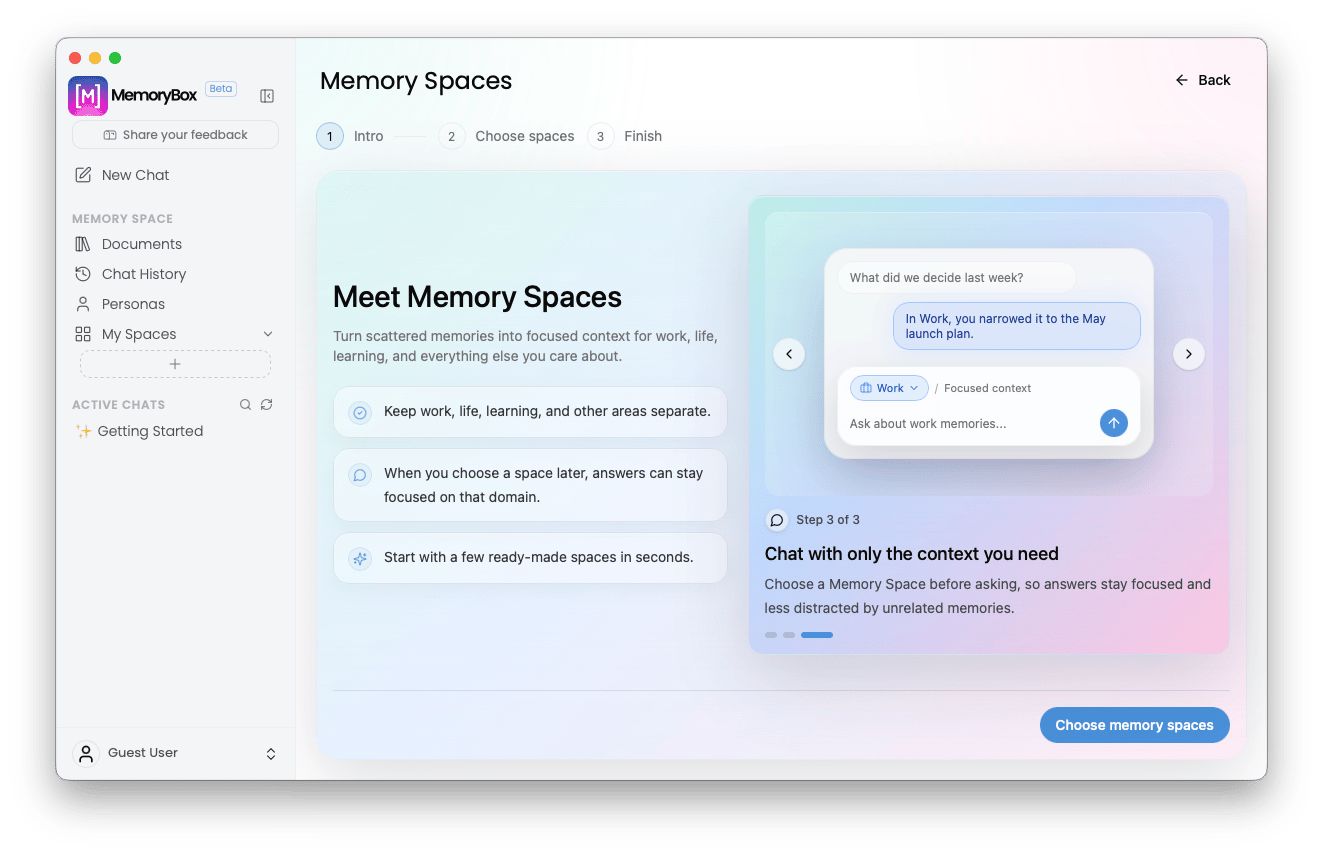 * **Introductory Core Rules:** The interface steps you through the value of domain isolation, showing how localized expert responses remain clean and un-distracted by unrelated background memories.
* **Ready-Made Templates:** The subsequent steps allow you to instantly provision default operational baselines tuned for standard tracks like *Work, Life, Learning, Tech, Ideas, Health, Relationships,* and *Hobbies*.
### 3. Subsequent Ingestion (The Creation Modal Overlay)
Once your initial directory layout is established, selecting the sidebar **`+`** command modifier swaps to a focused tool card overlay optimized for rapid deployment:
* **Introductory Core Rules:** The interface steps you through the value of domain isolation, showing how localized expert responses remain clean and un-distracted by unrelated background memories.
* **Ready-Made Templates:** The subsequent steps allow you to instantly provision default operational baselines tuned for standard tracks like *Work, Life, Learning, Tech, Ideas, Health, Relationships,* and *Hobbies*.
### 3. Subsequent Ingestion (The Creation Modal Overlay)
Once your initial directory layout is established, selecting the sidebar **`+`** command modifier swaps to a focused tool card overlay optimized for rapid deployment:
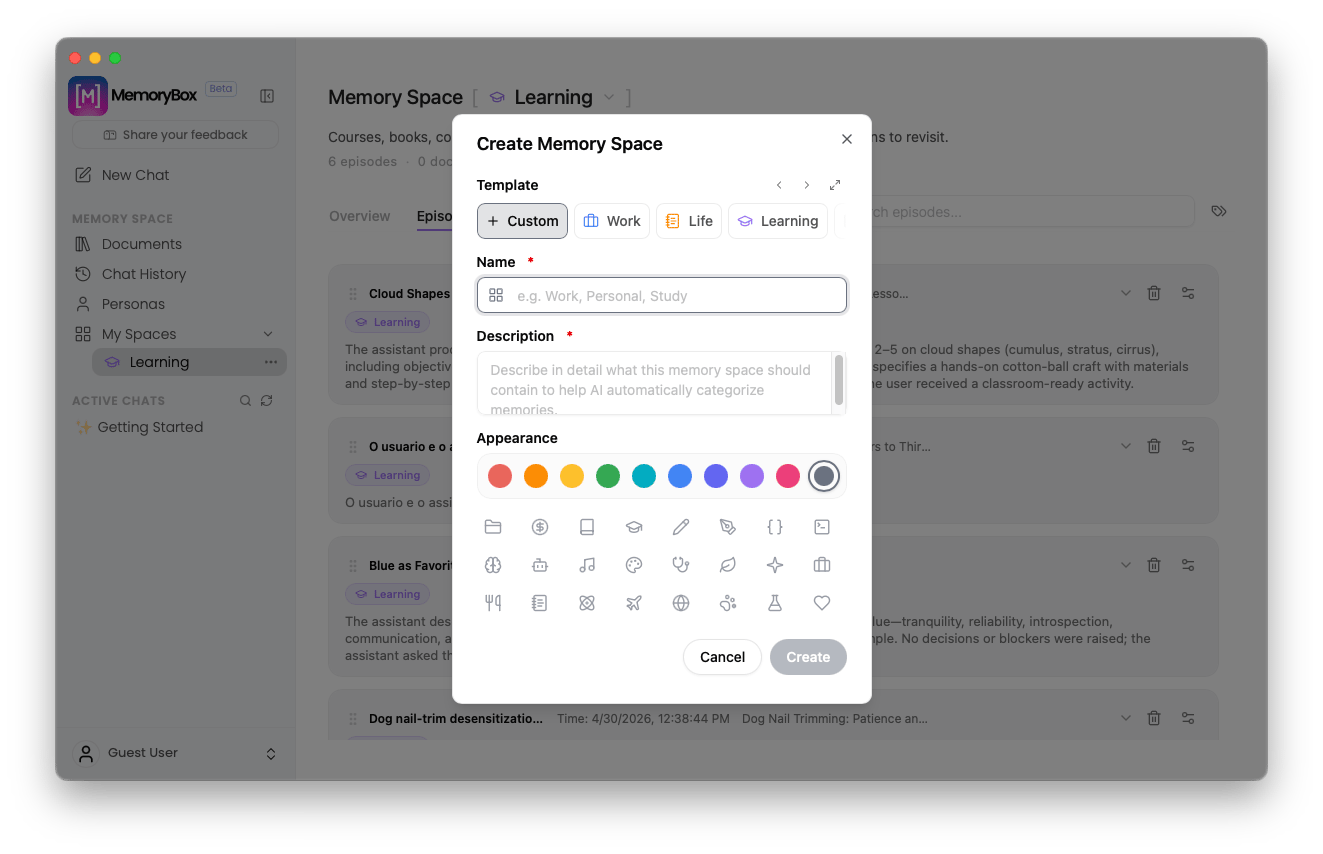 * **Template Filters:** Click targeted classification chips (*Custom, Work, Life, Learning*) to auto-fill background domain behaviors.
* **Identity Strings:** Assign a definitive **Name** (required) and an active data **Description** to help the ingest pipeline automatically direct incoming text threads.
* **Glyph Representation:** Personalize your side-bar navigator panel by choosing from 10 distinct branding color-palette nodes and an expanded bank of 24 specific iconography tokens.
### 4. Direct Action Sidebar Controls
Hovering over any configured sidebar space card surfaces a **Three-Dots Context Modifier (`...`)**:
* **Template Filters:** Click targeted classification chips (*Custom, Work, Life, Learning*) to auto-fill background domain behaviors.
* **Identity Strings:** Assign a definitive **Name** (required) and an active data **Description** to help the ingest pipeline automatically direct incoming text threads.
* **Glyph Representation:** Personalize your side-bar navigator panel by choosing from 10 distinct branding color-palette nodes and an expanded bank of 24 specific iconography tokens.
### 4. Direct Action Sidebar Controls
Hovering over any configured sidebar space card surfaces a **Three-Dots Context Modifier (`...`)**:
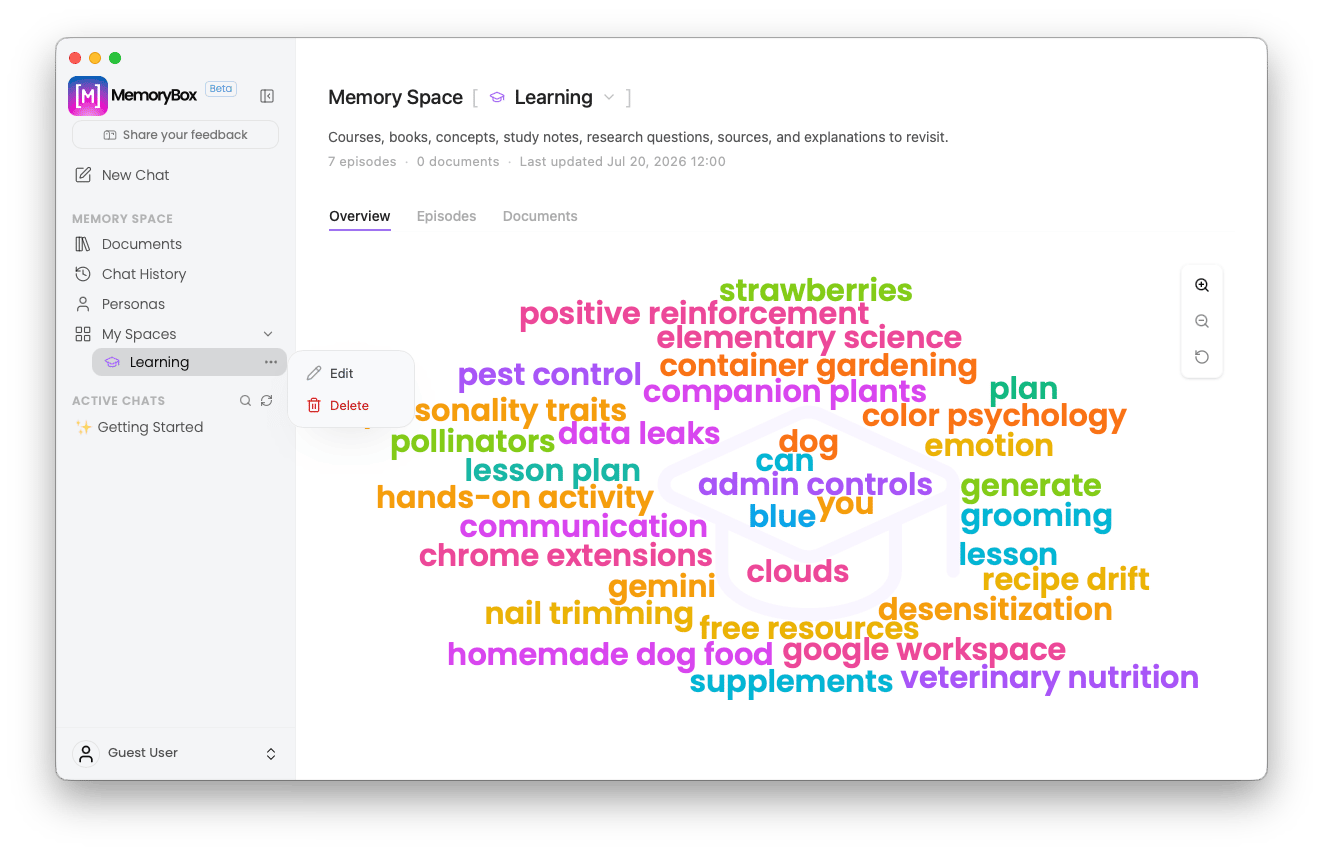 * **Edit:** Pulls back the customization modal to instantly tweak naming conventions, description rulesets, or appearance badges.
* **Delete:** Destroys the container boundary wrapper completely.
***
## 📊 Tab 1: Environment Overview (Word Cloud)
The **Overview** tab displays an automated, real-time diagnostic display tracking active episode tallies, document metrics, and exact synchronization timestamps.
* **Edit:** Pulls back the customization modal to instantly tweak naming conventions, description rulesets, or appearance badges.
* **Delete:** Destroys the container boundary wrapper completely.
***
## 📊 Tab 1: Environment Overview (Word Cloud)
The **Overview** tab displays an automated, real-time diagnostic display tracking active episode tallies, document metrics, and exact synchronization timestamps.
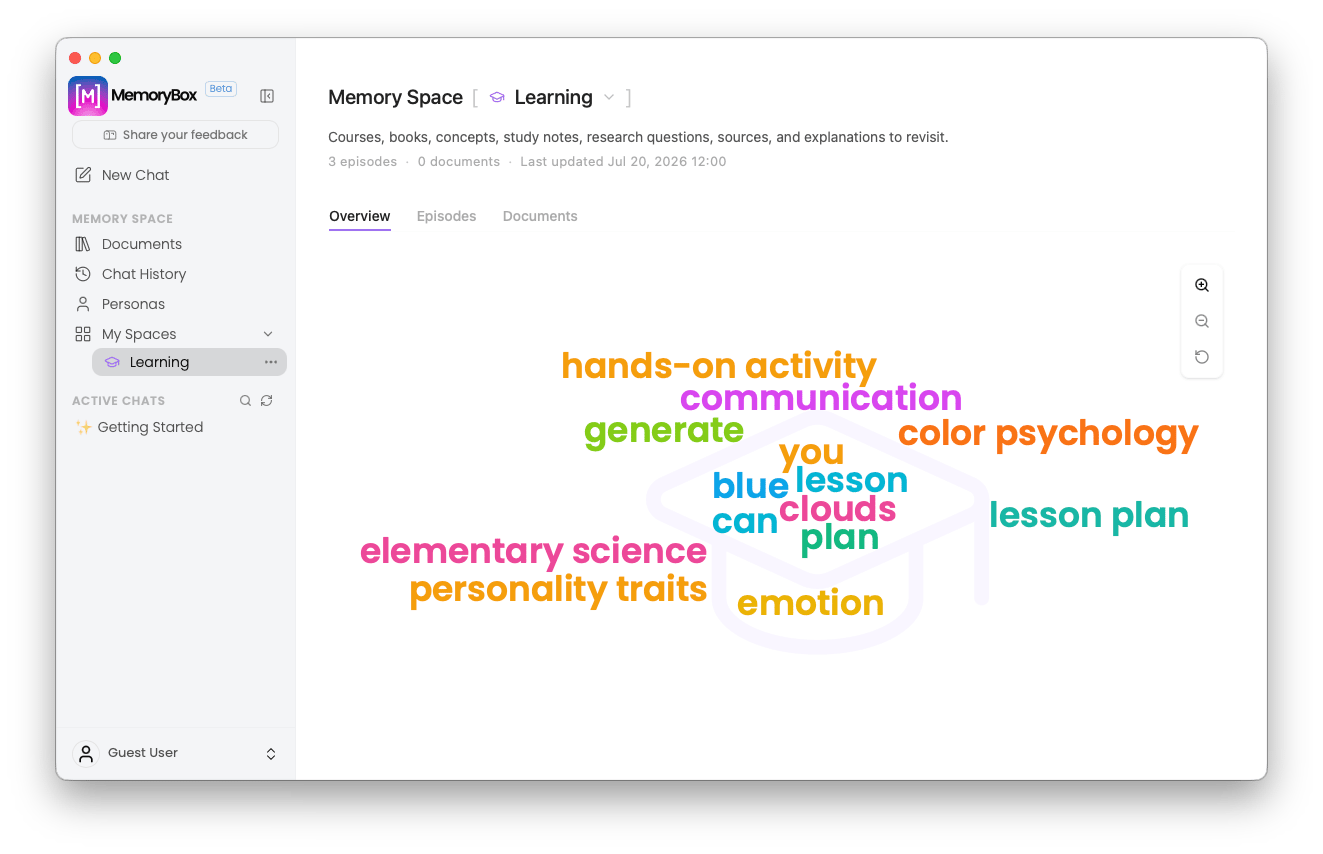 The platform analyzes your underlying text assets to render an active, interactive **Word Cloud**. This visualization instantly surfaces top-level matching concepts, high-frequency terminology, and key conversational themes. Use the floating utility bar on the right margin to zoom in, zoom out, or refresh the underlying layout calculation rules.
***
## 💬 Tab 2: Conversation Log (Episodes)
The **Episodes** tab compiles every individual chat session currently assigned to this specific environment.
The platform analyzes your underlying text assets to render an active, interactive **Word Cloud**. This visualization instantly surfaces top-level matching concepts, high-frequency terminology, and key conversational themes. Use the floating utility bar on the right margin to zoom in, zoom out, or refresh the underlying layout calculation rules.
***
## 💬 Tab 2: Conversation Log (Episodes)
The **Episodes** tab compiles every individual chat session currently assigned to this specific environment.
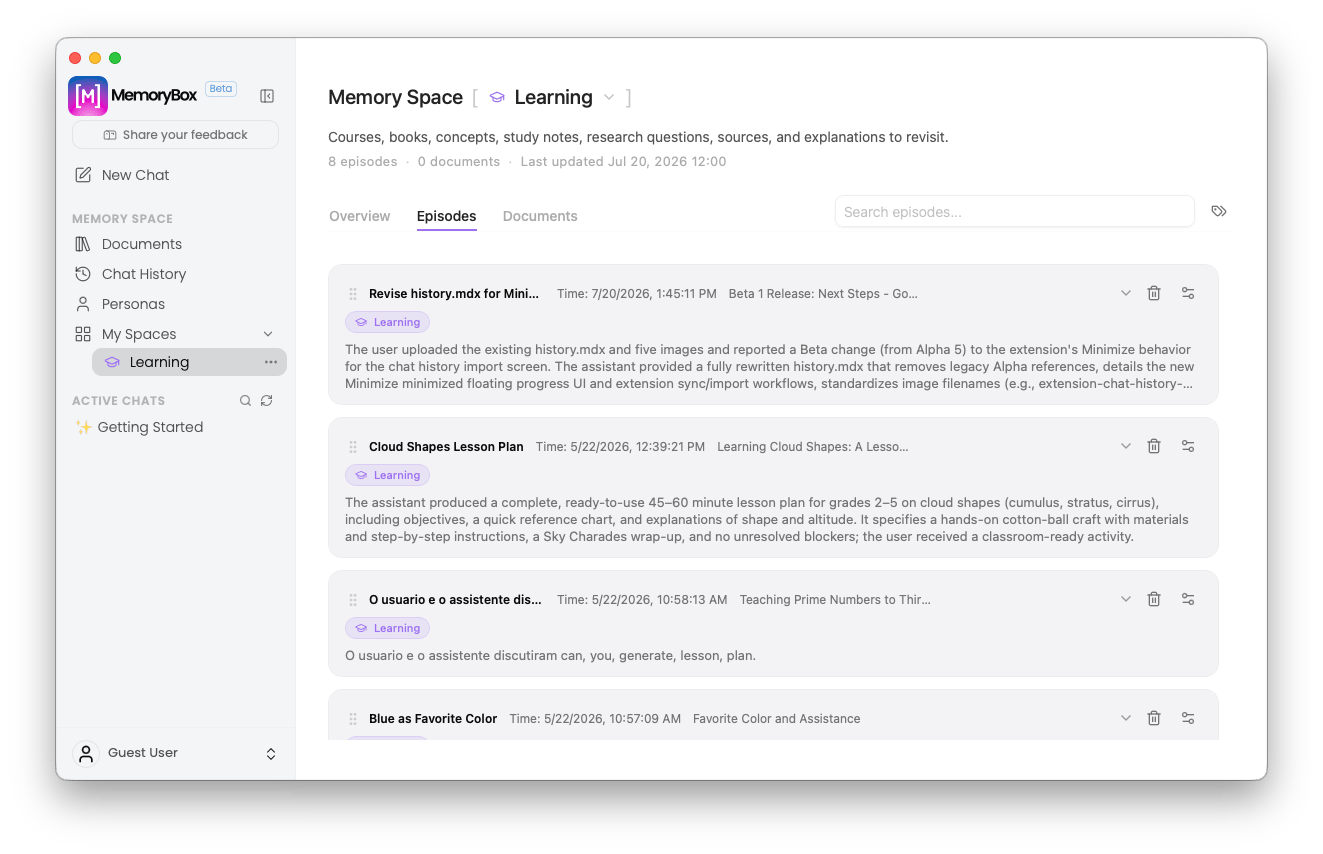 ### Row-Level Structural Controls
Each recorded episode card contains specific user handles designed for deep item management:
* **8 Vertical Dots (Left Margin):** Click and drag this layout handle to manually rearrange or prioritize the stacking order of cards within the workspace viewport feed.
* **Visual Metadata Badges:** Individual cards clearly show exact processing timestamps, active engine details, and clean snippet summaries.
* **Inline Caret Toggle (Right Margin):** Click the down-caret to dynamically expand and inspect full internal text fragments without leaving the timeline view.
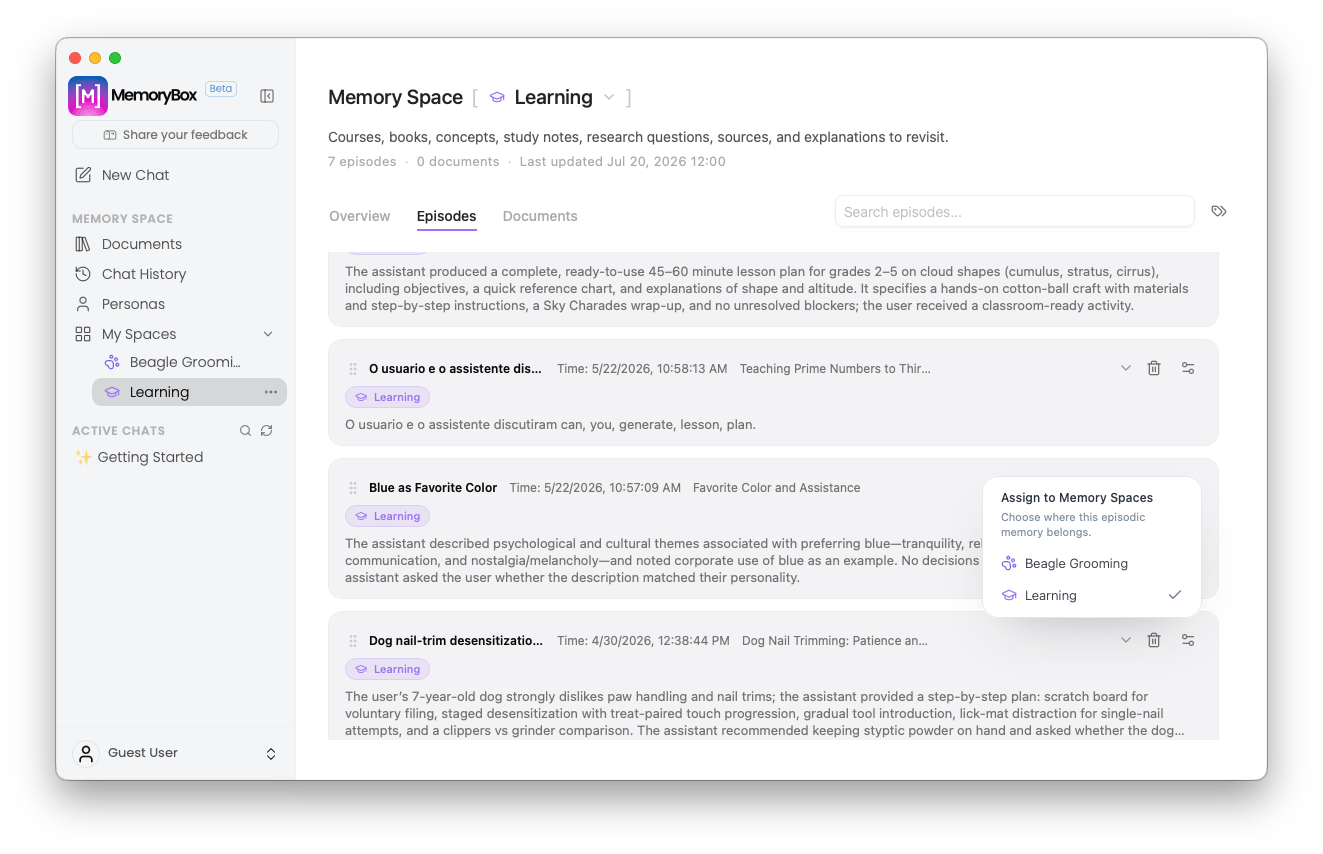
* **The Target Mapping Node (Network Icon):** Opens an interactive assignment popover card allowing you to map a single conversational element to multiple project sandboxes simultaneously.
### Row-Level Structural Controls
Each recorded episode card contains specific user handles designed for deep item management:
* **8 Vertical Dots (Left Margin):** Click and drag this layout handle to manually rearrange or prioritize the stacking order of cards within the workspace viewport feed.
* **Visual Metadata Badges:** Individual cards clearly show exact processing timestamps, active engine details, and clean snippet summaries.
* **Inline Caret Toggle (Right Margin):** Click the down-caret to dynamically expand and inspect full internal text fragments without leaving the timeline view.
* **The Target Mapping Node (Network Icon):** Opens an interactive assignment popover card allowing you to map a single conversational element to multiple project sandboxes simultaneously.
 ### Granular Memory Isolation (The Retention Switch)
Selecting the **Trash Can** utility icon on an entry pulls up an advanced, non-destructive safety prompt designed to protect your master dataset:
### Granular Memory Isolation (The Retention Switch)
Selecting the **Trash Can** utility icon on an entry pulls up an advanced, non-destructive safety prompt designed to protect your master dataset:
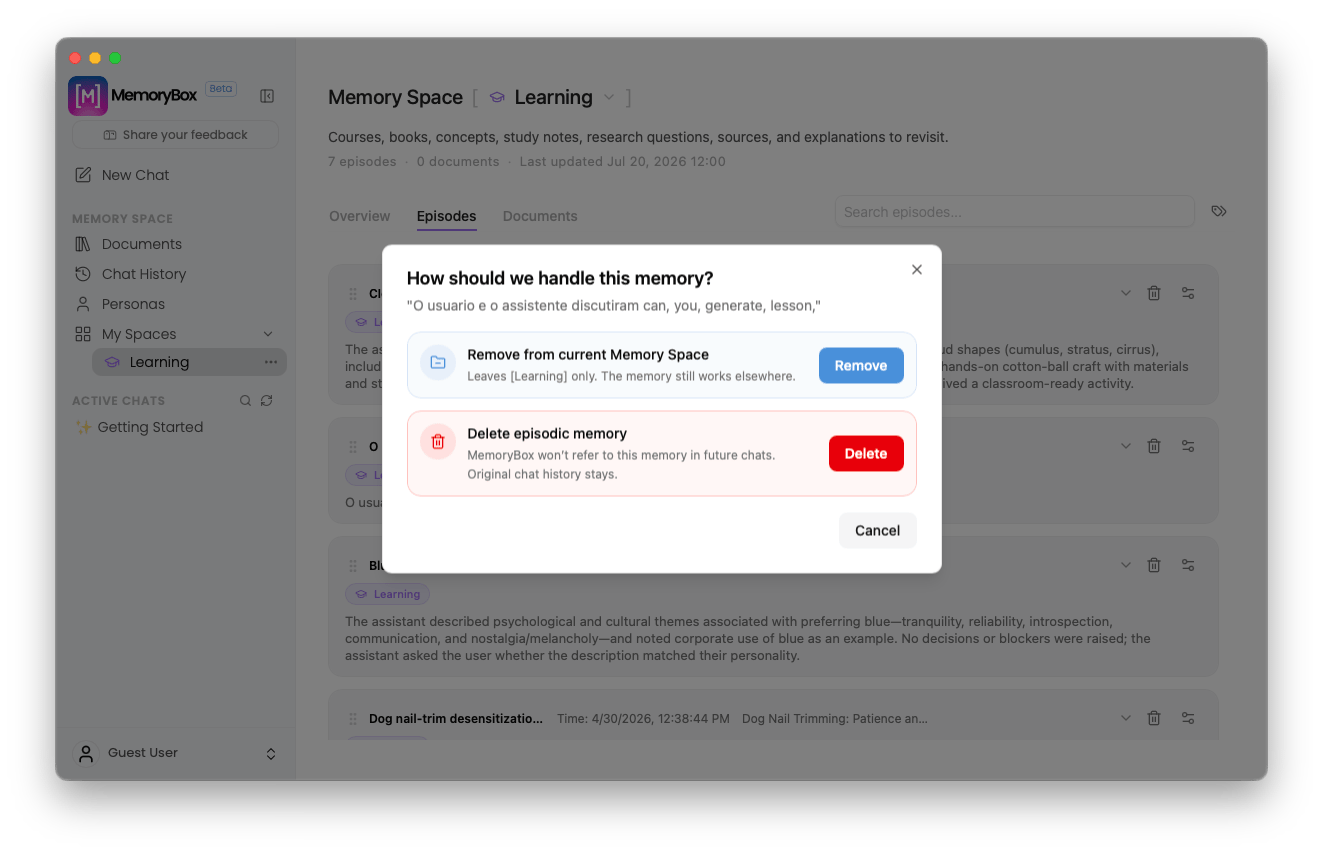 When deleting an episode from a specific space, you are prompted to select between two distinct removal paths:
1. **Remove from current Memory Space:** Unlinks the session record strictly from this workspace view wrapper. The item remains perfectly intact inside your primary *Chat History* database and any other assigned spaces.
2. **Delete episodic memory:** Completely purges the tracking footprint locally, ensuring the agent won't refer to this memory in any future conversation threads across the platform.
### Advanced Topic Filters Panel
Selecting the **Tag icon** positioned inside the episode search line toggles the semantic **Topic filters** right-side drawer:
When deleting an episode from a specific space, you are prompted to select between two distinct removal paths:
1. **Remove from current Memory Space:** Unlinks the session record strictly from this workspace view wrapper. The item remains perfectly intact inside your primary *Chat History* database and any other assigned spaces.
2. **Delete episodic memory:** Completely purges the tracking footprint locally, ensuring the agent won't refer to this memory in any future conversation threads across the platform.
### Advanced Topic Filters Panel
Selecting the **Tag icon** positioned inside the episode search line toggles the semantic **Topic filters** right-side drawer:
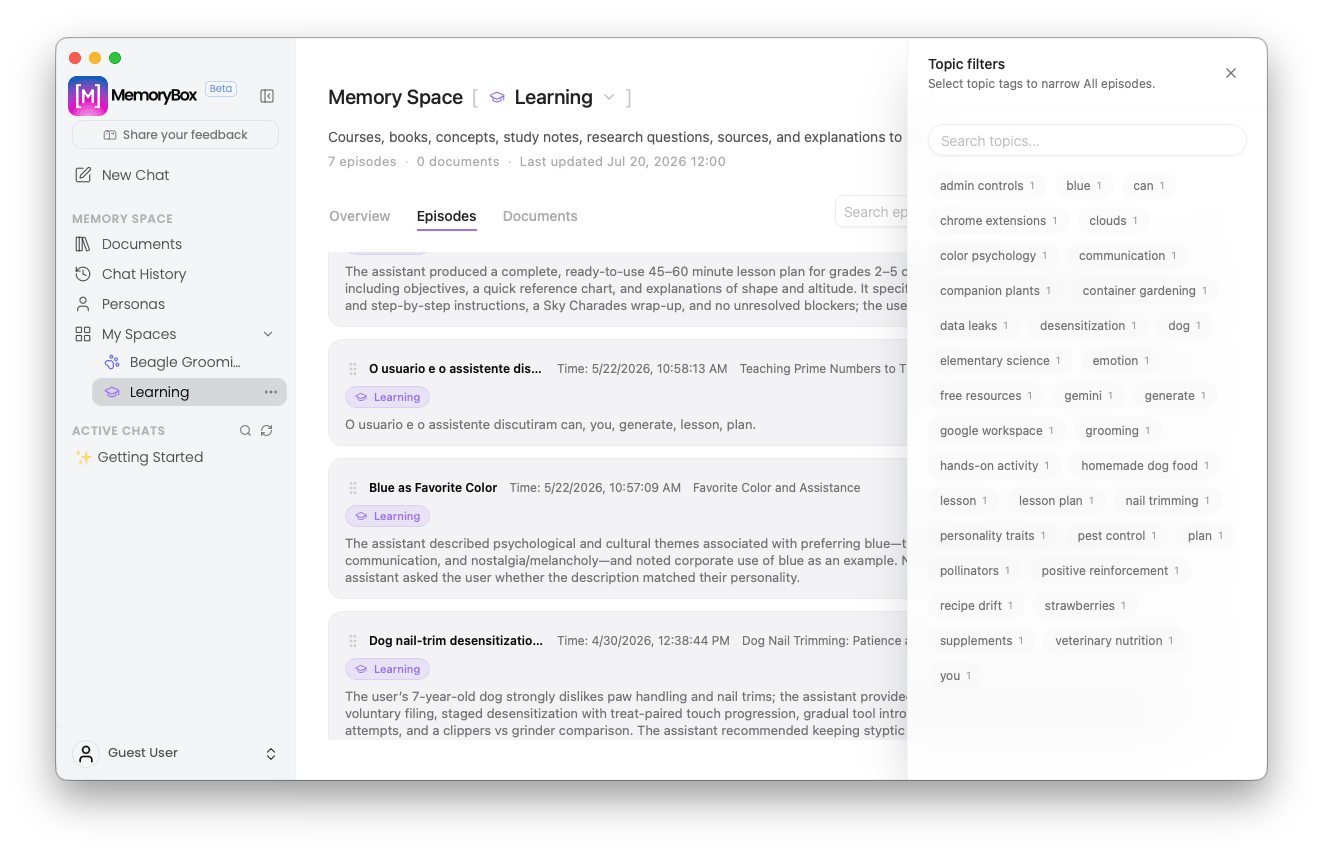 The localized reasoning engine automatically crawls your files, extracts prominent keyword concepts, and lists them alongside an active occurrence counter chip (e.g., `admin controls 1`, `color psychology 1`). Selecting a chip isolates your feed to that exact thematic topic instantly.
***
## 📄 Tab 3: Foundational Assets (Documents)
While the Episodes panel tracks interactive chat sessions, the **Documents** tab inventories your static reference assets—such as imported project guides, local markdown configurations, or financial spreadsheets.
The localized reasoning engine automatically crawls your files, extracts prominent keyword concepts, and lists them alongside an active occurrence counter chip (e.g., `admin controls 1`, `color psychology 1`). Selecting a chip isolates your feed to that exact thematic topic instantly.
***
## 📄 Tab 3: Foundational Assets (Documents)
While the Episodes panel tracks interactive chat sessions, the **Documents** tab inventories your static reference assets—such as imported project guides, local markdown configurations, or financial spreadsheets.
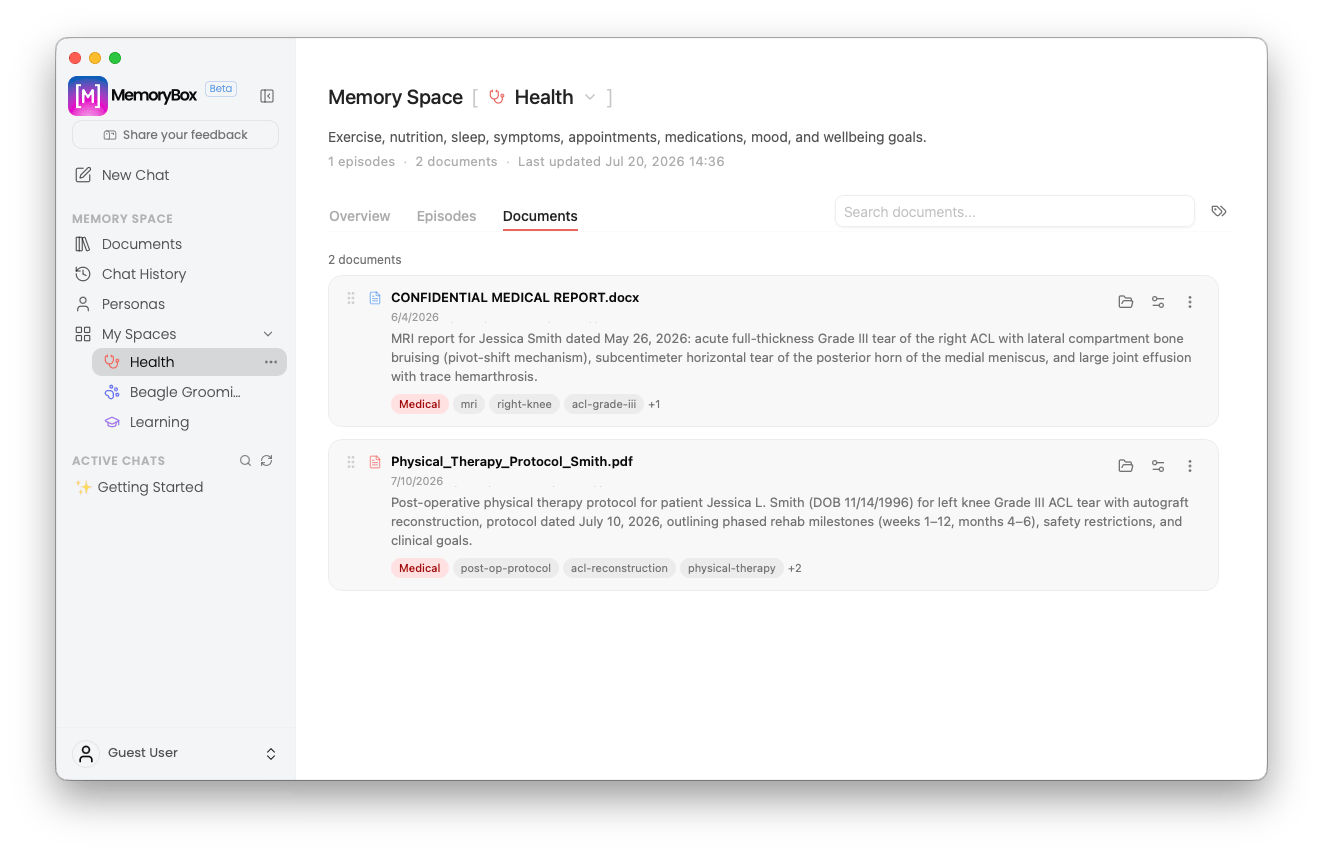 The row-level layout structure matches the management mechanics of the Episodes view:
1. **List Stacking:** Click and drag the left-side **8 vertical dots** to sort document importance.
2. **Data Inspection:** Toggle the **down-caret** indicator to preview local path targets and extraction metadata fields.
3. **Cross-Space Linking:** Use the network **Assign icon** to route document references into alternative workspaces without copying the underlying source file.
***
**Data Sovereignty Enforcement:** All generated word cloud matrices, extracted topic filters, and cross-space relationship indexes are computed entirely on-device, keeping project contexts isolated from any network.
***
With your sandboxes organized and files mapped, enter the workspace loop to run deep contextual chat comparisons.
The row-level layout structure matches the management mechanics of the Episodes view:
1. **List Stacking:** Click and drag the left-side **8 vertical dots** to sort document importance.
2. **Data Inspection:** Toggle the **down-caret** indicator to preview local path targets and extraction metadata fields.
3. **Cross-Space Linking:** Use the network **Assign icon** to route document references into alternative workspaces without copying the underlying source file.
***
**Data Sovereignty Enforcement:** All generated word cloud matrices, extracted topic filters, and cross-space relationship indexes are computed entirely on-device, keeping project contexts isolated from any network.
***
With your sandboxes organized and files mapped, enter the workspace loop to run deep contextual chat comparisons.