
The Main Workspace
The Active Chats panel is where your daily work happens. It brings together your Personas (behavioral mindsets), ingested Documents (knowledge base), and isolated Memory Spaces (context boundaries) into a single workspace. At the center of this layout is the Unified Chat Bar. Present in both the New Chat screen and running threads, it gives you quick inline access to swap context, profiles, reasoning depth, and models on the fly.🛠️ Building Your Prompt
The chat bar consolidates your key session settings—Memory Space, Model selection, Thinking Effort, and Personas—directly inside the prompt box.1. Memory Space Mapping
Clicking the workspace tag inside the chat bar opens the Select Memory Space menu: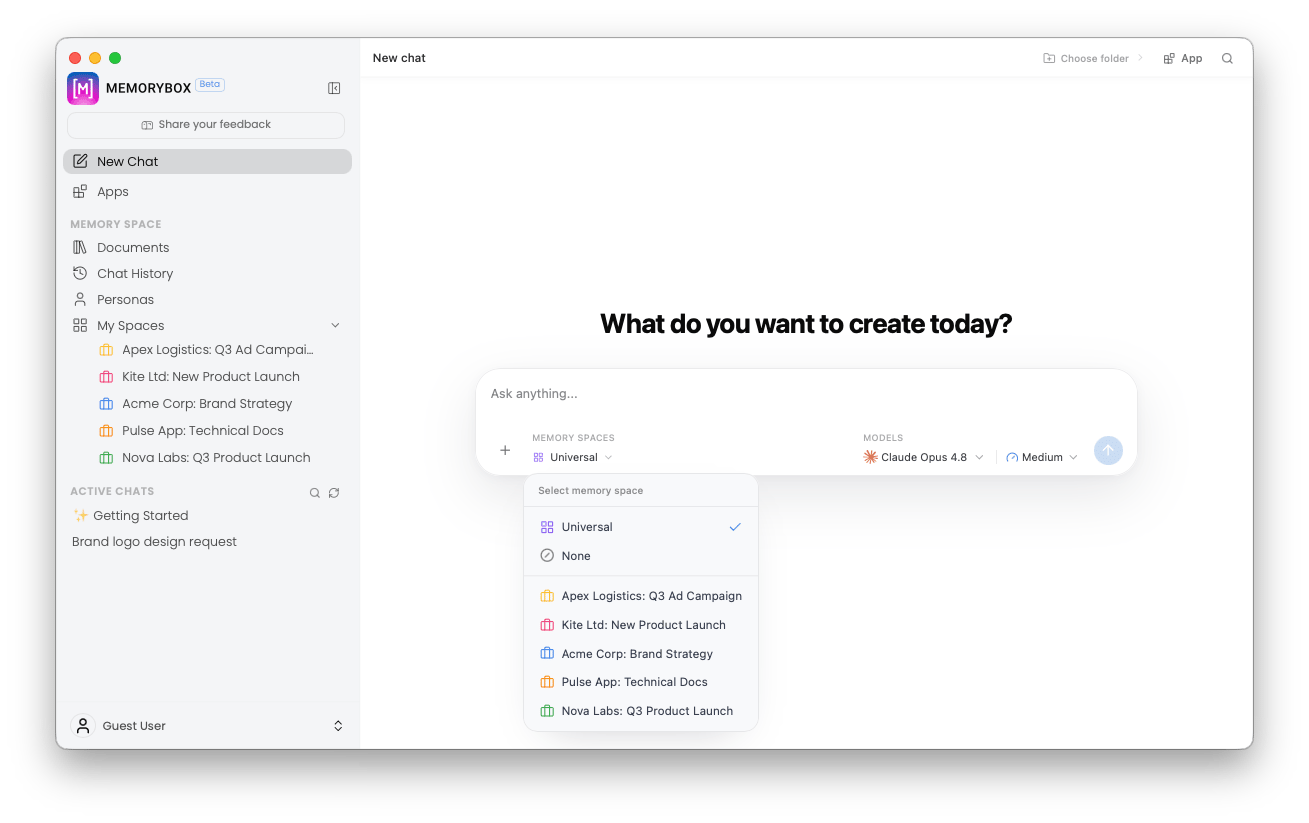
Select a local Memory Space from the composer bar menu.
- Universal: Gives the session access to all indexed files across your entire local MemoryBox installation.
- None: Starts an ungrounded session that relies entirely on the base model’s internal training data.
- Isolated Sandboxes (e.g., Writing, Math, Science): Limits search and document retrieval strictly to files stored within that specific directory boundary.
2. Model Selection & Auto-Routing
Click the model drop-down to select local or cloud endpoints, or toggle multi-model execution: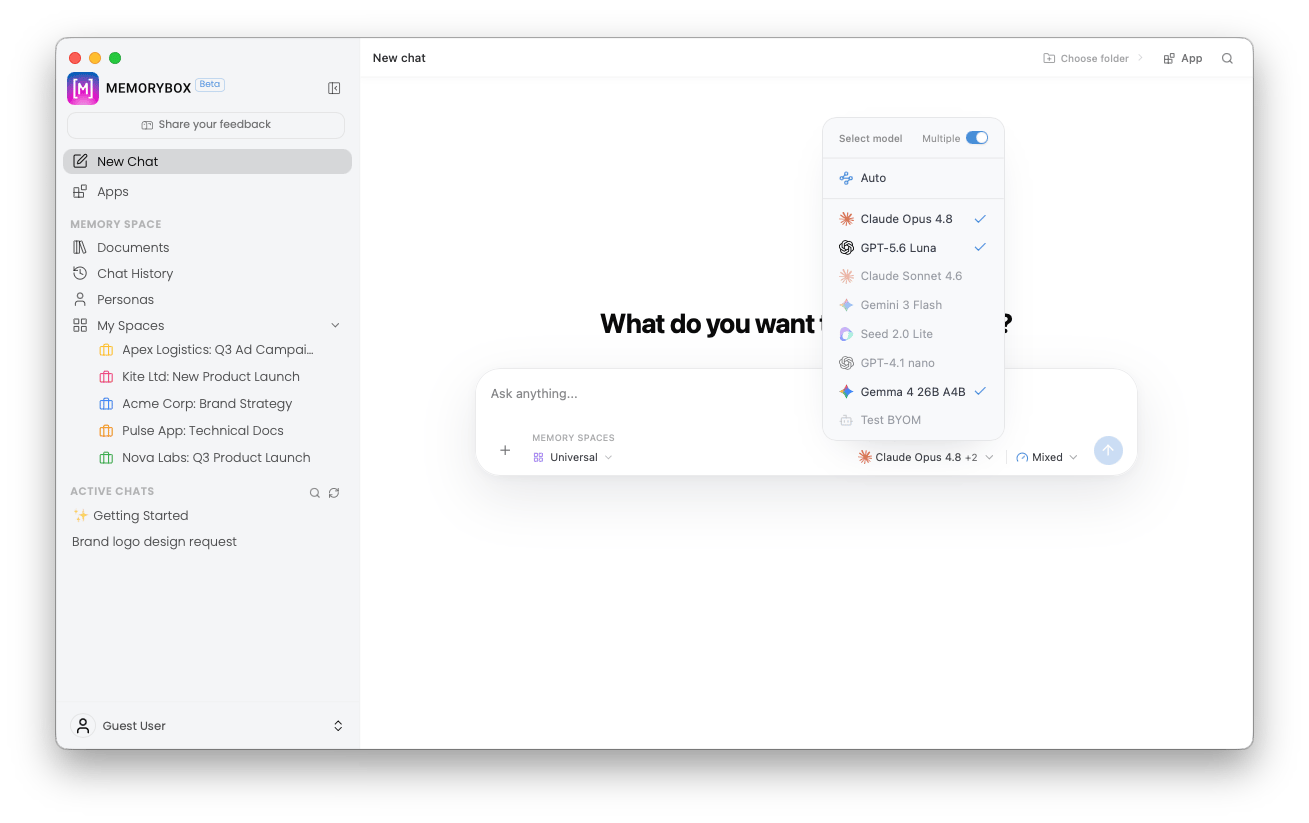
Select models, toggle intelligent Auto routing, or run side-by-side comparisons.
- Auto Mode: Automatically selects the best model for each query by evaluating complexity, required reasoning depth, and processing cost.
- Note: When Auto is enabled, multi-model execution is disabled, and manual Thinking Effort controls are hidden.
- Single Model Execution: Sends prompts directly to one chosen engine for standard back-and-forth conversations.
- Multi-Model Comparison: Turn on the Multiple toggle to select up to three models at once. Submitting a prompt runs it across all selected engines simultaneously, allowing you to compare responses side-by-side.
3. Thinking Effort Adjustment
Located next to the model menu, the Thinking Effort control lets you manually adjust how much time and reasoning a model spends before responding: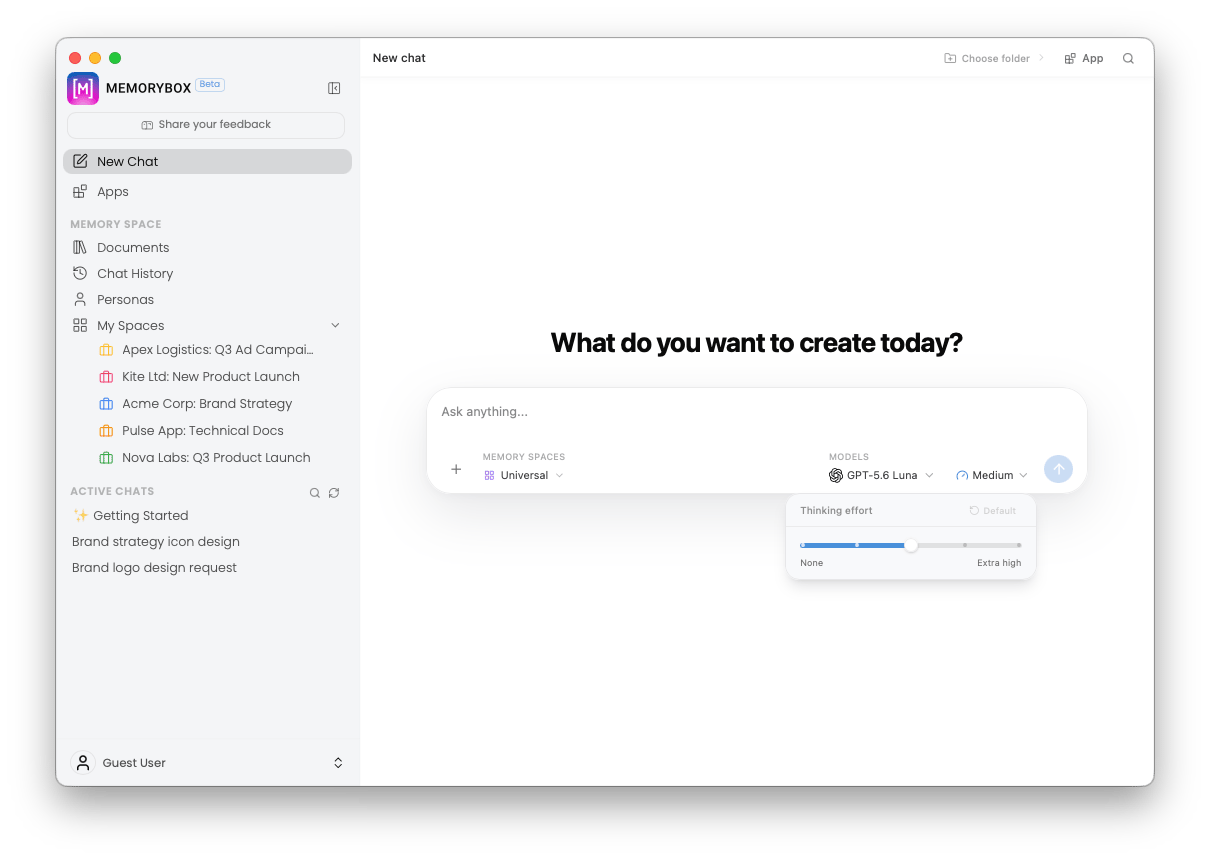
Adjust reasoning depth using the slider control.
4. Contextual Plus (+) Menu & Personas
Click the Plus (+) icon on the left edge of the chat bar to attach assets or adjust session behavior:
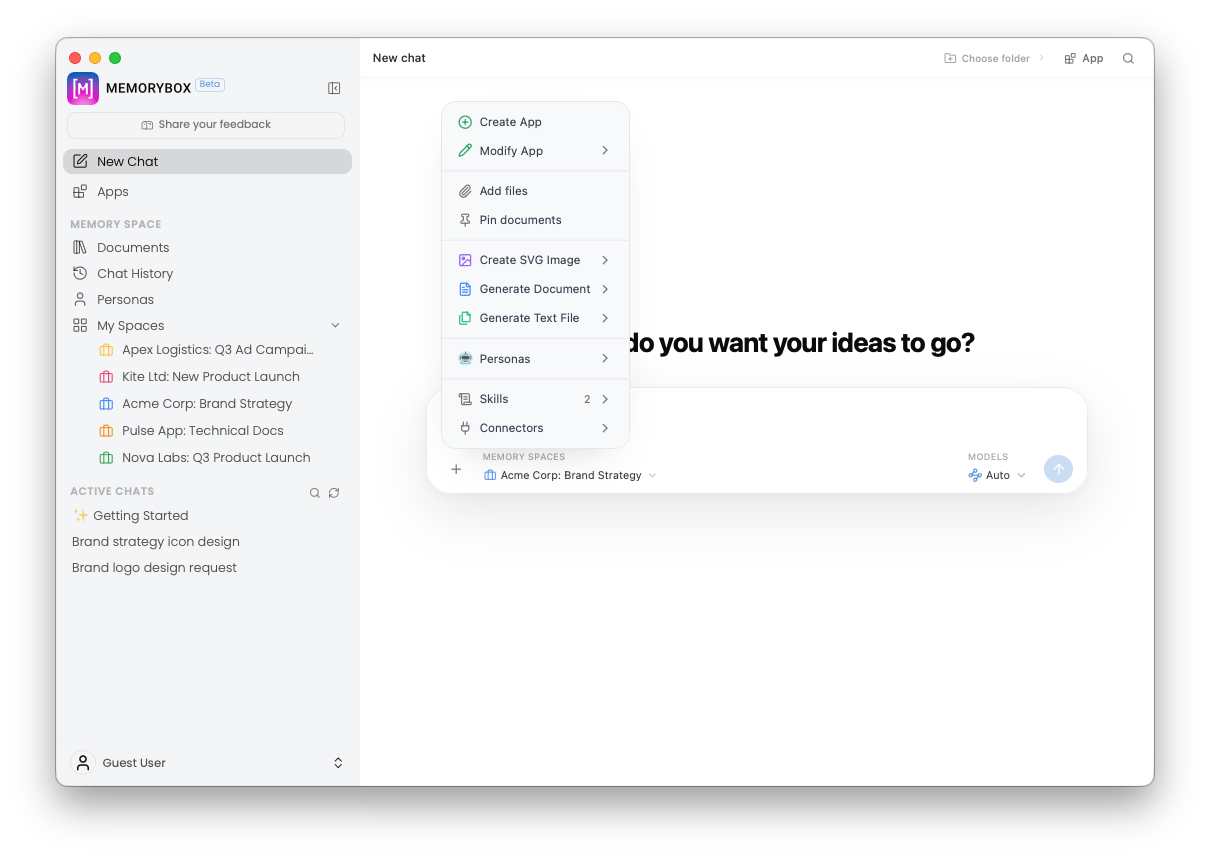
Access file uploads, generation tools, and persona controls.
- File Actions: Attach local files directly to your current chat session.
- Generative Tools: Run quick actions to generate SVG graphics, formatted documents, or code scripts.
- Personas: Switch behavioral profiles (like Parent or Tutor) mid-conversation to adjust tone and output style without losing chat history.
- Skills & Connectors: Toggle active background data tools and external integration channels.
💾 Session Lifecycle & Management
Submitting a prompt creates an active thread in your sidebar.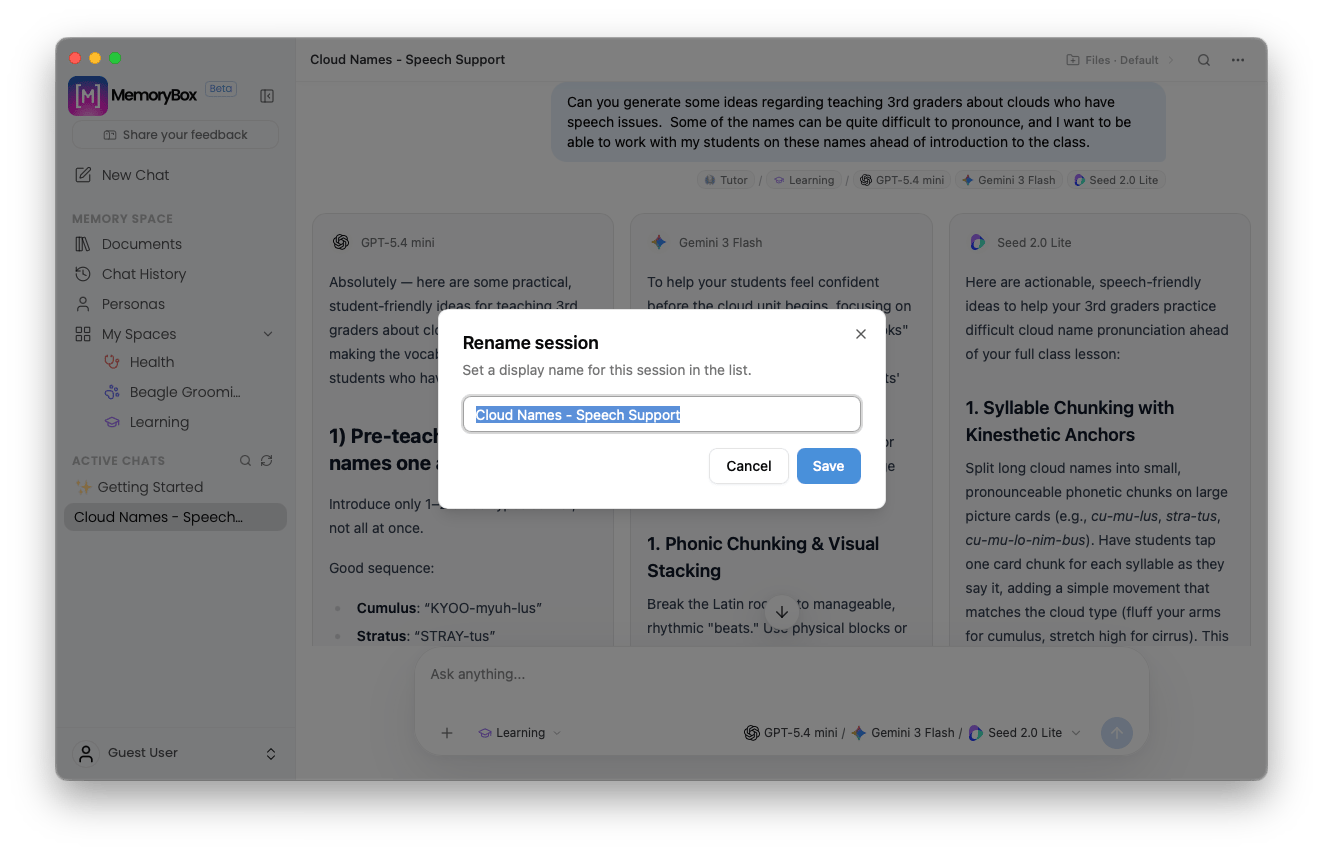
Rename active conversation threads from the header menu.
Session Persistence
MemoryBox automatically saves your active settings. Returning to an earlier chat thread restores its assigned Persona, Memory Space, and model configurations exactly as you left them.Renaming Chat Logs
By default, thread titles are generated from your initial prompt. To update a title, click the ellipsis (…) menu in the top-right corner of the active thread and select Rename session.Data Traffic Transparency: Conversations using local model architectures stay entirely on your device. Selecting cloud-based providers (such as OpenAI, Anthropic, or Google) sends your prompt and relevant local document context to that external provider for processing.