
The Sandbox Boundary Layer
A Memory Space is an isolated context container designed to prevent cross-contamination across your work, creative projects, and personal domains. When you assign a chat or document to a space, MemoryBox restricts model reasoning strictly to the information approved for that project boundary—keeping outputs clean, sharp, and focused. Inside any space, the dashboard organizes your assets across three clear views: Overview, Episodes, and Documents.Initializing and Provisioning Spaces
MemoryBox uses a flexible setup workflow depending on whether you are working in a quick sandbox or building out structured project environments:1. The Universal Space (Default Canvas)
Upon initial launch, MemoryBox provisions a core master environment called the Universal space.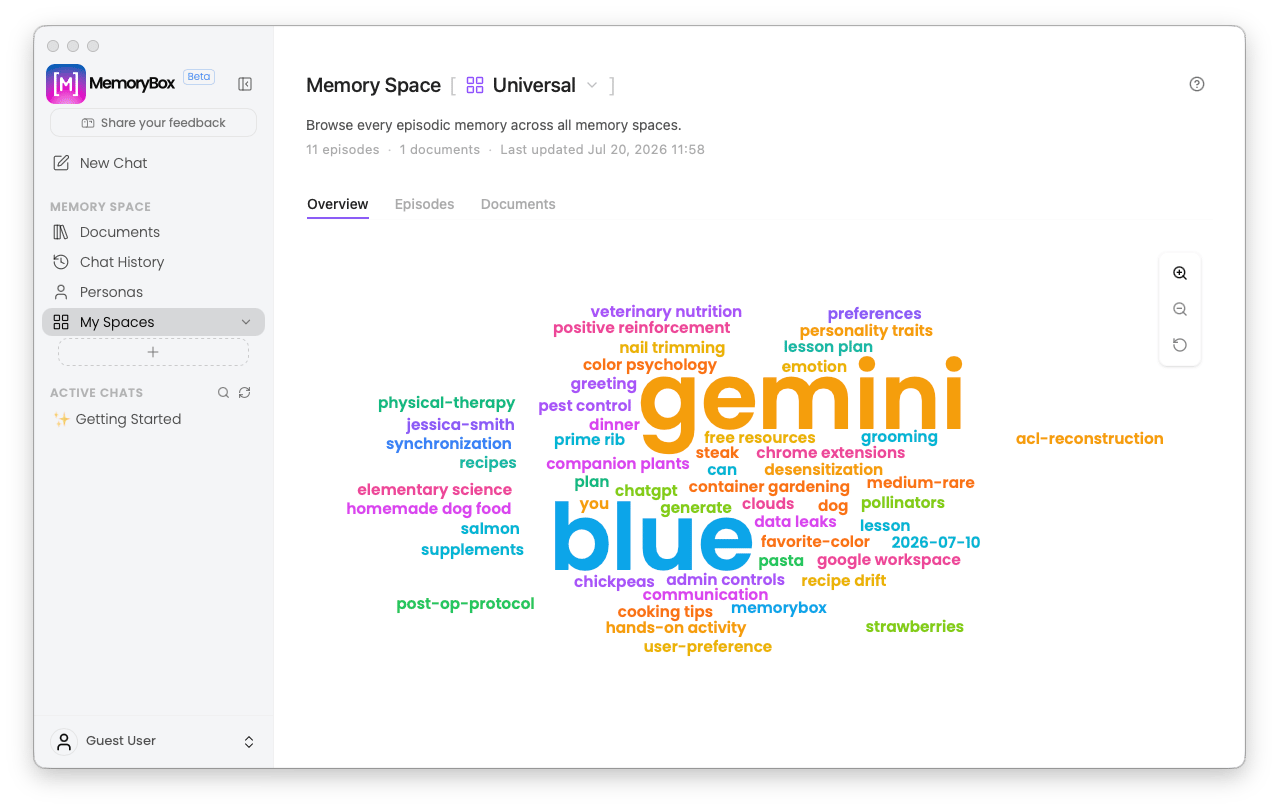
The default Universal workspace displaying aggregated environment counts, update logs, and a central semantic index layout.
- Default Home Base: The Universal space serves as your unified catch-all repository layer before you establish isolated segments.
- Onboarding Escape Hatch: Select the help icon (
?) in the top-right header at any time to re-launch the visual onboarding walkthrough.
2. First-Time Guided Launch
Selecting the+ (Plus Sign) inside the My Spaces sidebar triggers an onboarding walkthrough:
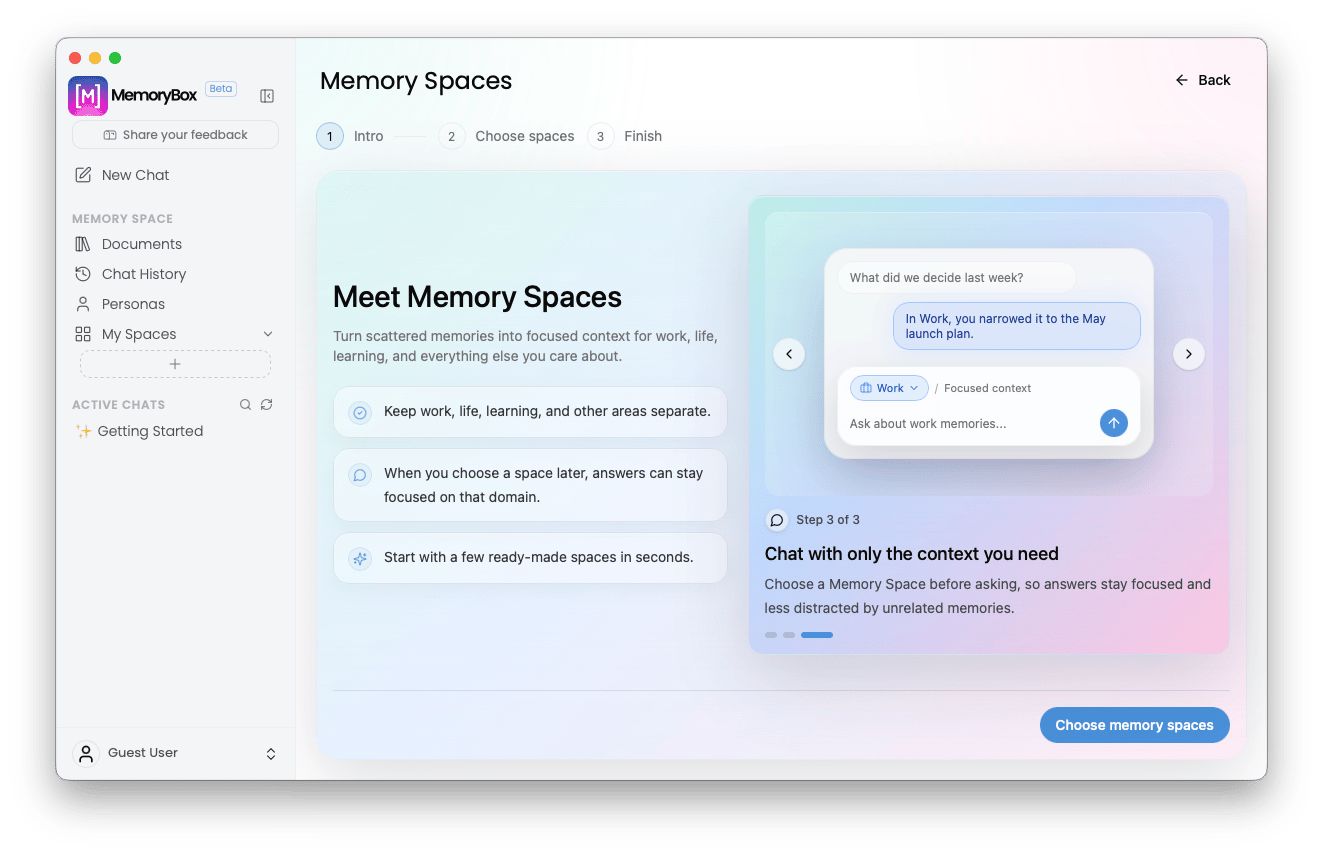
The step-by-step onboarding walkthrough introducing isolated scopes and context-targeted query routines.
- Domain Isolation: The walkthrough outlines how local expert responses stay focused when shielded from unrelated background memories.
- Ready-Made Templates: Instantly provision baseline environments tuned for standard tracks like Work, Life, Learning, Tech, Ideas, Health, Relationships, and Hobbies.
3. Creating Additional Spaces
Once your initial layout is established, selecting+ opens a creation overlay optimized for quick deployment:
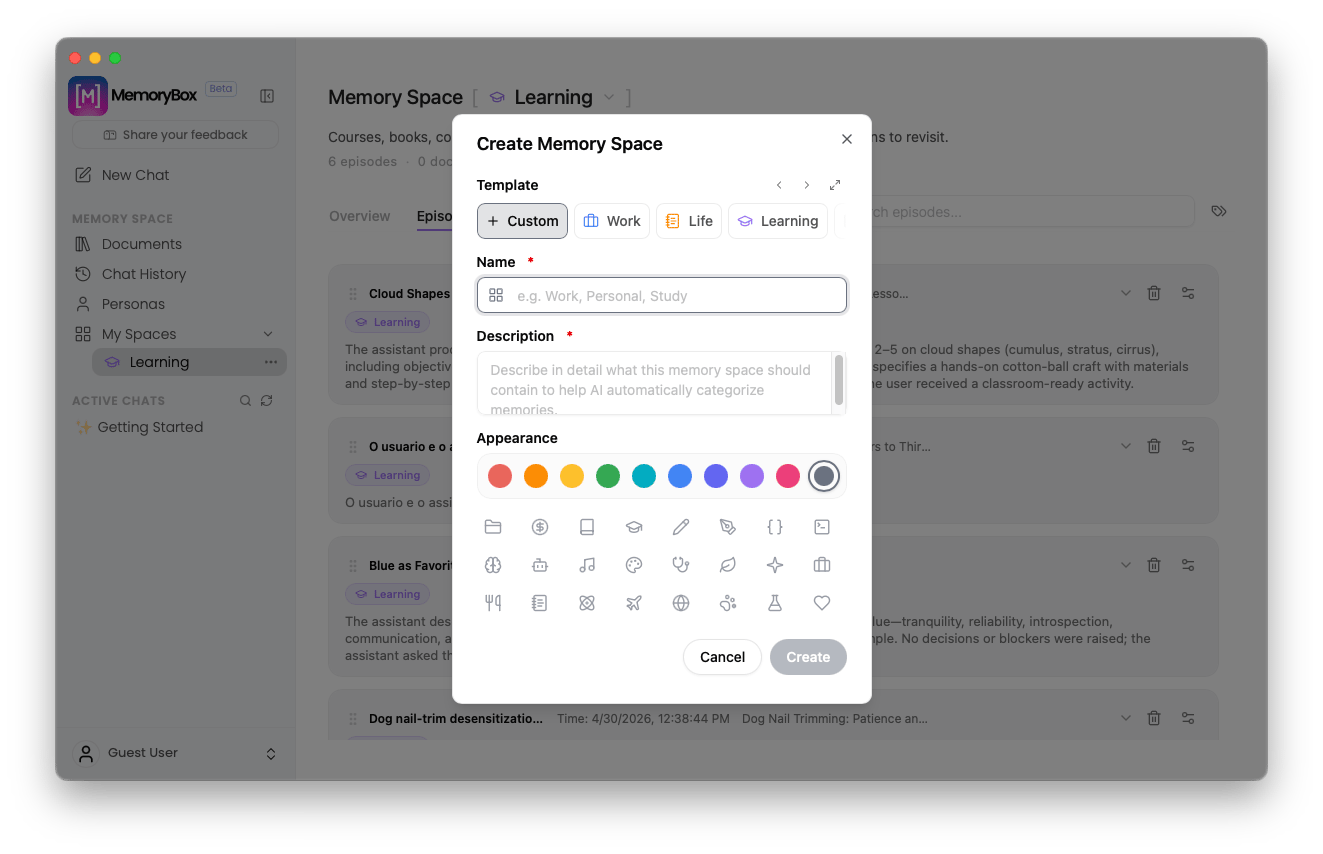
The creation utility console used to parameterize and visual-tag additional spaces on the fly.
- Template Filters: Select targeted chips (Custom, Work, Life, Learning) to pre-fill baseline behavioral parameters.
- Identity Strings: Assign a Name and an active Description to help the ingestion pipeline direct incoming threads automatically.
- Glyph Representation: Personalize your sidebar using 10 accent color nodes and 24 distinct icon options.
4. Direct Action Sidebar Controls
Hovering over any configured space in the sidebar surfaces the Options Menu ():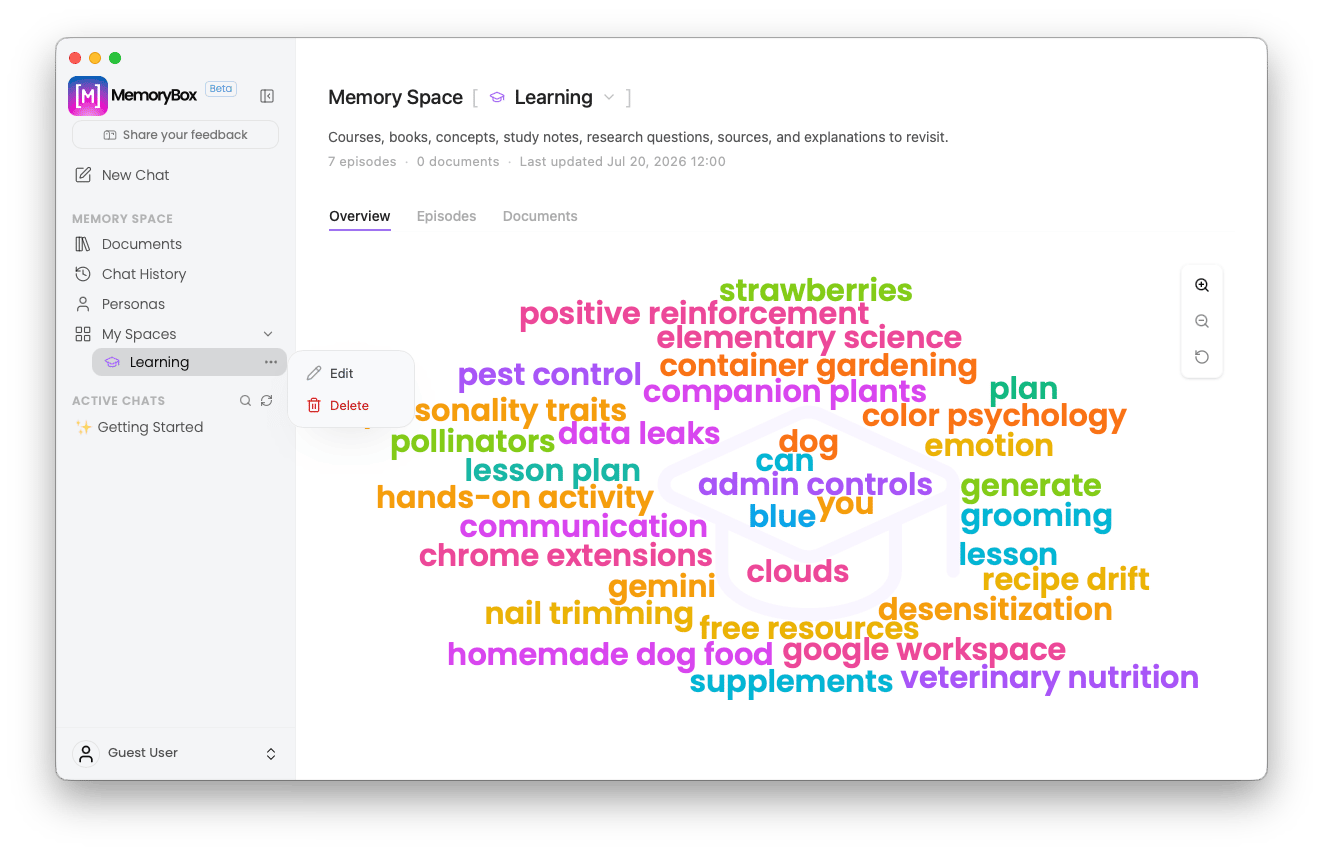
Invoking row-level sidebar adjustments to edit space properties or drop active sandboxes.
- Edit: Adjust naming conventions, description parameters, or visual indicators.
- Delete: Remove the container boundary completely.
Tab 1: Environment Overview
The Overview tab displays real-time diagnostics tracking active episode tallies, document metrics, and synchronization timestamps.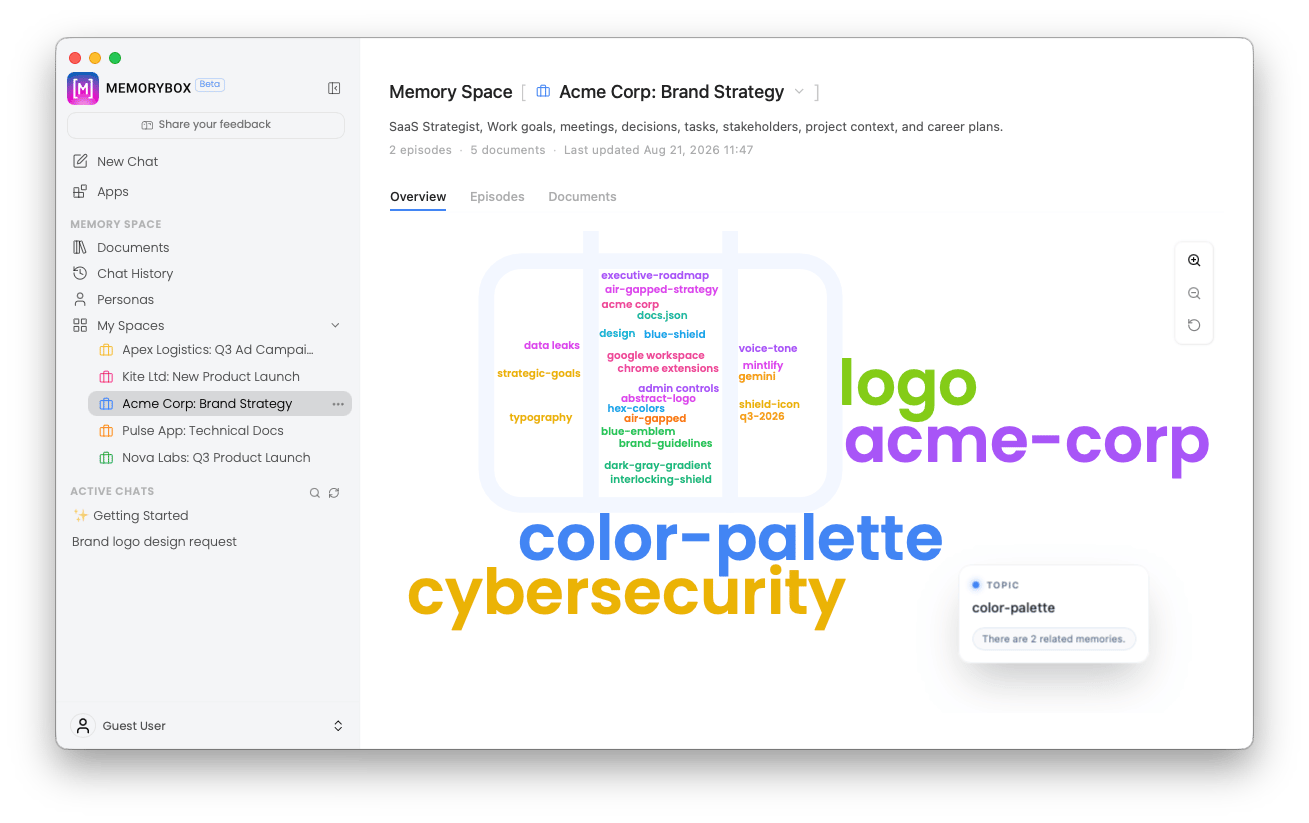
The localized environment overview displaying a custom theme word cloud.
Tab 2: Conversation Log (Episodes)
The Episodes tab compiles every individual chat session assigned to the active space.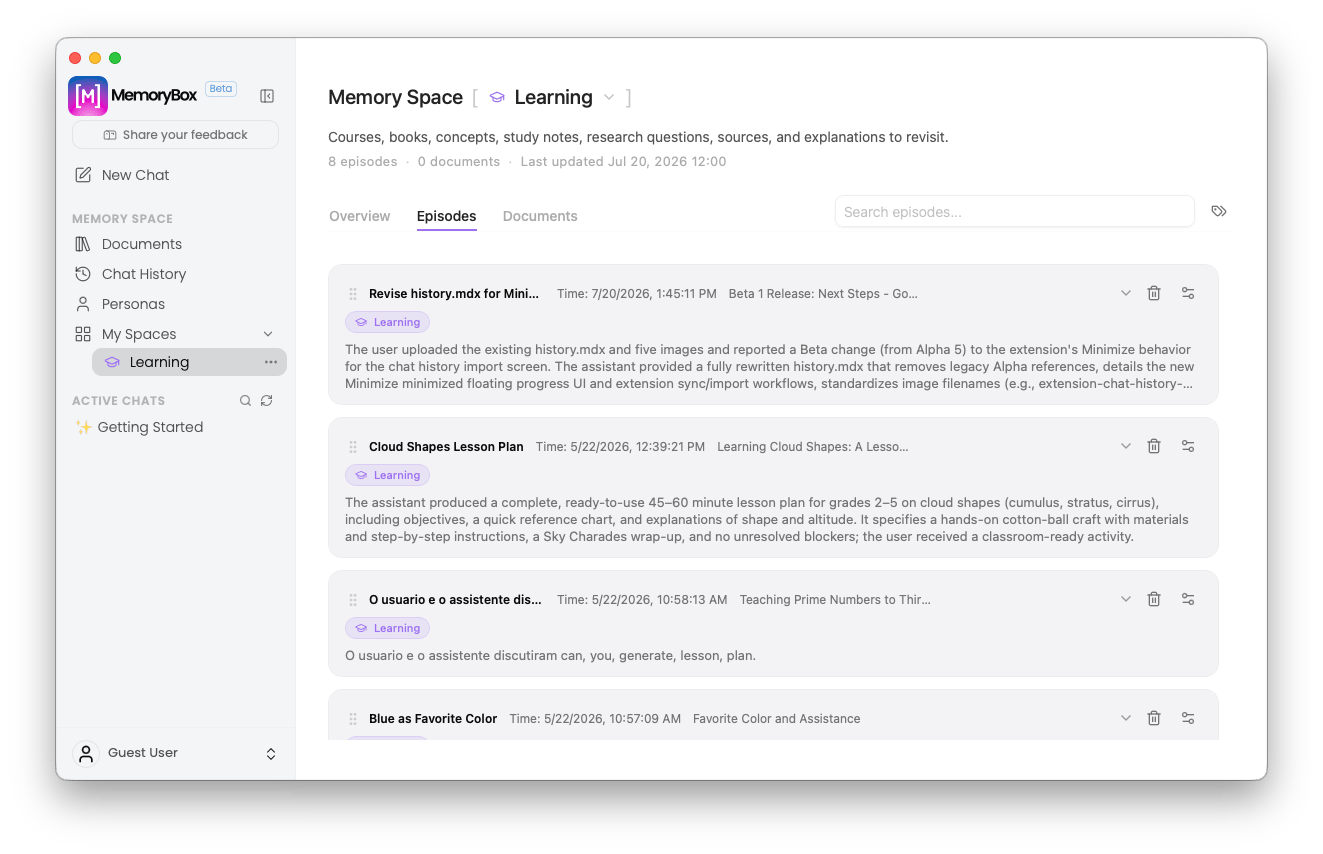
The local log repository displaying past conversational records stored within the chosen space boundary.
Row-Level Controls
- Drag Handle (
::): Click and drag the left margin handle to reorder episode cards. - Visual Metadata: View processing timestamps, active model details, and inline summaries.
- Expand Caret (
v): Expand the caret to inspect text fragments directly inside the timeline. - Assign Node (): Open the assignment popover to map a conversation across multiple spaces simultaneously.
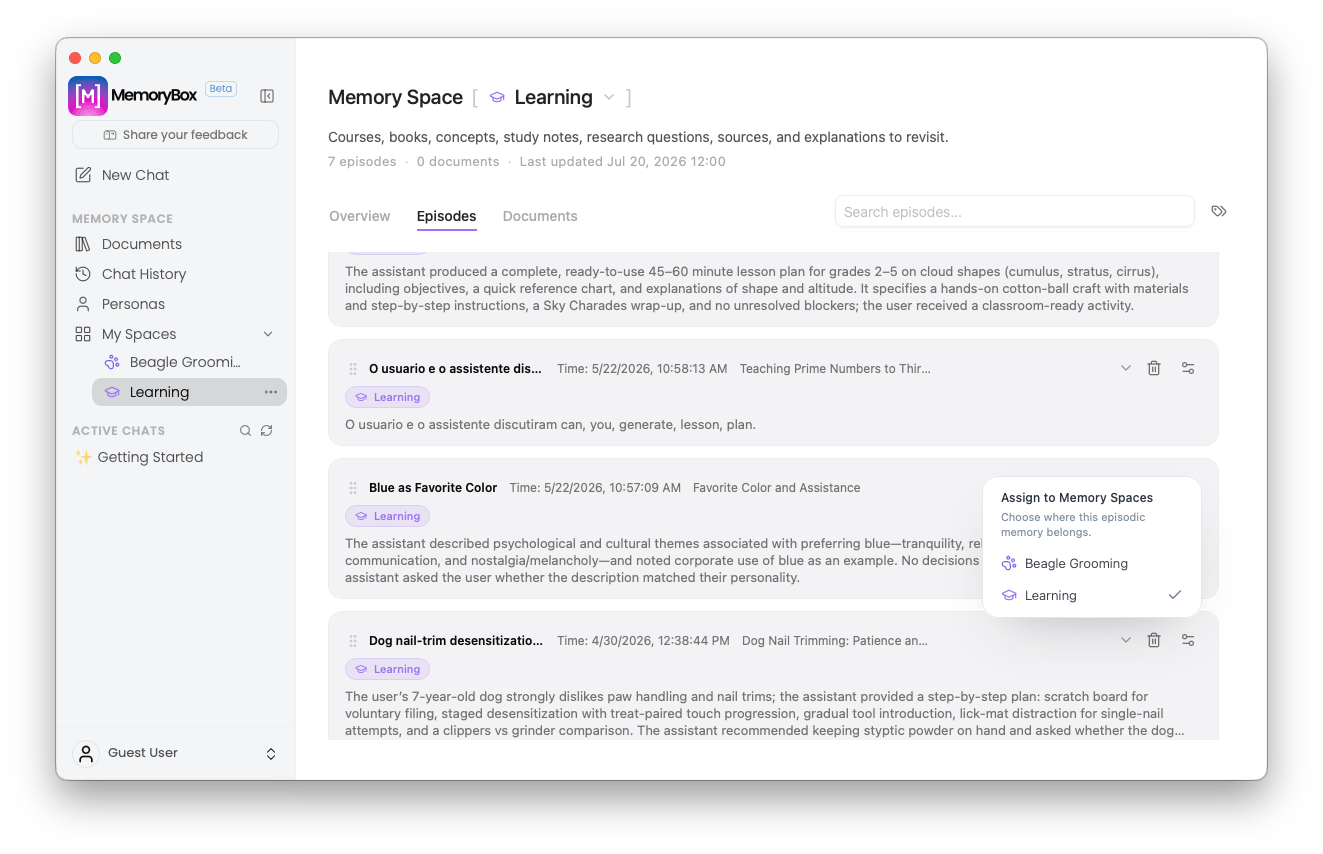
Mapping individual data streams to alternative active tracking spaces on the fly.
Retention and Deletion Controls
Selecting the Trash Icon () opens a non-destructive safety prompt to protect your underlying dataset: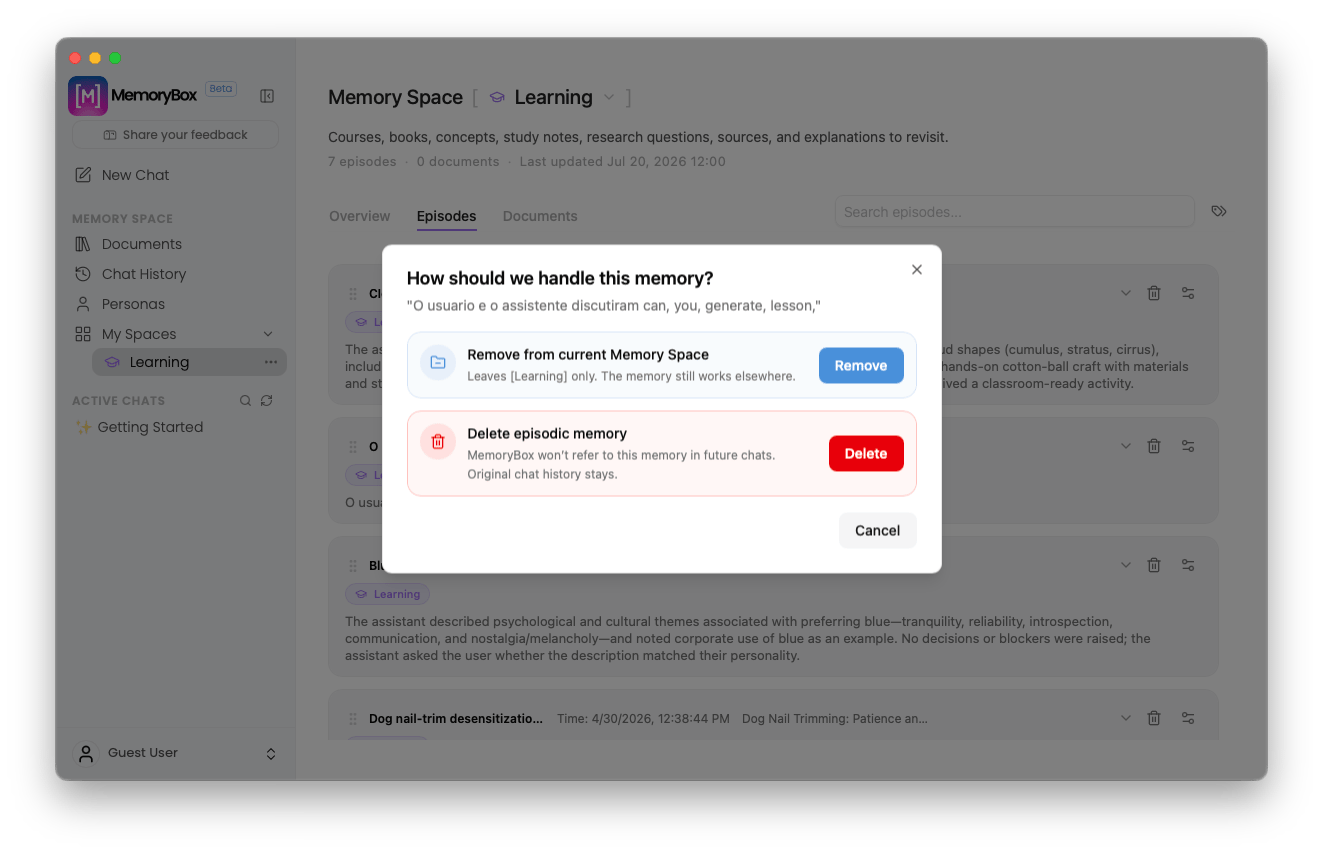
The context disposal warning screen partitioning local scope unlinking from total database file removal.
- Remove from current Memory Space: Unlinks the session strictly from this space. The thread remains intact inside your main Chat History database and any other assigned spaces.
- Delete episodic memory: Completely purges the session footprint locally across all environments.
Topic Filters Panel
Selecting the Tag Icon () inside the search bar opens the Topic Filters drawer: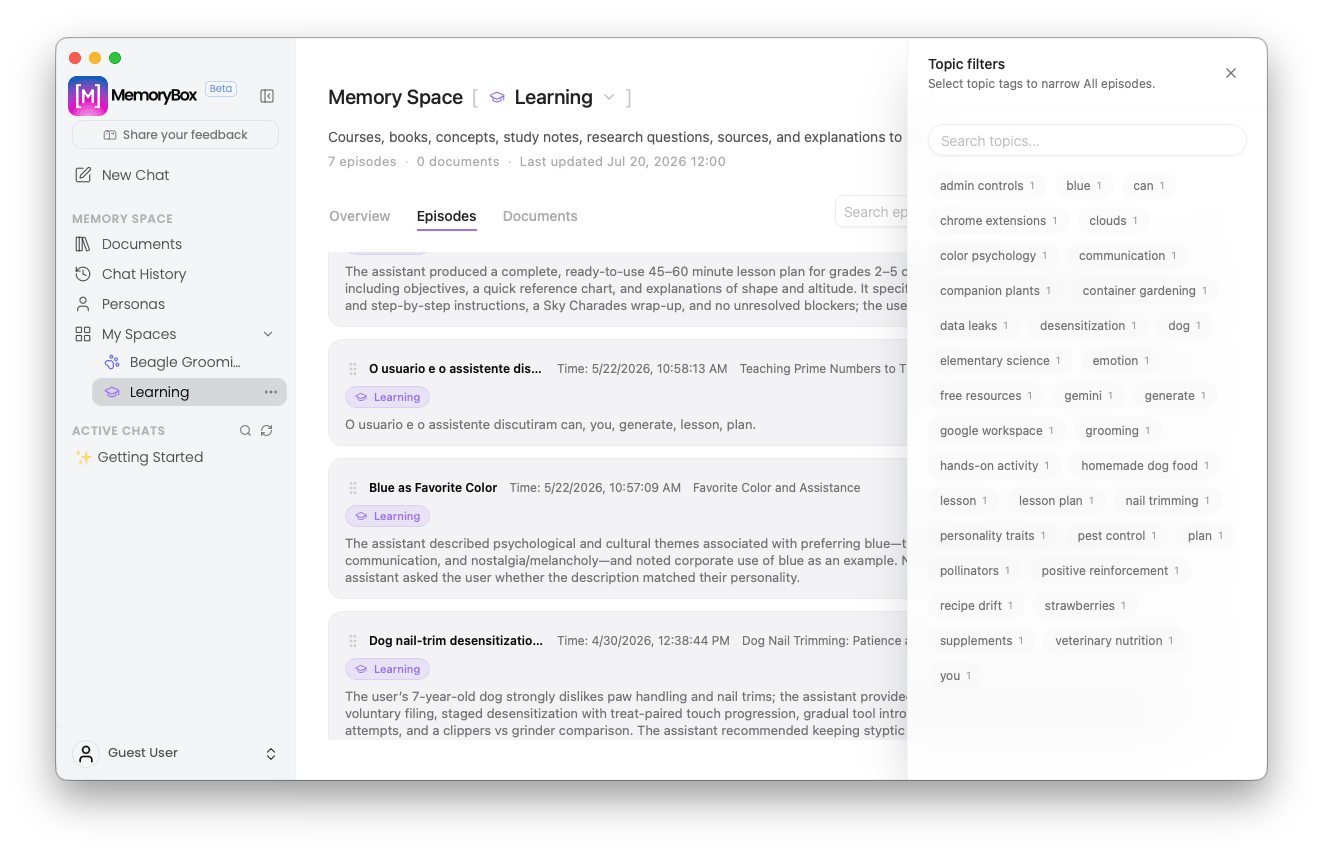
Deploying the automated tag matrix utility panel to filter threads by algorithmic theme counts.
admin controls 1, color psychology 1). Select any chip to filter the workspace feed instantly.
Tab 3: Foundational Assets (Documents)
The Documents tab inventories static reference assets—such as imported project guides, local markdown files, or spreadsheets.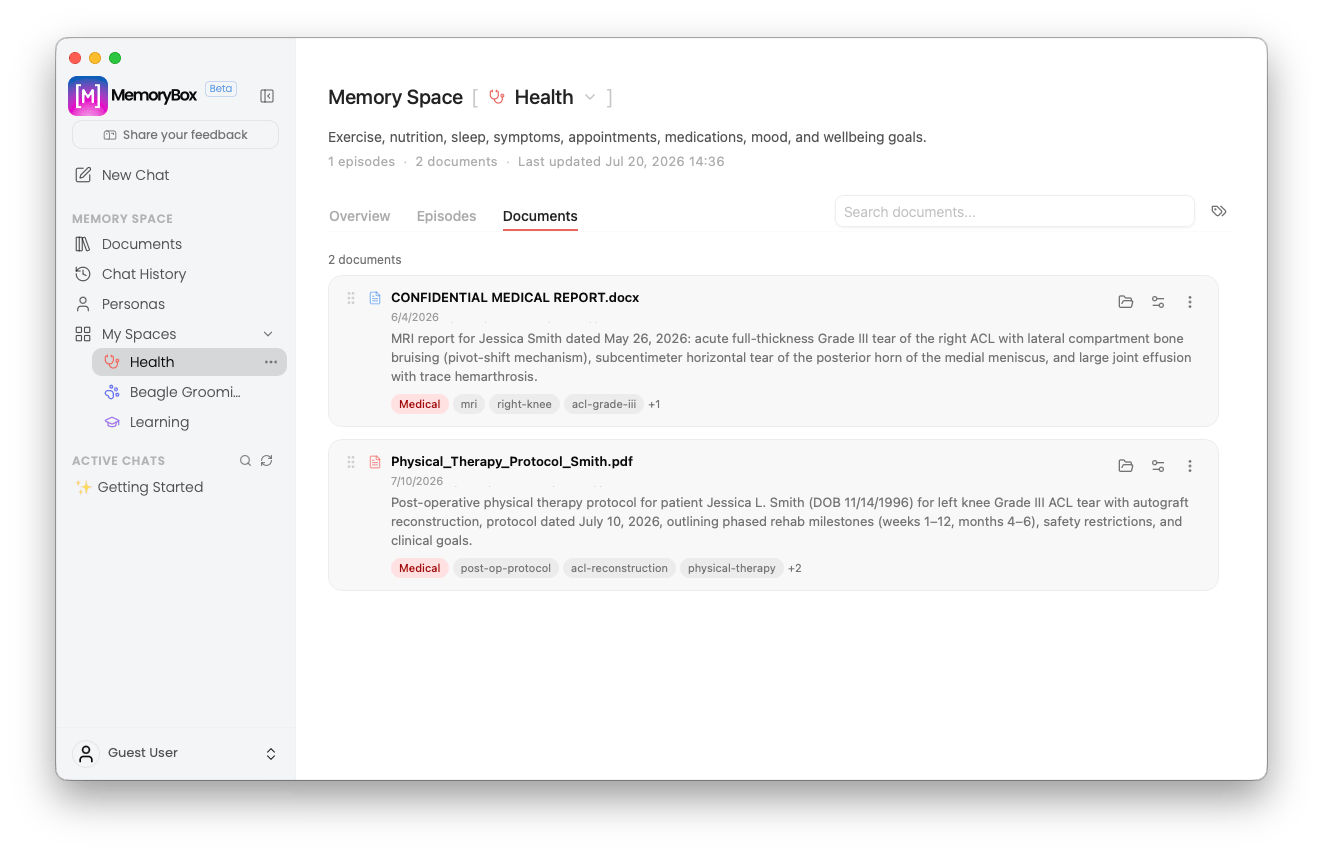
A Health-based Memory Space showing two documents regarding an ACL Tear.
- List Stacking: Drag the left handle (
::) to organize document priority. - Data Inspection: Expand the caret to preview local system paths and metadata fields.
- Cross-Space Linking: Use the Assign Icon () to route file references into other spaces without duplicating source files.