
Behavioral Isolation
Great work requires different mindsets. Switching between technical architecture, creative copy, and strategic planning in a single ungrounded chat usually leads to context contamination—where the model bleeds corporate speak into your code or dry logic into your creative drafts. A Persona grounds your model inside a dedicated behavioral profile. By defining distinct operational frameworks, you establish clear reasoning guardrails and style boundaries. When assigned to a workspace, MemoryBox dynamically activates tailored extractor, augment, and read skills to align the model directly with that persona’s rules before you ever write a prompt.The Personas Dashboard
The Personas panel lists all behavioral profiles configured on your local machine.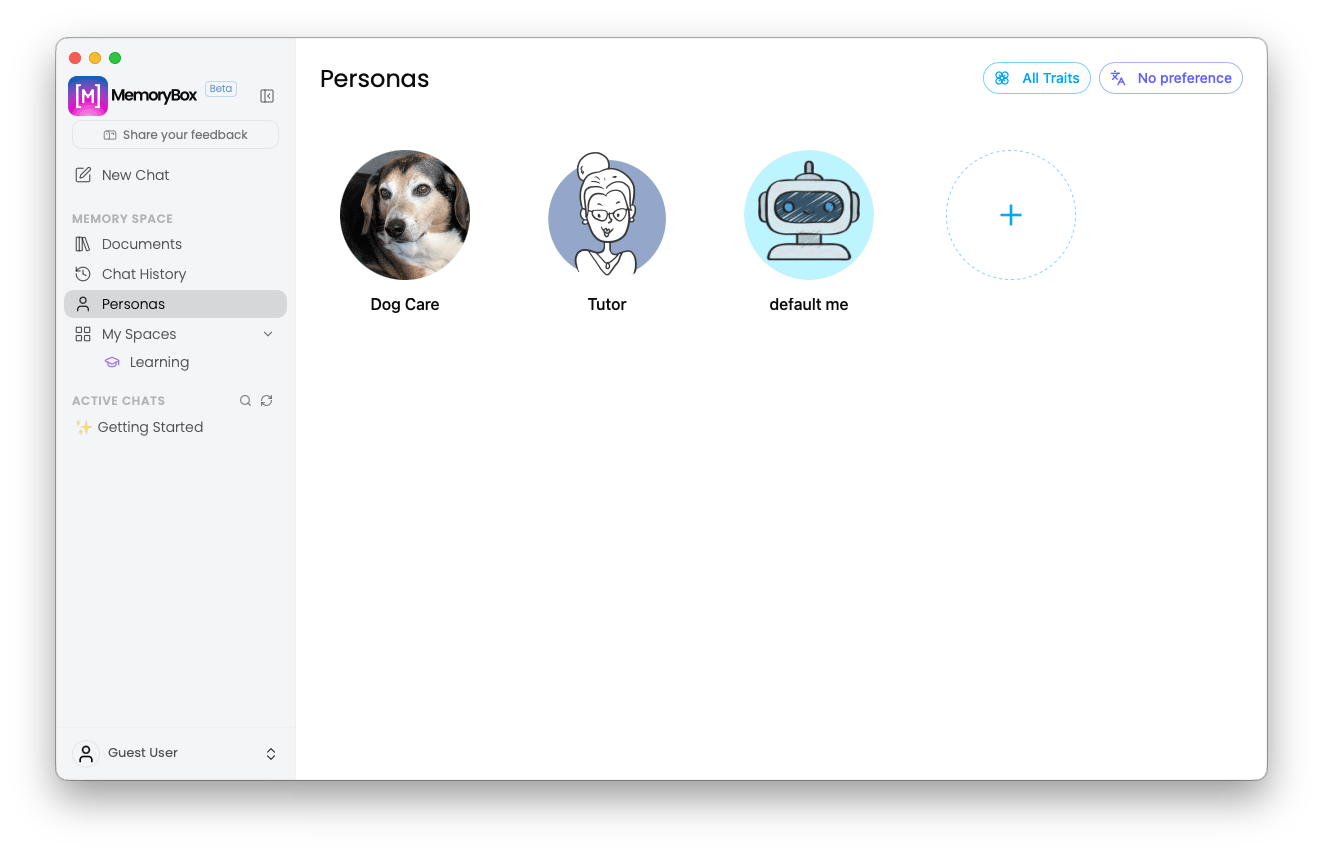
The system Personas control dashboard displaying configured active profiles.
Default Elements
- Active Profile Grid: View pre-configured default archetypes alongside your custom profiles.
- Creation Trigger: Select ”+ Create Persona” to initialize a new isolated profile.
Initializing a New Persona
When creating or refining a profile, you dictate the exact reasoning constraints and execution parameters the model must follow.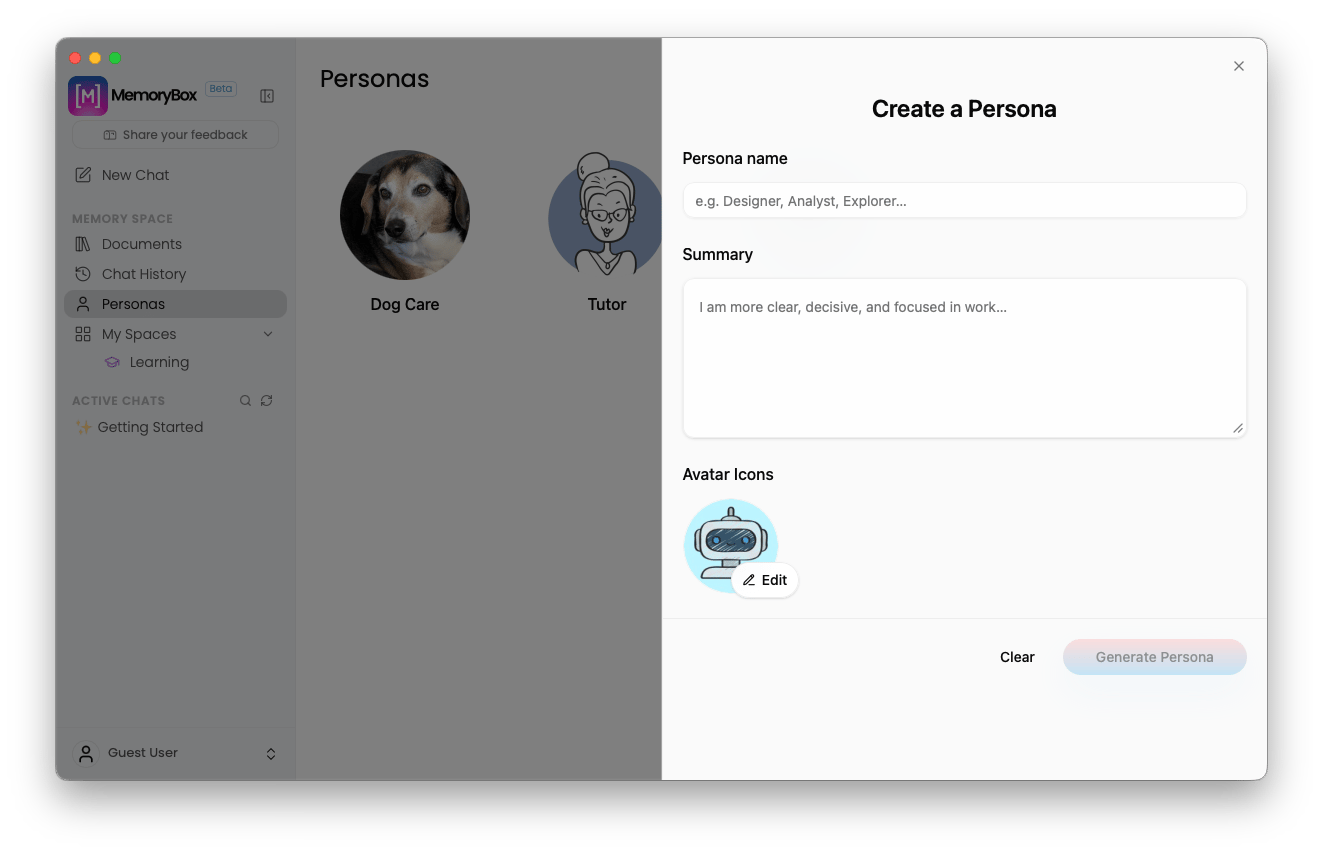
The centralized configuration parameters window for initializing a persona.
System Configuration Inputs
- Name: Declare an explicit operational role (e.g., Technical Architect, Data Analyst, Brand Strategist).
- Summary: Set the foundational guidelines, domain background, and performance expectations. MemoryBox distills this input through a dynamic prompt engineering pipeline, structuring layered templates that govern downstream model reasoning.
- Avatar: Select a visual badge to represent the profile across your local environment.
Avatar Personalization Matrix
Selecting the avatar icon opens an overlay modal to customize visual indicators for your profile card.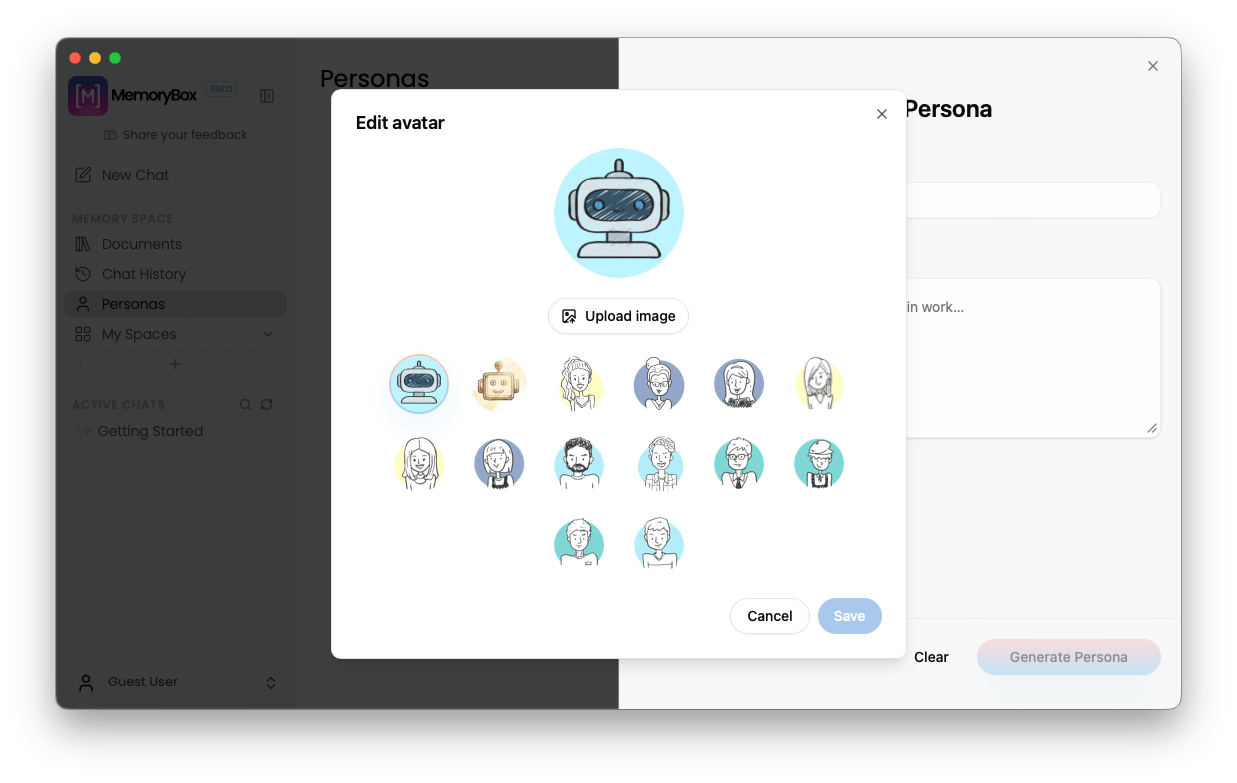
Selecting a dedicated visual avatar indicator inside the creation interface.
Global Traits vs. Persona-Specific Traits
MemoryBox evaluates user behaviors, formatting preferences, and communication habits across two distinct layers: Global Traits and Persona-Specific Traits.1. Global Traits (System Environment Layer)
Global Traits represent your universal operating defaults—how you write, how you decide, and how you prefer outputs delivered across your entire host machine.- Always Active: Global traits are evaluated across your whole local environment and cannot be disabled. They serve as the foundational baseline for all interactions.
- Automated Discovery: The platform continuously tracks these habits, assigning confidence scores to reflect your core computing style.
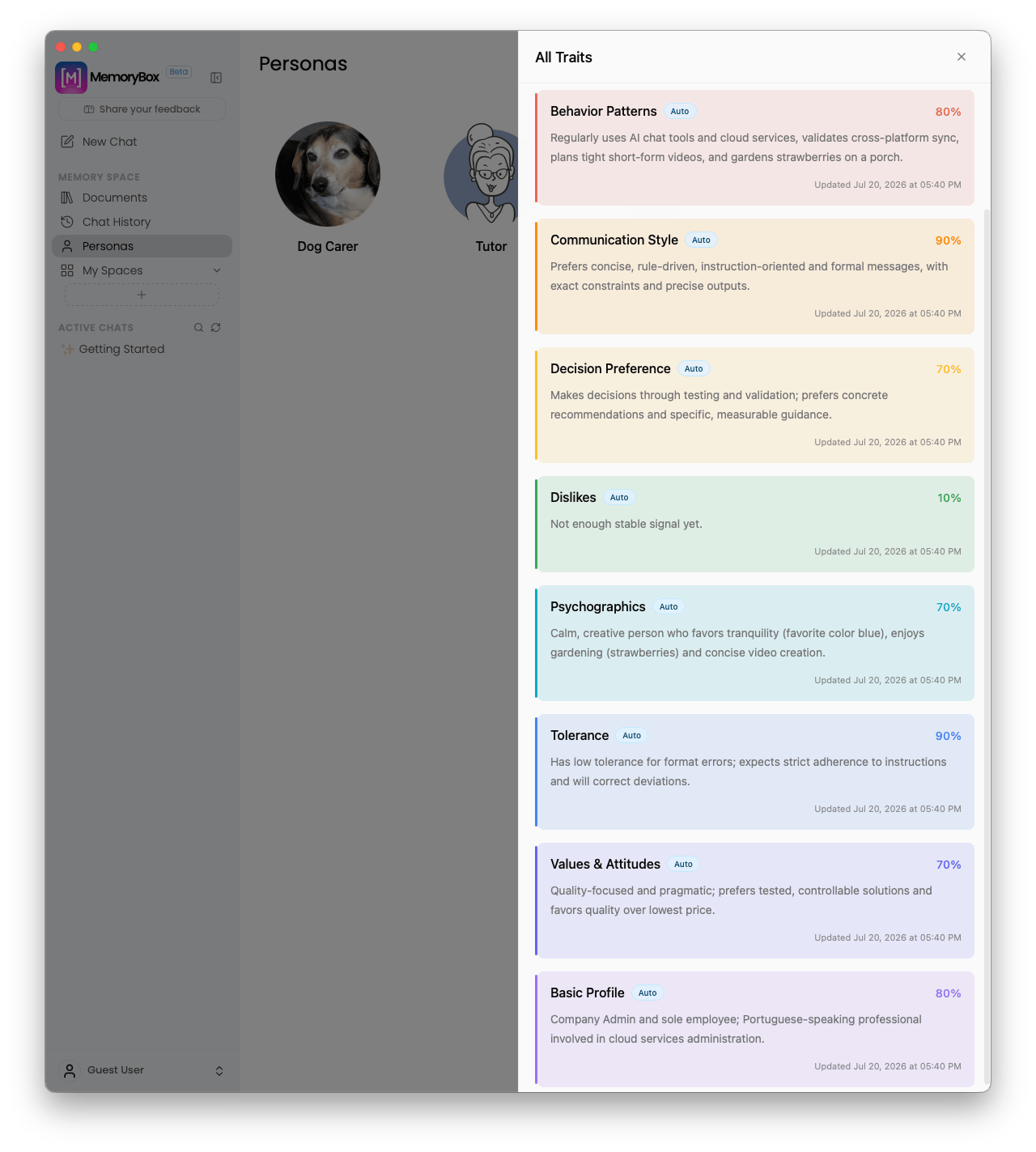
The global automated discovery library side-drawer panel tracking learned system behavioral trends.
2. Persona-Specific Traits (Profile Layer)
While Global Traits establish your universal baseline, Persona-Specific Traits allow you to override or fine-tune specific behaviors for a dedicated operational role.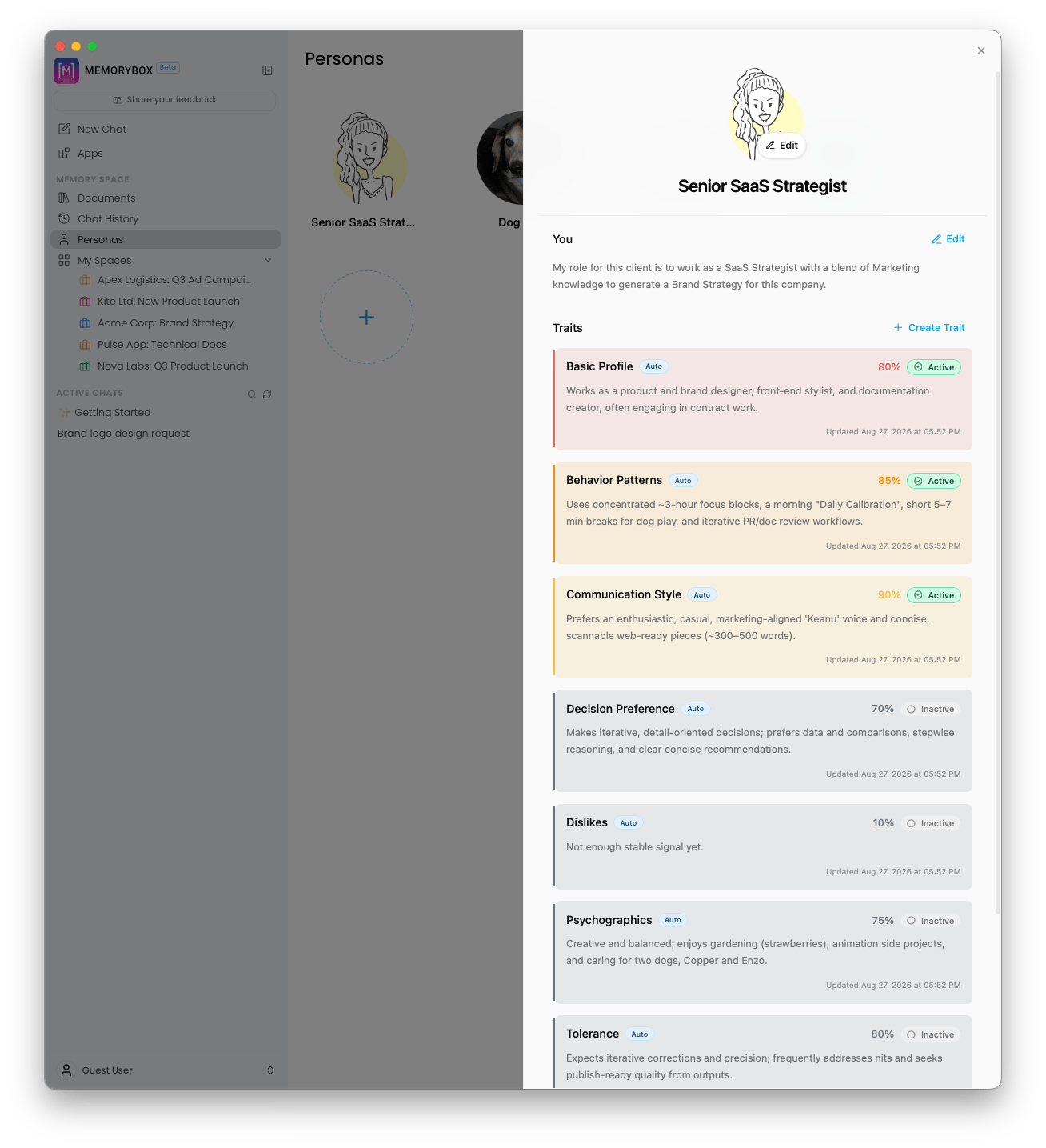
Managing granular active and inactive traits bound directly to a specific persona profile.
- Modular Toggle Control: Unlike global traits, persona-specific traits can be individually toggled Active or Inactive (e.g., setting Communication Style to active while keeping Dislikes or Psychographics inactive). Active traits are given a color to their cards to help determine what is active, and what is not.
- Targeted Confidence Scoring: Each trait tracks confidence percentages (e.g., 80% or 90%) tied directly to how strongly that trait influences the specific persona’s execution model.
- Custom Trait Creation: Select ”+ Create Trait” directly within a persona to inject explicit rules tailored strictly to that operational context.
Trait Category Definitions
MemoryBox categorizes learned and assigned traits across eight foundational parameters:Basic Profile
Basic Profile
Maps primary professional identity, foundational domain expertise, and core operational focus area.
Behavior Patterns
Behavior Patterns
Records localized application usage trends, preferred computing environments, and specific workflow cadences.
Communication Style
Communication Style
Tracks structural formatting choices, preferred vocabulary density, length constraints, and delivery style preferences.
Decision Preference
Decision Preference
Identifies core analytical priorities—such as speed, data-driven comparisons, structural quality, or stepwise reasoning.
Dislikes
Dislikes
Establishes hard guardrails and structural restrictions to ensure the model actively avoids undesirable styling or problem-solving approaches.
Psychographics
Psychographics
Analyzes the underlying approach to tasks, cognitive styles, creative interests, and preferred working tones.
Tolerance
Tolerance
Evaluates openness to risk, technical detail, system complexity, and raw output ambiguity before applying structured formatting.
Values & Attitudes
Values & Attitudes
Distills core system values, architectural stances, and product deployment methodologies.
Local Store Enforcement: All calculations, discovered confidence scores, and persona configurations remain stored locally in your Memory Store Location. Your behavioral parameters remain private, secure, and fully under your control.
Next Step: Sandbox Architecture (My Spaces)
With your behavioral personas and traits initialized, proceed to partition your local data assets and profiles into project-specific workflow environments.