
The Ingestion Phase
We spend so much time gathering information, only to lose context the second we feed it into an LLM. Most tools treat your files like temporary attachments, forcing you to re-upload and re-explain your ideas from scratch. The Documents panel grounds your working knowledge. It serves as a local, centralized repository where your files, raw notes, and external data live together. Instead of throwing loose documents into isolated chats, this space feeds your material directly into your local vector space—giving you full memory ownership and giving downstream models clear, unshakeable context before you ever write a prompt.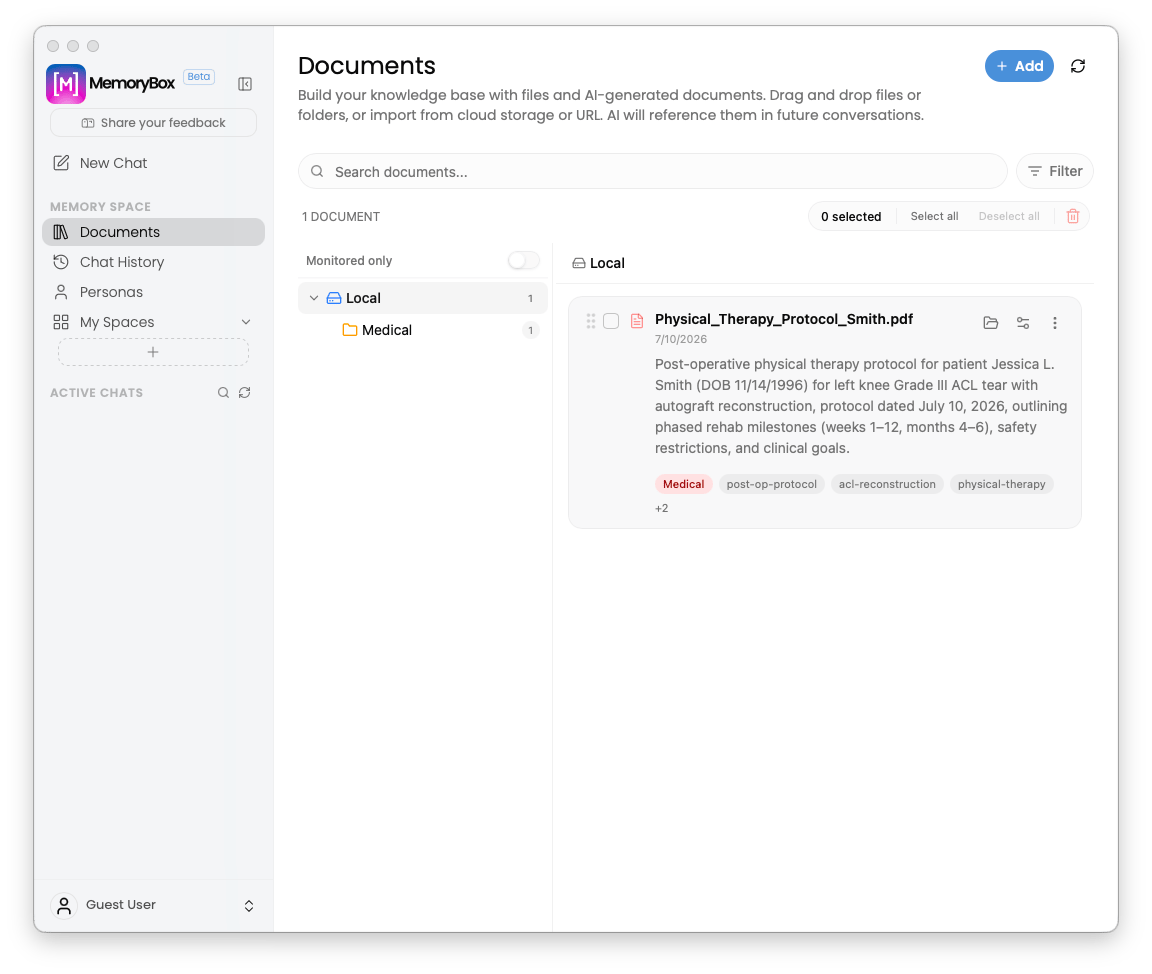
The Documents interface featuring folder navigation and interactive asset cards.
Ingesting New Assets
Clicking+ Add opens four local-first pathways designed around how you actually gather knowledge:
- Drop files: Drag flat files straight into your space (
TXT,MD,CSV,JSON,XML). - Sync folder: Connect full directories to automatically monitor and pull internal files into your vault.
- Add from cloud storage: Link third-party cloud files without relinquishing local context control.
- Add from URL: Cleanly extract online articles into local vector structures.
- Daily Ingestion Tracker: Monitor host computing volume in real time (
4999/5000 today).
Interface Architecture
A clean two-pane layout that keeps complex document collections quiet, organized, and focused.Left-Pane Folder Tree
Left-Pane Folder Tree
- Monitored Only Toggle: Filter instantly down to active, automated background directories.
- Directory Nesting: Organize nested domain environments (e.g.,
Local > Medical) with precise file-count indicators.
Right-Pane Document Cards
Right-Pane Document Cards
Files surface as detailed asset cards, keeping extraction summaries completely visible:
- Batch Operations: Select multiple cards to execute clean bulk actions, like file pruning.
- Metadata Footprint: See ingestion timestamps alongside absolute local pathways.
- Text Extraction Snippet: Verify parsed data previews inline before running prompts.
- Categorical Smart Badges: Color-coded tags keep domains distinct and searchable.
Individual Document Card-Level Actions

Card-Level Actions to Manage Your Files
- Folder Icon (): Move the file to a new location—either locally on your machine or to a connected cloud directory.
- Nodes Icon (): Map or unmap the file across specific Memory Spaces to control where it surfaces in your vault.
- Options Menu (): Open document Details, edit the Title, Category, and Tags, or remove the file from your local space entirely.
Next Step: Memory Space — Chat History
Your assets are anchored. Next, explore how MemoryBox logs and preserves your situational timelines inside Chat History.