
Overview
The Apps workspace lets you create, import, and run sandboxed applications inside MemoryBox. Apps extend the platform beyond traditional chat, providing dedicated UI interfaces and backend capabilities—such as executing scripts, parsing text, or reading and writing persistent key-value (KV) storage.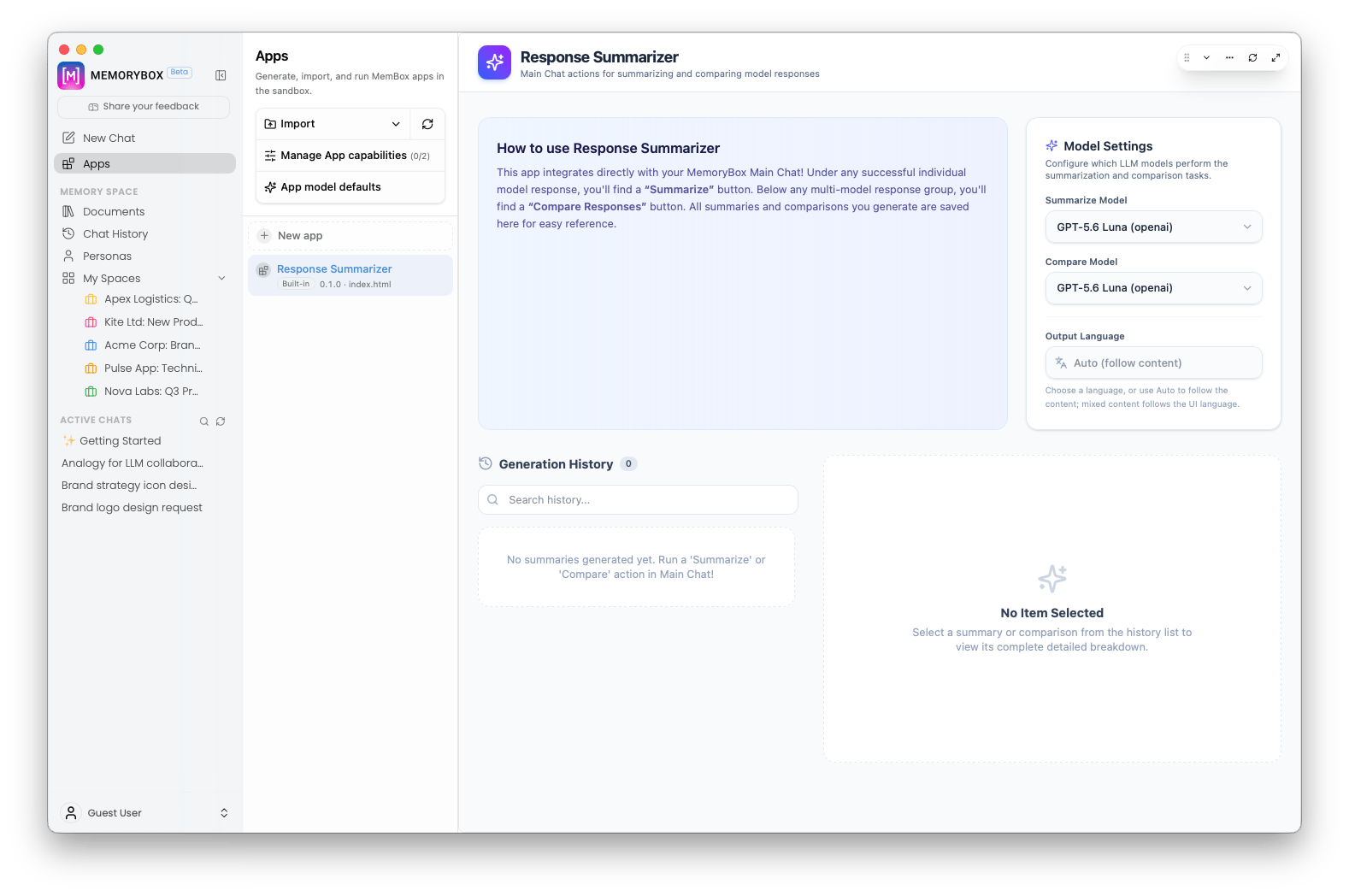
The default Apps workspace dashboard featuring the built-in Response Summarizer app.
🛠️ Global App Utilities & Management
Located at the top of the left navigation pane, these global controls handle application imports, capability permissions, and default model routing.1. Import App Options
Clicking Import opens pathways to load external MemoryBox application packages into your local environment:- Import ZIP: Loads a packed application archive (
.zip) directly into the sandbox. - Import Folder: Imports an uncompressed directory containing application manifests and source files.
- Refresh (Icon): Scans and updates your installed application list.
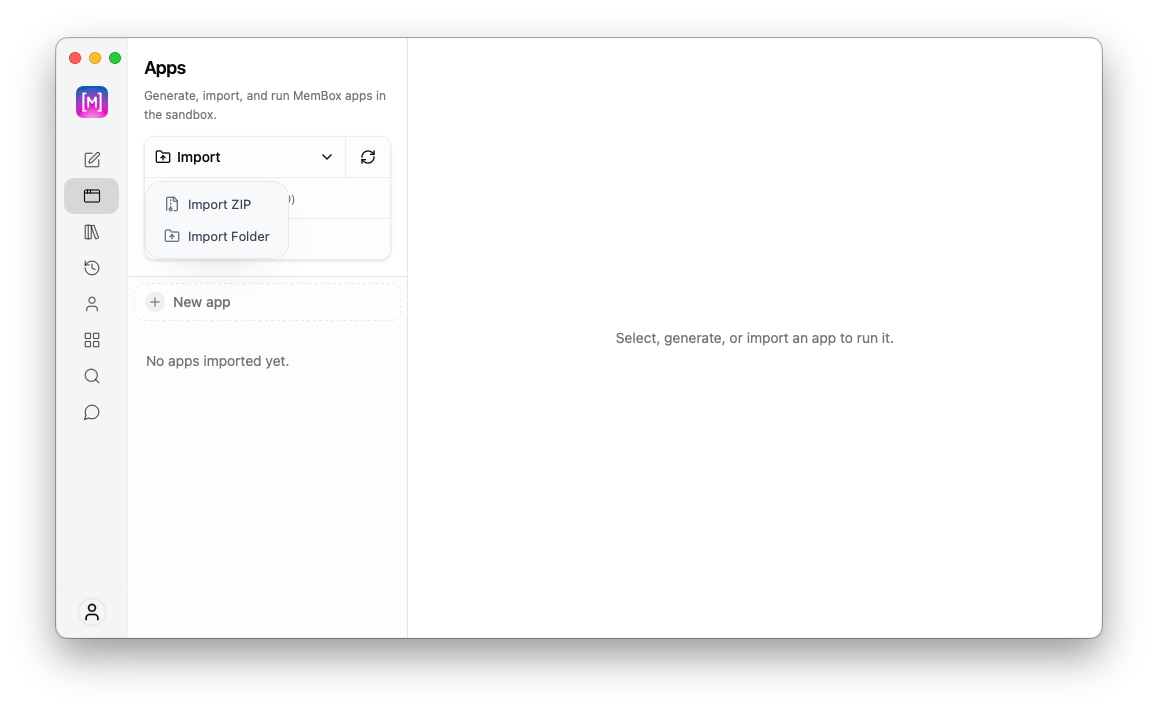
The Import dropdown menu options for ZIP archives or directories.
2. Manage App Capabilities
Clicking Manage App capabilities opens the capability control dialog governing active tool access across your workspace:- Chat Actions: Shows app-provided actions (such as Summarize or Compare Responses) that integrate directly into main chat response blocks.
- Tools: Shows internal functions supplied by the app (like
summarizeorcompare_responses). Toggle the Main agent switch next to a tool to give MemoryBox permission to invoke it automatically during regular chat sessions.
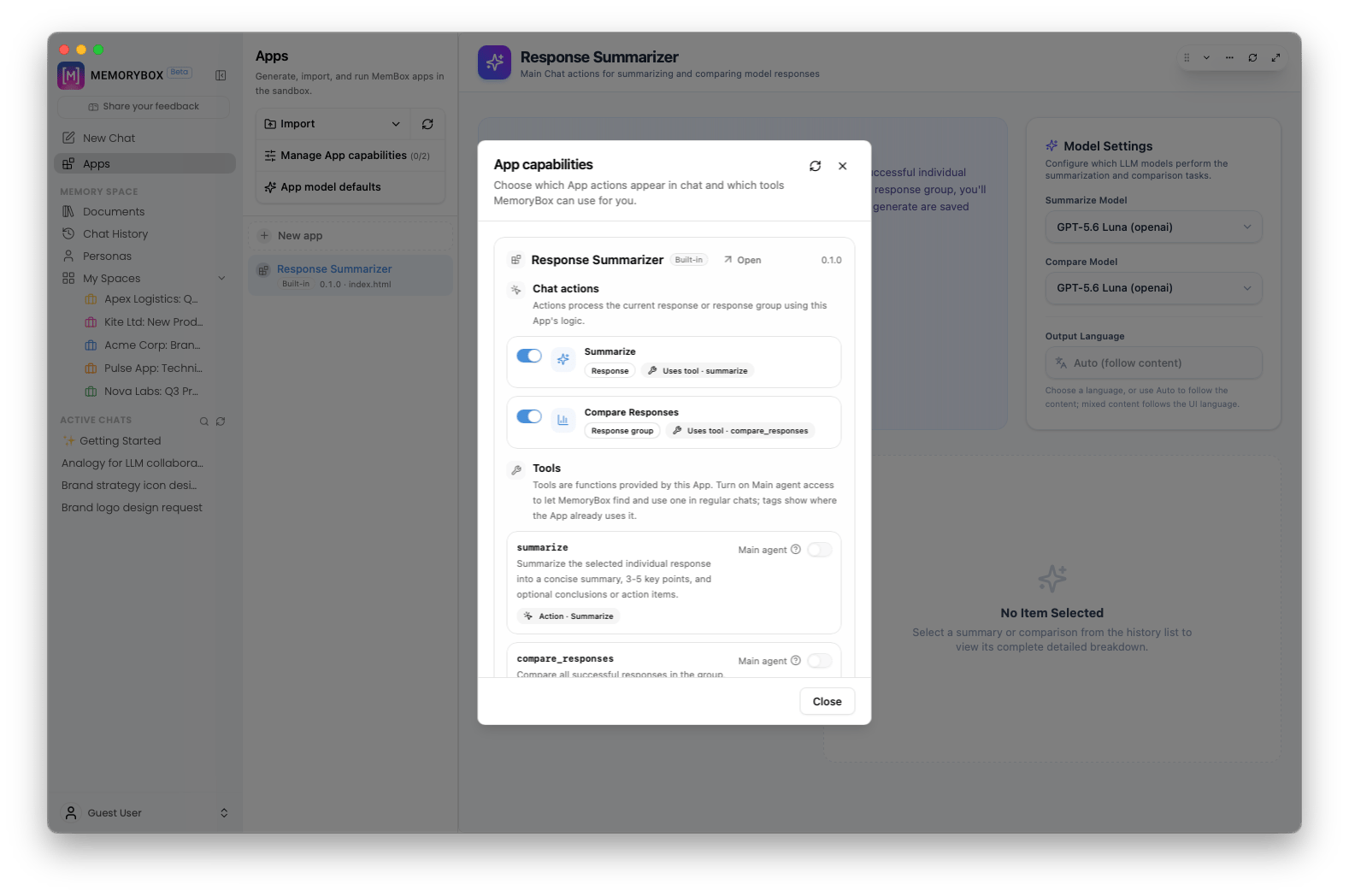
The App capabilities dialog showing chat action toggles and main agent tool permissions.
3. App Model Defaults
Clicking App model defaults opens a routing modal that maps abstract performance tiers to specific models. By default, Apps call tier aliases instead of hardcoding provider IDs (Auto default), ensuring flexibility when model availability changes:- Fast: Used for lightweight classifications, quick extractions, and fast drafts.
- Balanced: The standard default model mapping for everyday AI app workflows.
- Quality: Reserved for complex tasks requiring longer reasoning, richer summaries, or structured JSON extraction.
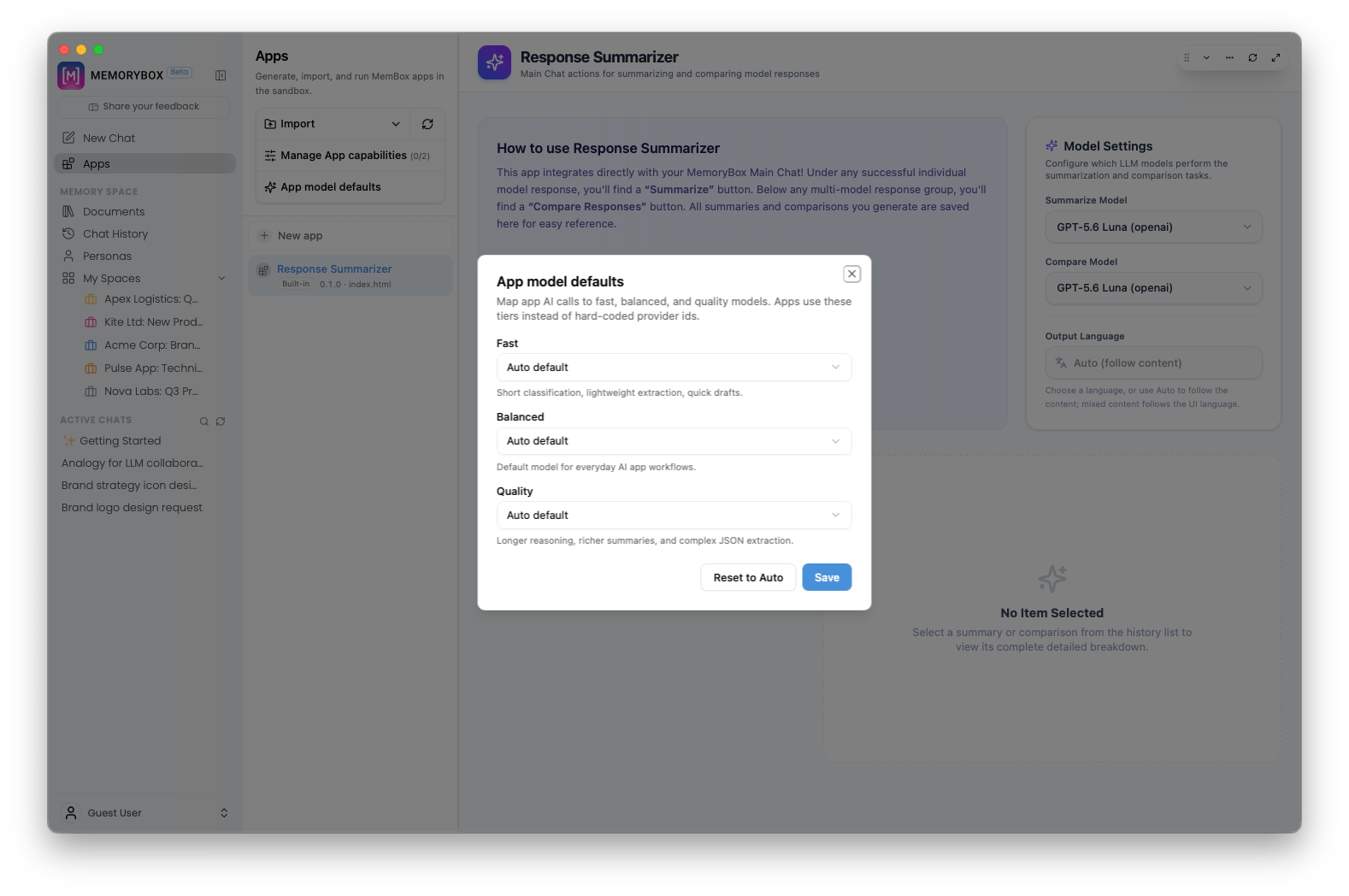
The App model defaults configuration modal for assigning performance tiers.
⚡ Built-In Apps: Response Summarizer
MemoryBox includes pre-installed built-in applications out of the box, such as the Response Summarizer.How It Works
The Response Summarizer integrates directly into your main chat interface:- Summarize Action: Appears under individual model outputs in chat to generate quick summaries.
- Compare Responses: Appears below multi-model comparison response groups to analyze differences across models.
App Configuration & History
Selecting Response Summarizer from the left sidebar opens its main workspace panel:- Model Settings: Configure the specific models used for summarization and comparison tasks (e.g.,
GPT-5.6 Luna), and set an explicit Output Language preference or leave it onAuto (follow content). - Generation History: Displays a searchable history list of all generated summaries and comparisons. Selecting an item from the log loads its full breakdown in the main preview pane.
⚡ App Workspace & App Builder
Clicking + New app opens the App Builder side drawer, where you can describe and generate custom sandboxed applications using natural language prompts.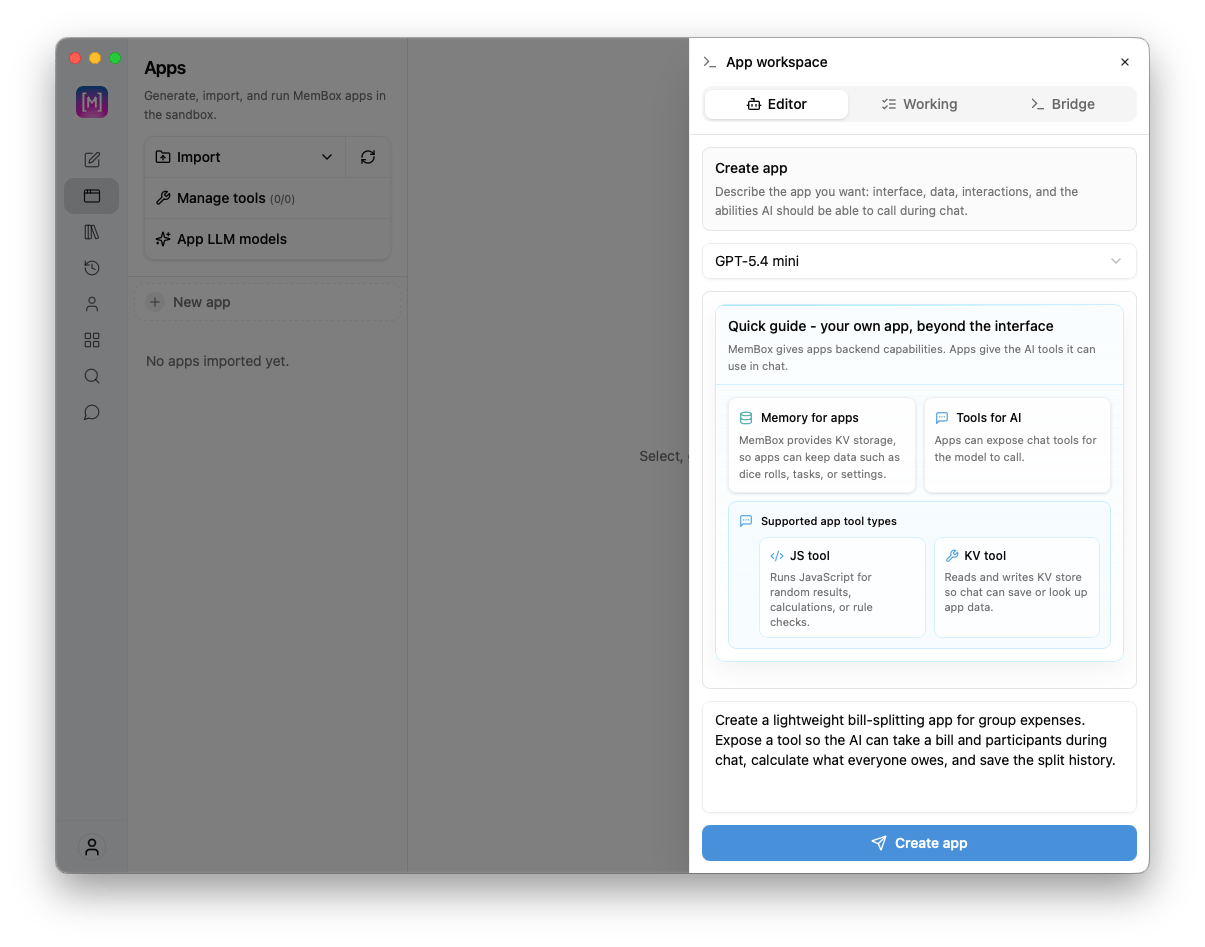
The App Builder workspace editor panel.
Workspace Tabs
The App Builder drawer features three execution tabs:-
Editor Tab:
- Prompt Input: Describe the UI layout, workflow, and capabilities for your app (e.g., “Create a bill-splitting calculator with history tracking…”).
- Model Selection: Choose the generation engine powering the builder (e.g.,
GPT-5.4 mini). - Quick Guide: Reviews supported capabilities, including persistent KV Memory and JS Execution Tools.
- Create App Button: Starts application generation.
-
Working Tab:
- Displays real-time event logs, intermediate output streams, and tool execution status during app creation.
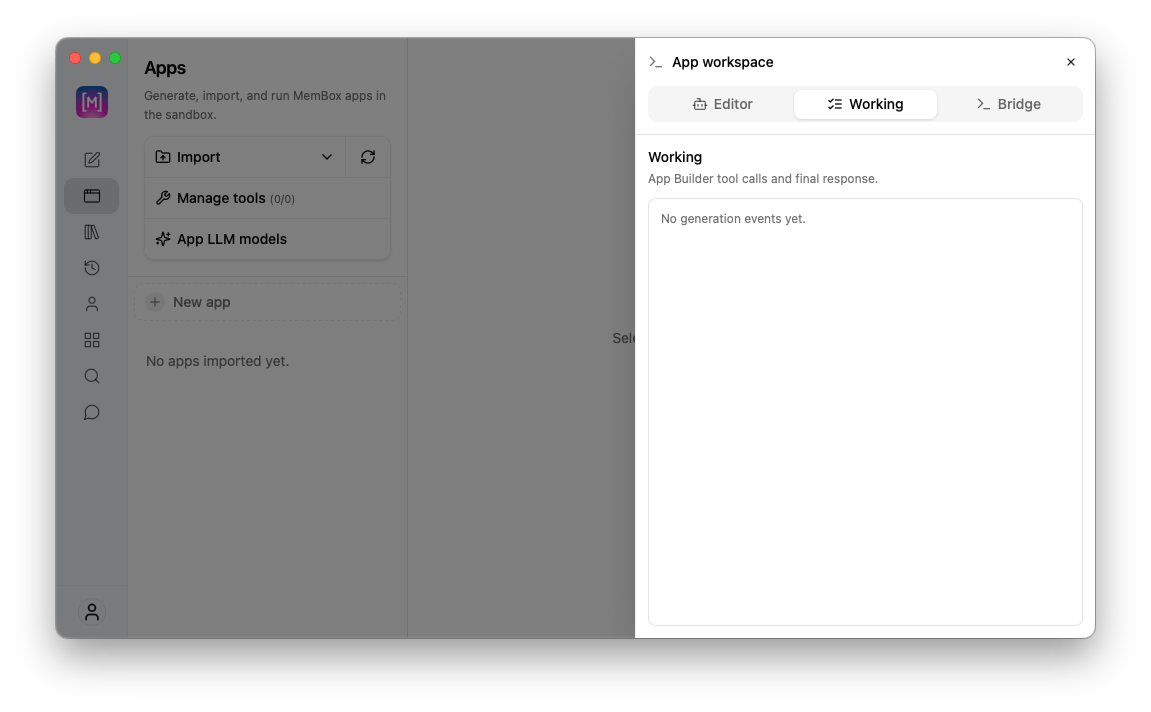
The Working tab tracking App Builder event logs during generation.
-
Bridge Tab:
- Tracks sandbox execution events, monitoring message passing and key-value (KV) data calls between the app and the desktop client.
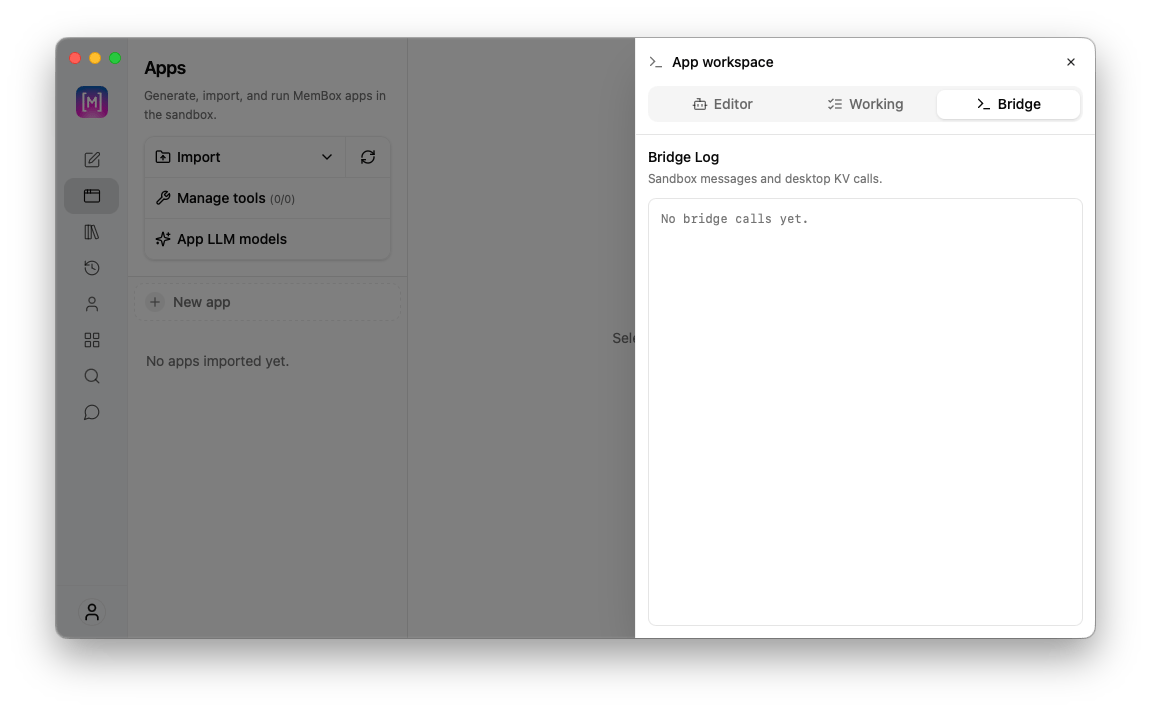
The Bridge tab monitoring sandbox messages and KV storage calls.