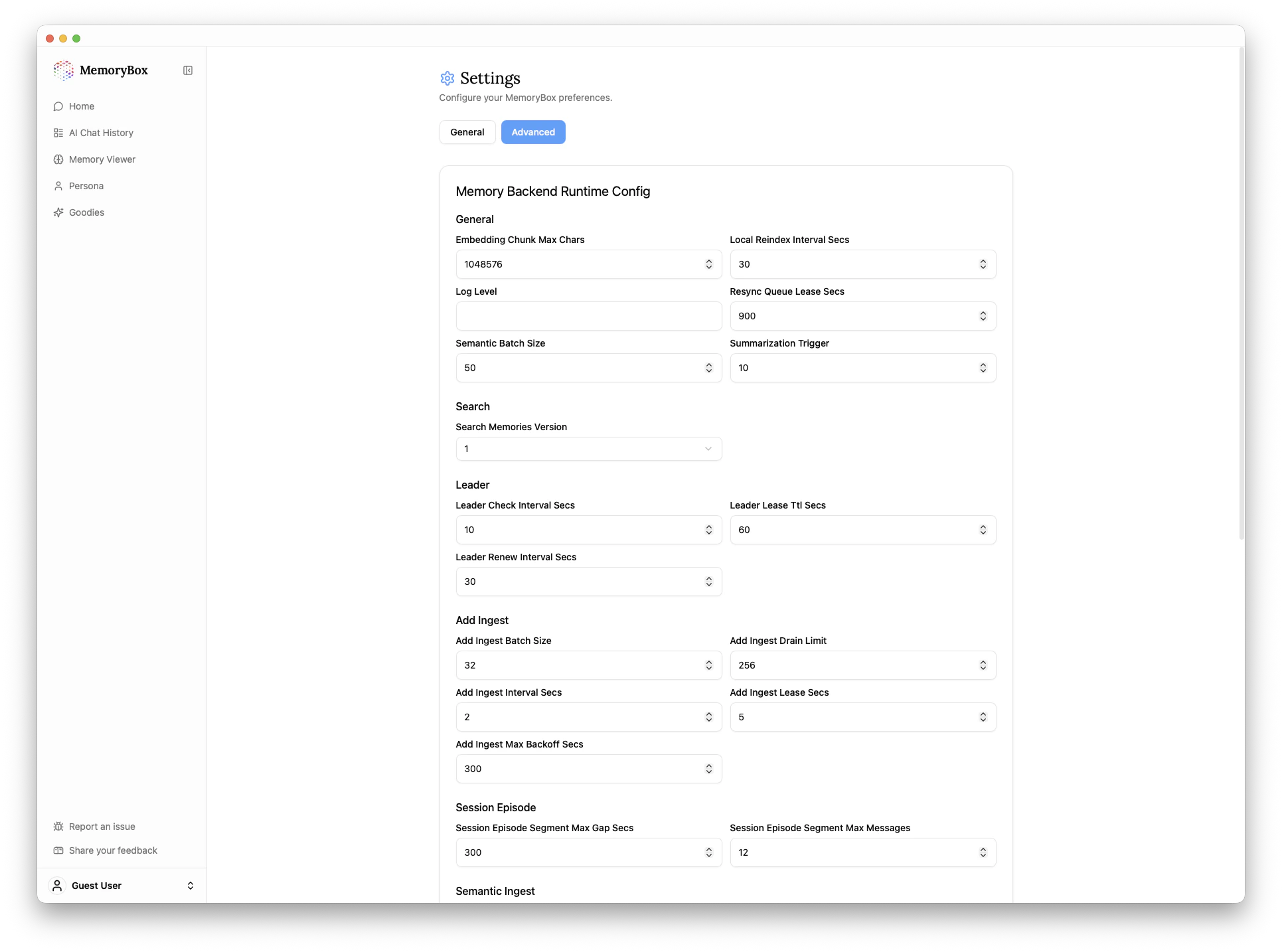
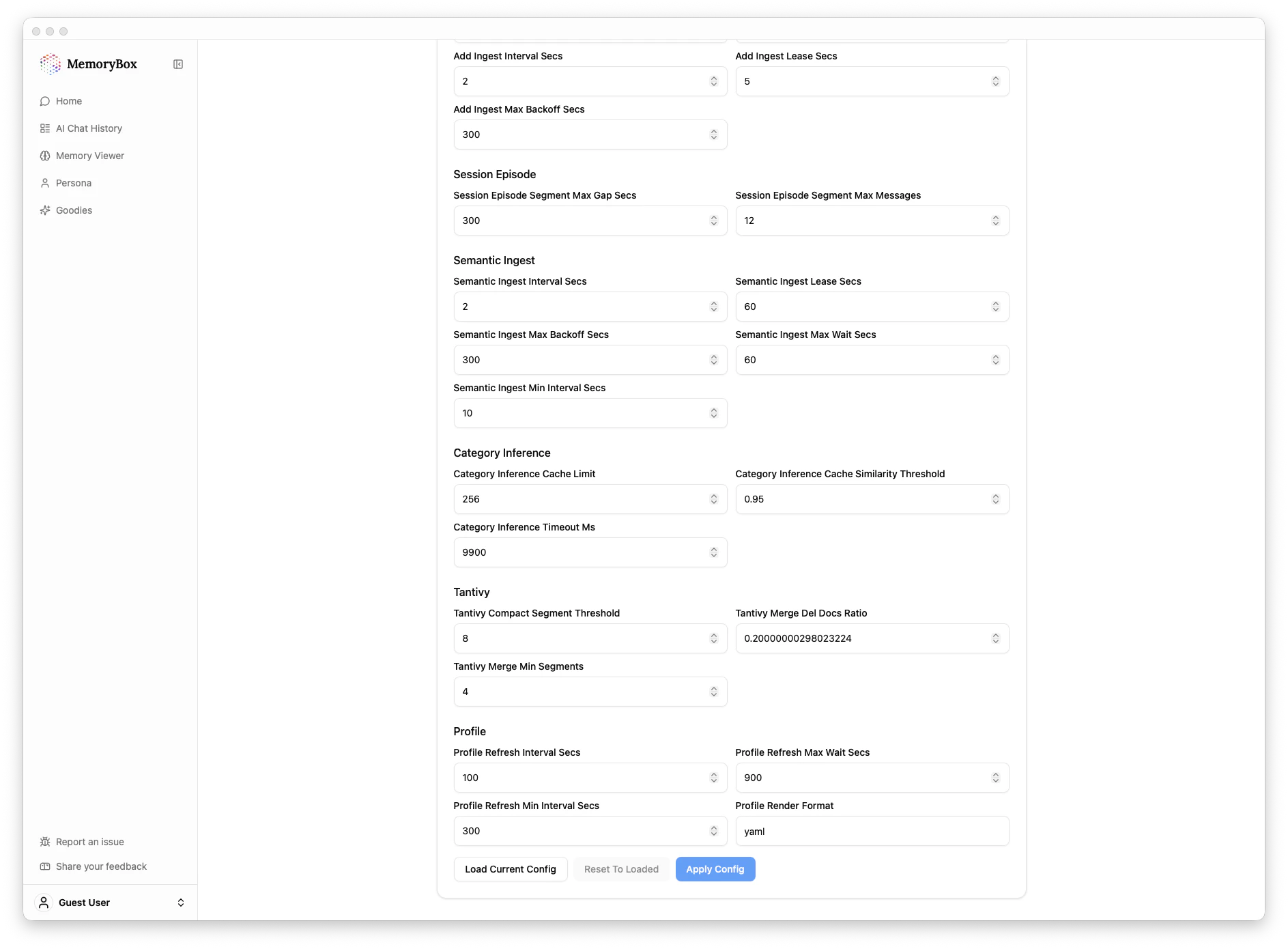
- General Settings
- Advanced Configuration
The General tab handles high-level application behavior and your connection to the cloud.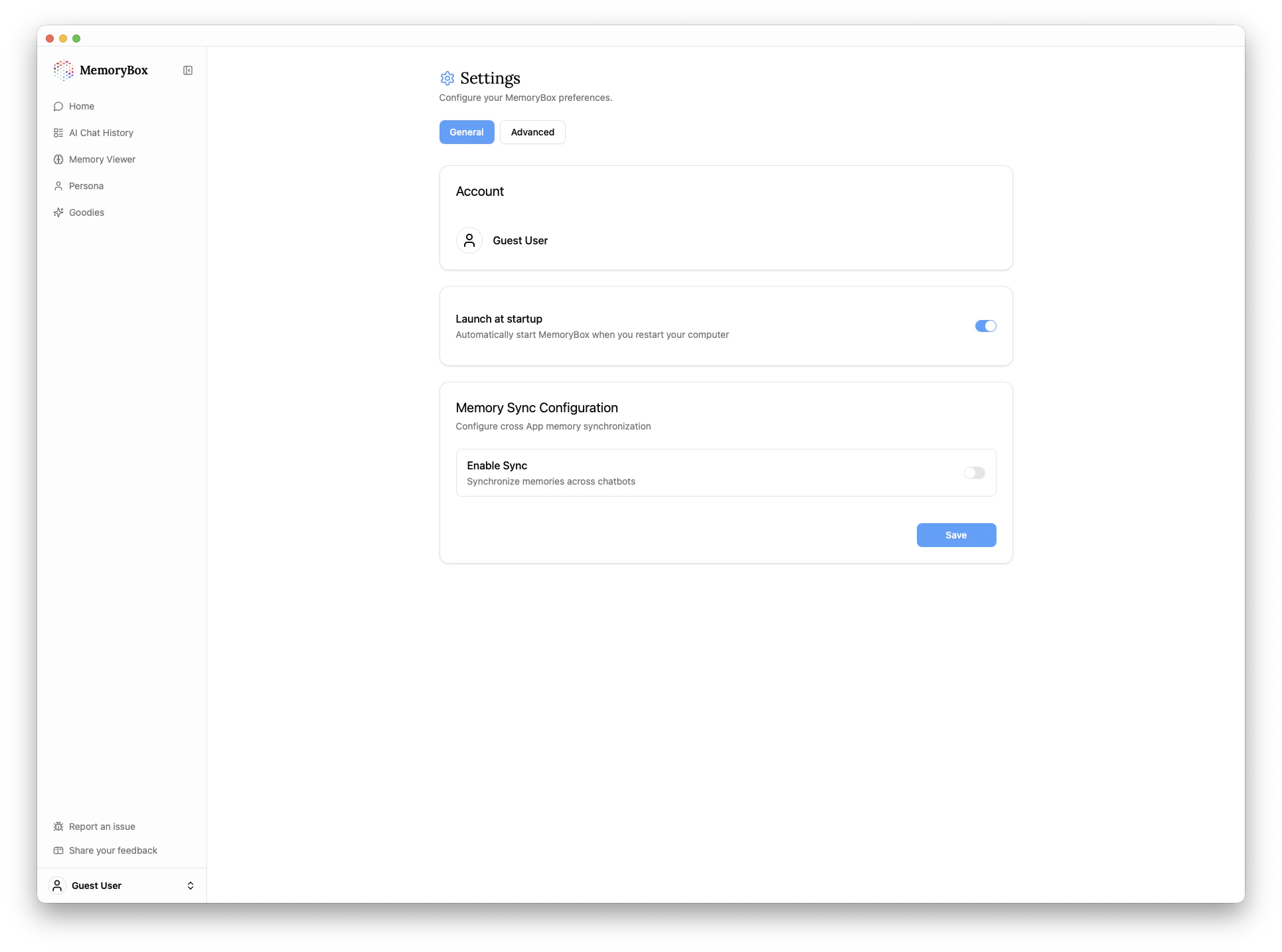
Account
- User Profile: Displays your current login status. If you are a Guest User, your data remains strictly local.
Startup Behavior
- Launch at startup: Toggle this ON to ensure MemoryBox begins running as soon as you restart your computer. This ensures you never miss a chat sync because the app was closed.
Memory Sync Configuration
-
Enable Sync: Connect your memory database to your preferred cloud storage (e.g., Google Drive or Dropbox). This ensures your local memories are backed up and synchronized across multiple devices, providing a seamless, unified AI experience whether you are on your laptop or your desktop.
- If Enabled, you will be asked to provide both a Shared Directory (the name of the folder in your cloud drive where MemoryBox will store data) and a Sync Interval (default is 5 minutes).
Don’t forget to Save: After toggling these settings, make sure to click the blue Save button at the bottom of the card to apply your changes.