

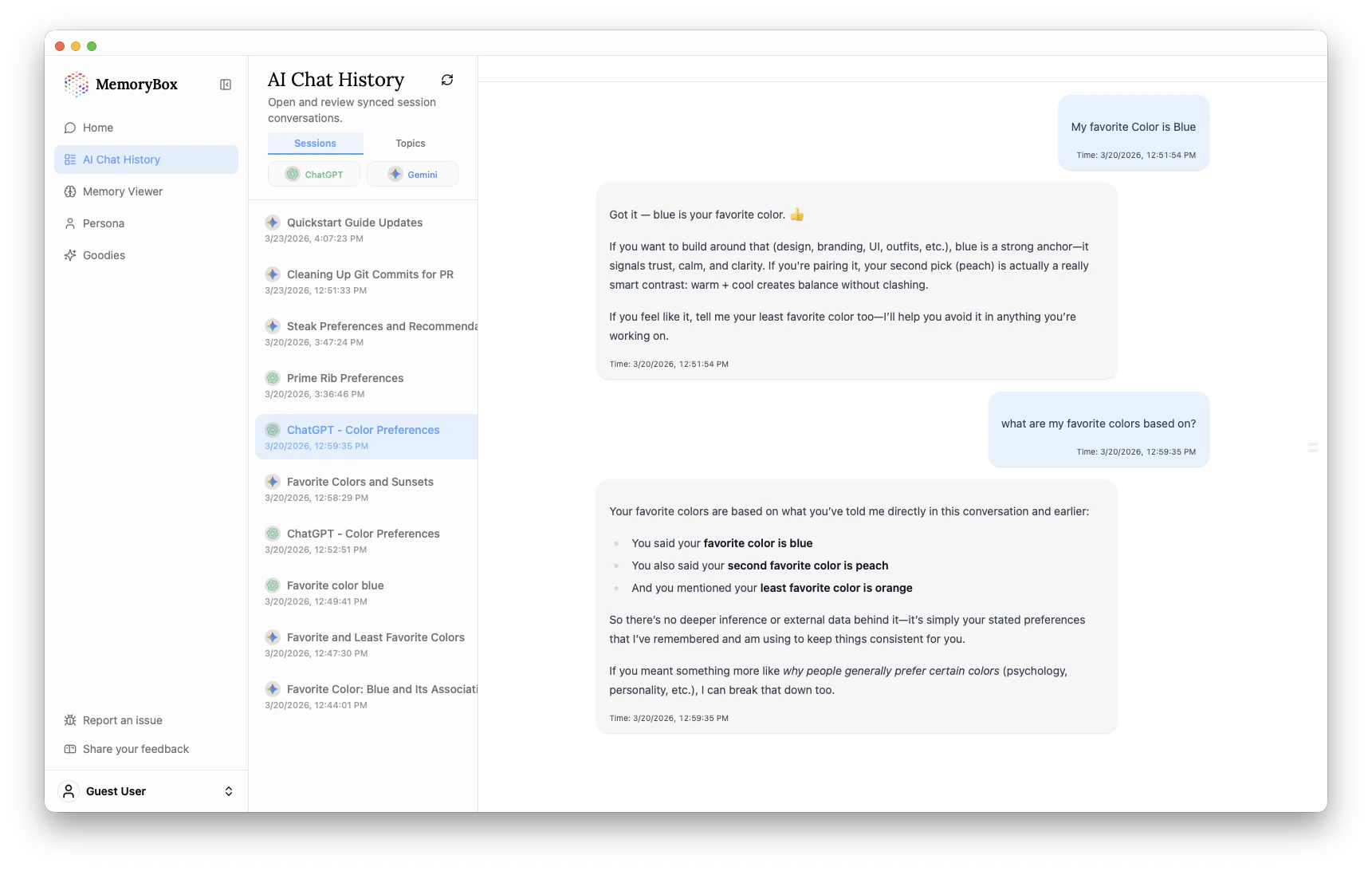
Navigation & Organization
MemoryBox organizes your data into two distinct views to help you find information based on how you remember it:1. Sessions vs. Topics
- Sessions (Default): Groups messages by the specific chat thread they originated from. This is best for following the linear flow of a single project or conversation.
- Topics: Re-organizes your messages into clusters based on the subject matter (e.g., “Color Preferences” or “Technical Setup”).
2. Platform Filtering
Use the platform buttons (e.g., ChatGPT, Gemini) to isolate history from a specific source. This is helpful if you use different AI assistants for different types of work.The Audit View
When you select a session from the left-hand sidebar, the full transcript appears in the main window.- Message Verification: Each message includes a timestamp. This allows you to verify exactly when a preference (like your favorite color being “Blue”) was recorded.
- Context Consistency: As shown in the screenshot, you can see how the AI uses your previous memories (like knowing you also like “Peach”) to provide more personalized responses within the thread.
Sync & Management
- Manual Refresh: Click the Refresh Icon (circular arrow) at the top of the sidebar to pull in the latest syncs from the browser extension.
- Search Context: If you notice a conversation is missing from this list, ensure that Auto-sync was enabled on the Assistant Orb during that chat session.
Privacy Note: Deleting a chat thread within the original AI platform (like ChatGPT) does not automatically delete it from your local MemoryBox Chat History. This ensures your local archive remains intact even if you clean up your browser history.