
The System Engine Room
The Advanced settings tab houses the core operational parameters for the MemoryBox application ecosystem. This panel enables you to toggle pilot features, adjust provider response timeouts, and modify low-level text vectorization, reranking, and session segmentation settings.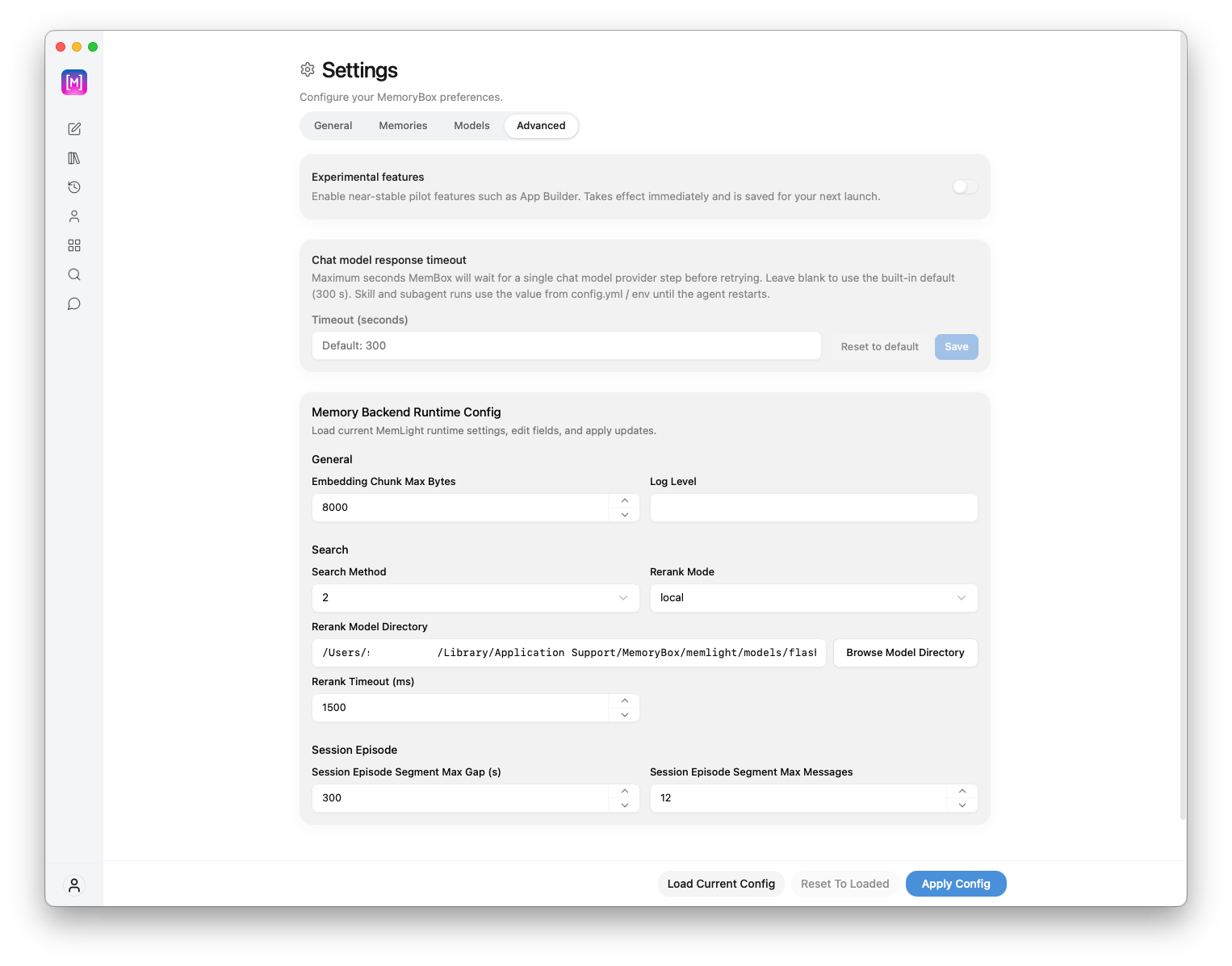
The Advanced settings panel displaying experimental features, timeout settings, and runtime backend configurations.
🧪 System & Timeout Controls
1. Experimental Features Toggle
Located at the top of the Advanced pane, the Experimental features toggle activates near-stable pilot features, such as the App Builder and the Apps workspace:- Apps Menu Visibility: Toggling this setting On enables visibility of the Apps option in the left-hand navigation bar (located directly beneath New Chat), allowing you to create, manage, and interact with custom Apps.
- Immediate Effect: Toggling this switch takes effect immediately and persists across application launches.
2. Chat Model Response Timeout
Defines the maximum duration in seconds that MemoryBox will wait for a single chat model provider step before timing out or retrying:- Default Value: Pre-configured to
300seconds. Leaving this field blank automatically defaults back to the built-in 300-second window. - Skill & Subagent Overrides: Skill and subagent runs utilize the timeout values set within
config.ymlor your local environment variables until the agent restarts. - Action Buttons: Use Reset to default to restore 300 seconds, or click Save to apply custom timeout durations.
⚙️ Memory Backend Runtime Config
This section manages the core variables governing how local data chunks are prepared, indexed, reranked, and segmented within the MemLight engine runtime.General Parameters
- Embedding Chunk Max Bytes: Dictates the hard memory byte ceiling applied when segmenting target document inputs into discrete vector tokens. Defaults to
8000bytes. - Log Level: Modifies tracking verbosity configurations for system troubleshooting logs.
Search & Reranking Heuristics
- Search Method: Sets the target algorithmic indexing style used to traverse local vectors.
- Rerank Mode: Determines the logic applied to prioritize relevant semantic matches (e.g., set to local for on-device compute).
- Rerank Model Directory: Specifies the file path where local ranking files reside. Click Browse Model Directory to choose a folder.
- Rerank Timeout (ms): Sets the millisecond cutoff duration (defaults to
1500ms) before abandoning a reranking operation.
Session Episode Segmentation
These parameters adjust the criteria MemoryBox uses to analyze continuous local conversation logs and parse them into historical topic blocks:- Session Episode Segment Max Gap (s): Sets the maximum allowable time gap in seconds (defaults to
300seconds) between incoming entries before separating the conversation into a new topic block. - Session Episode Segment Max Messages: Sets the total maximum message count allowed within an individual indexed segment block (defaults to
12messages).
💾 Saving Configuration Adjustments
Because modifications within the Memory Backend Runtime Config section alter backend engine operations, changes must be explicitly applied:- Load Current Config: Refreshes the form fields with the parameters currently running in your local app environment.
- Reset To Loaded: Discards uncommitted edits and reverts form fields back to the last loaded state.
- Apply Config: Commits and applies all backend runtime updates to the local engine.